Settings

Use iA Presenter’s Settings panel to customize how you create and present slides.
You can access Settings via:
- The Menu iA Presenter → Settings
- The keyboard shortcut ⌘,

[table_of_contents_mac]
General

Appearance
Choose between light and dark appearance for Presenter’s interface, or set it to be the same as your system’s settings.
Dock icon
Choose between the light or dark macOS Dock icon.
Window
Using the trackpad, you can swipe to open or close the Thumbnails on the left, or the Inspector panel on the right. Move your cursor to the left side of the Editor and swipe to the right using two fingers on a trackpad, and vice versa.
New Presentations
This field contains default placeholder text that you’ll see when you open the Editor. The default text is iA’s tutorial, Fast and Focused. Delete the tutorial if you no longer need it—or add your own placeholder text here instead. You can restore the default placeholder anytime.
Editor
Text size
Changes text size in the Editor. Adjust the slider to a size that suits you best.
Typography
Changes the Editor’s font. Choose from iA’s Mono, Duo or Quattro fonts.
Line length limit
Select the maximum number of characters per line: 64, 72 or 80.
Focus
Activates Focus Mode which dims all text, except for the slide you’re on.
Typing
Toggles whether pressing Return key ↵ three times creates a new slide. You can still enter slide breaks from the Text Inspector, or manually enter three dashes ---.
Spelling and grammar
Decide how Presenter checks your spelling and grammar. Learn more in our Languages article.
Smart substitutions
Copy/Paste: Automatically removes word-bordering whitespace.
Quotes: Replaces straight quotes "" with curly quotes “”
Dashes: Converts two dashes -- into an em dash —
Text replacements: Toggles replacements from → System Settings → Keyboard → Text Input. This is an OS level setting—find out more on the Apple Support Page.
Presentation

Layout
Responsive: Automatically adjusts slide layout (and thumbnails) based on your monitor or presentation screen’s aspect ratio.
Fixed aspect ratio: Locks the aspect ratio for slides and thumbnails. Choose between Regular 4:3, Wide 16:9, Mobile 9:16, Portrait 4:5, or Square 1:1. Setting a fixed aspect ratio will also make it the default for exported documents (that you can manually change in the Inspector’s Share Presentation tab).
💡 Fixed aspect ratios are particularly useful if you’re sharing your slides to Social Media, which often have specific aspect ratio requirements.
Content
Toggles whether text size adjusts to fit your slide, autoplay for videos when a slide opens, and whether built-in video controls are visible.
Focus
Activates Focus Mode in Presentation Mode which dims all text, except for the active slide you’re currently presenting.
Navigation
Customize which keys you want to use for navigating slides and speaker notes. Learn more about navigating slides.
Warnings
Shows a warning message on a slide when it only contains speaker notes but no visible elements for your audience.
Speaking Rate
You can adjust the speaking rate (110 words per minute by default) to match your own and better estimate how long your presentation will last.
Themes

Add, remove, or create custom themes. All themes you add here will appear at the bottom of the Theme dropdown in the Inspector’s Theme and Style tab.
Markdown

Single return starts a new paragraph
With traditional Markdown, you need to press Return ↵ twice to complete a paragraph and start a new one. Toggle on this setting to use a single Return instead.
Apply smart punctuation
Toggle on this option to convert straight quotes "" in the Editor with curly quotes “” in slide text. Similarly, two dashes -- become an em dash —
💡 Note that this setting only applies to rendered and exported slides—unlike the Editor’s smart quotes and smart dashes settings, which modify characters inside the Editor.
Account

Manage Subscription
Opens your account dashboard in a browser where you can view, manage, or cancel your Presenter subscription.
Remove License
Deletes the Presenter license from your device. You can then use the license on another device, or re-enter it on your current device.
 Basics
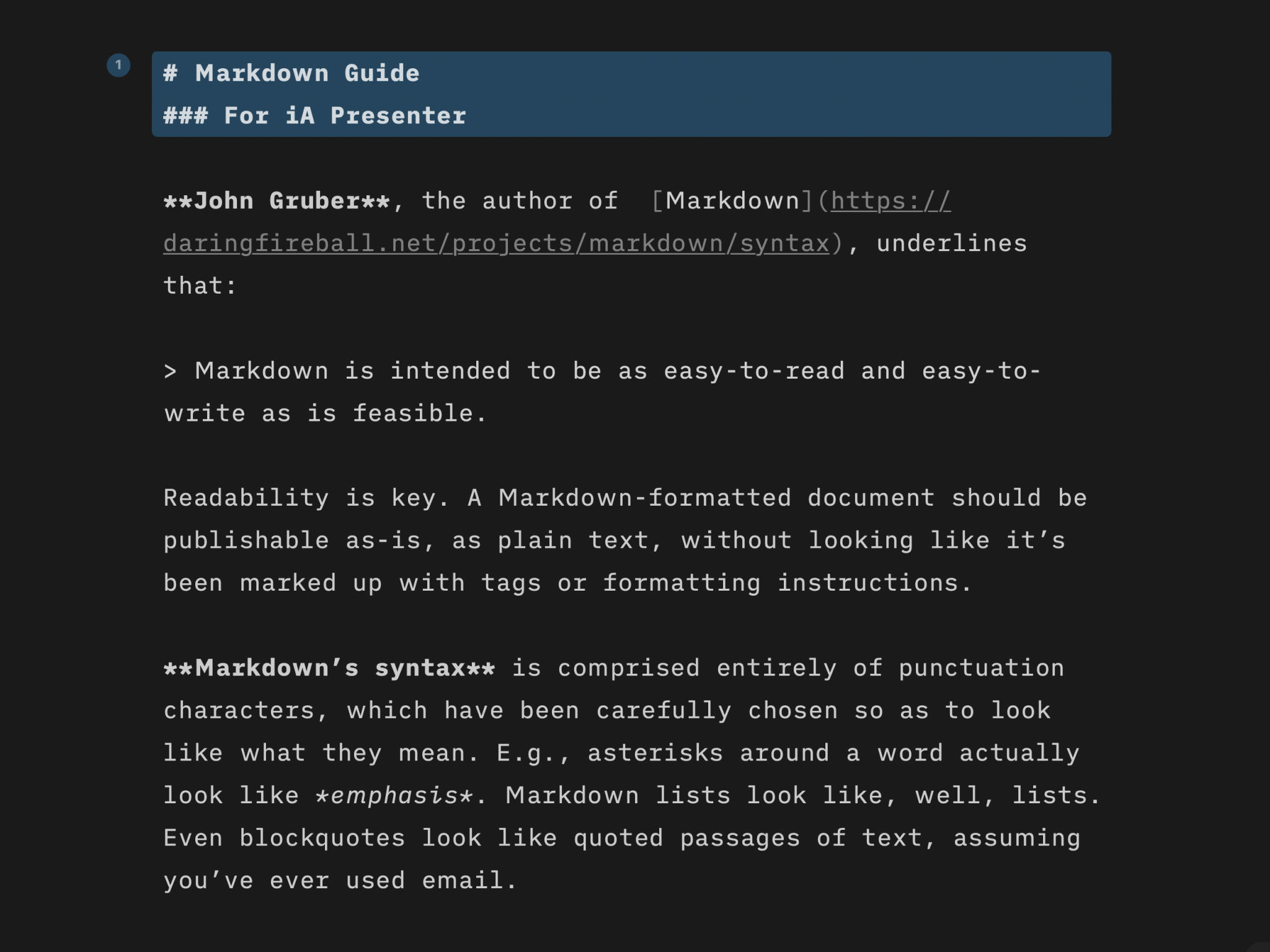
Markdown Guide
Learn quickly the basics of Markdown—or dive in to discover more complex formatting.

Features
Find out what you get with iA Presenter, and how it helps you tell a story they’ll remember.

Presentation Tips
How tell your story without boring the audience to death.
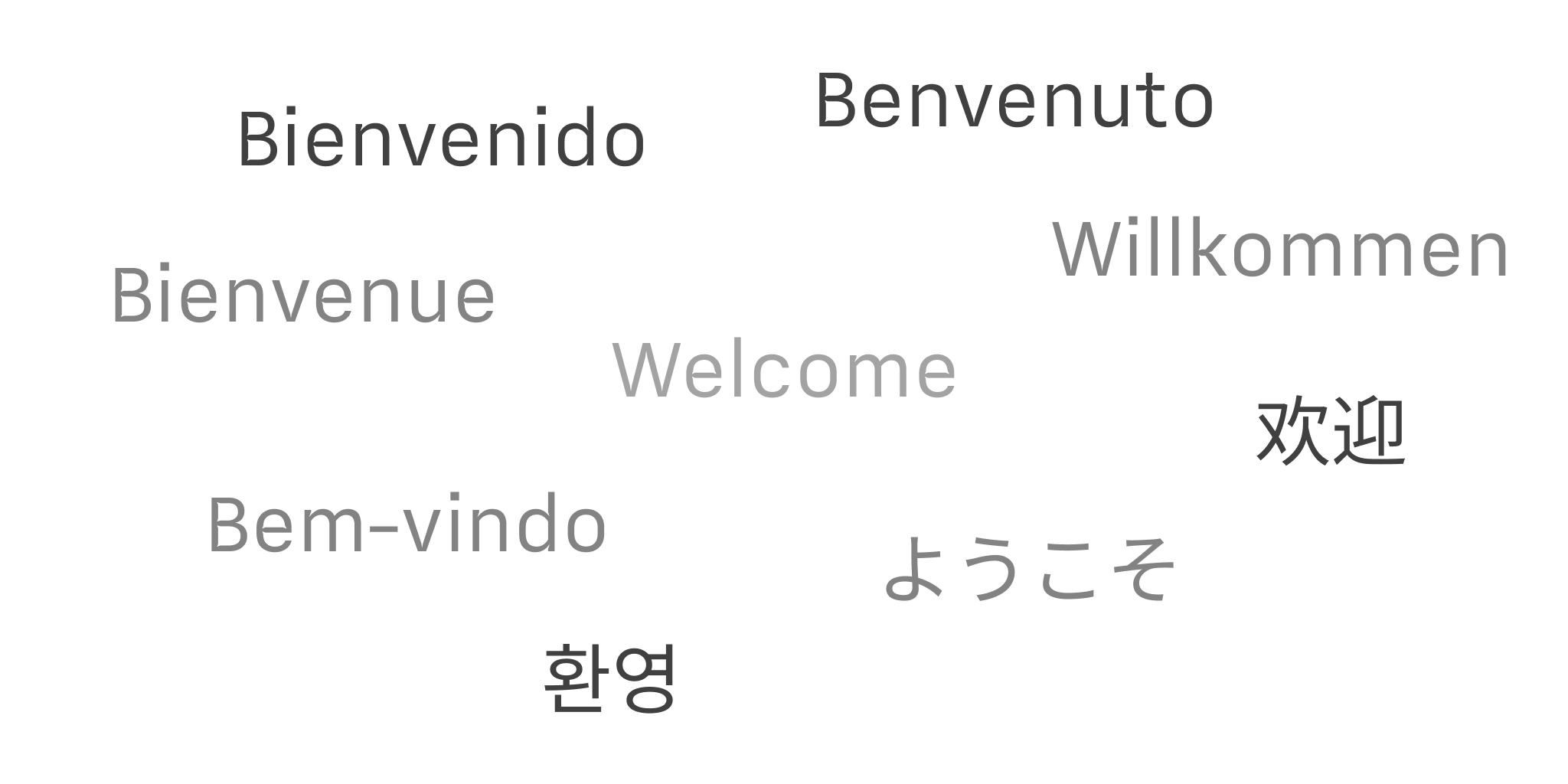
Languages
iA Presenter’s user interface is currently available in English, while presentation content supports left-to-right language text.