Navigate Your Slides
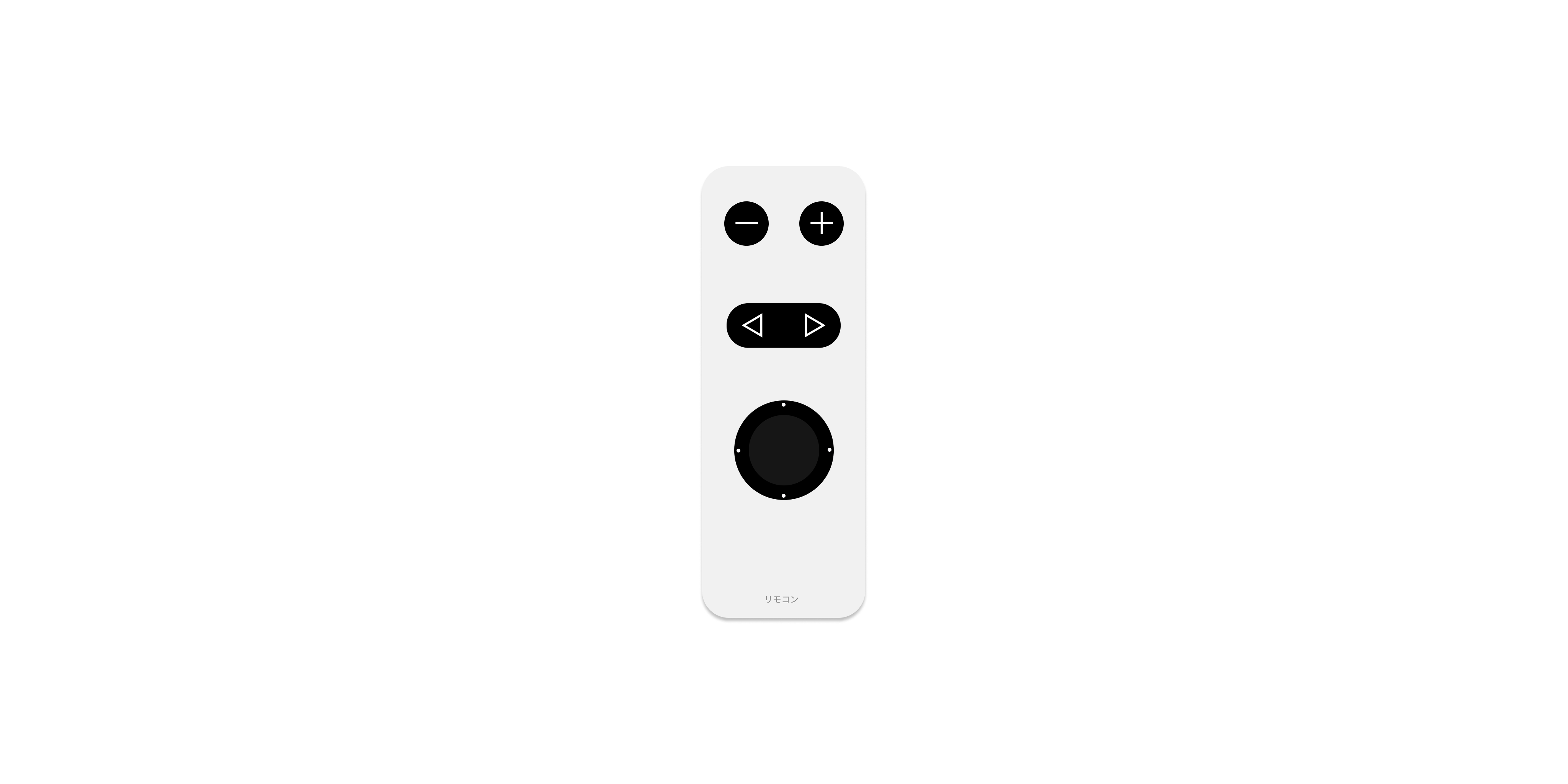
When you're in Presentation Mode, you have a few options available in terms of how you prefer to navigate your slides. Let's find out what those are.
Based on your setup, you can navigate by speaker notes or by slides:


Mouse and Trackpad
Navigate your slides using either your mouse, keyboard, or a remote controller.
When you use a mouse or trackpad, you will navigate through your speaker notes by default when you scroll up or down.
In Presentation Mode, take a look at the bottom left and right of your screen. You'll notice two sets of directional buttons. Use these buttons to navigate speaker notes via the buttons on the left, or slides with the buttons on the right.

Keyboards
Instead of pressing the buttons on a screen, you can also use your keyboard to navigate by slides or speaker notes. Default keyboard settings are:
| Notes navigation | Slides navigation |
|---|---|
| ↑ scrolls up notes | ← goes previous slide |
| ↓ or Space bar scrolls down notes | → goes to next slide |
You can configure navigation keys to suit your preferences. Go to iA Presenter → Settings → Presentation and enter what keys you want to use to navigate your presentation.

Remote Controllers
You can navigate slides in Presenter using any kind of controller device that works with your hardware.
Remote controllers usually navigate by slides, but you can customize the buttons the same way you would do for keyboards (see the customization keyboard above).
Alternatively, you could reassign the buttons on your remote controller itself. Check for online tutorials that show you how to remap controller buttons.
In case you run into issues, first check your controller’s documentation, since it might use different setups for different software.
 Action
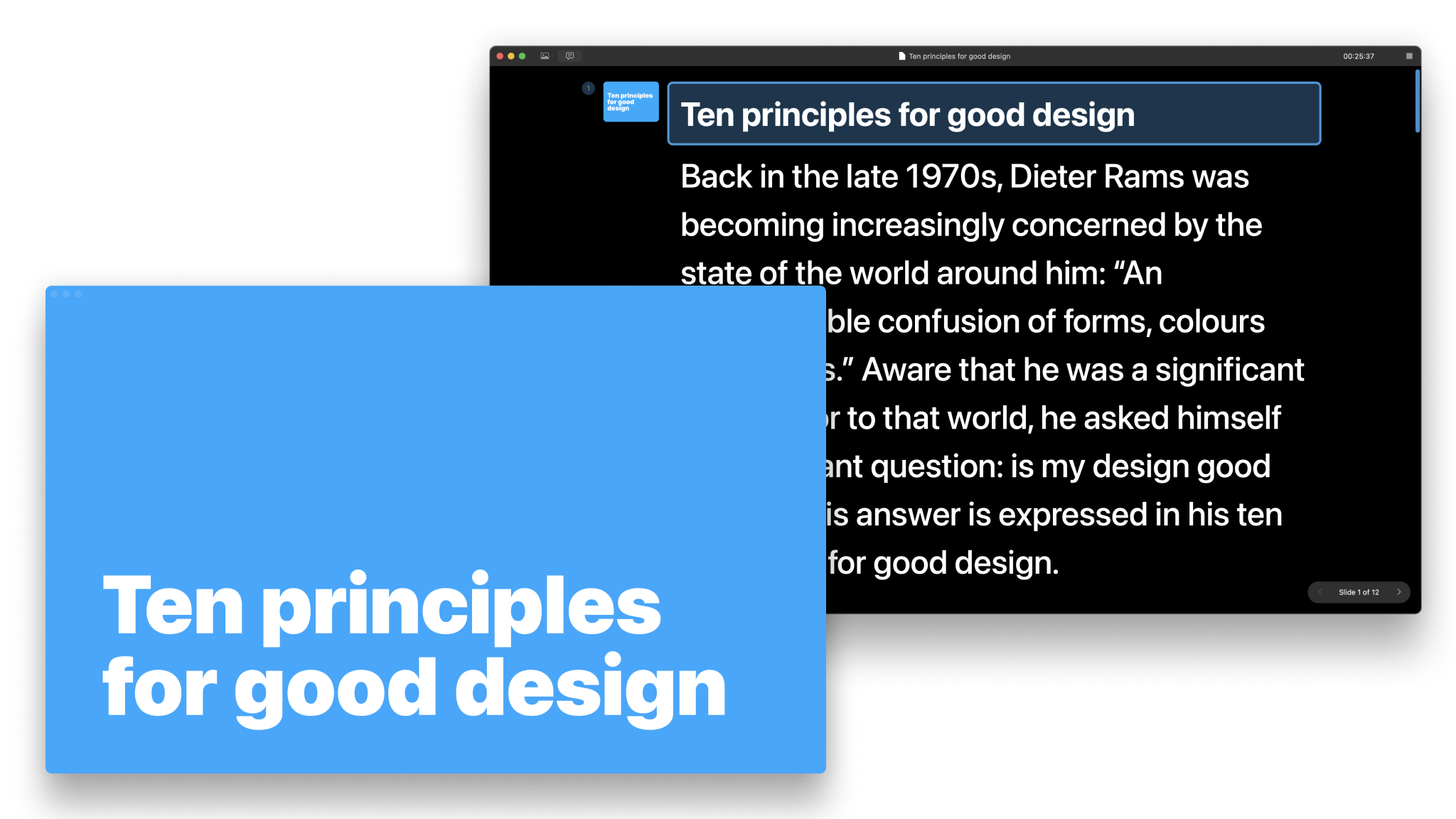
Presentation Mode
How to use the teleprompter: read your notes and get a preview of your slides.
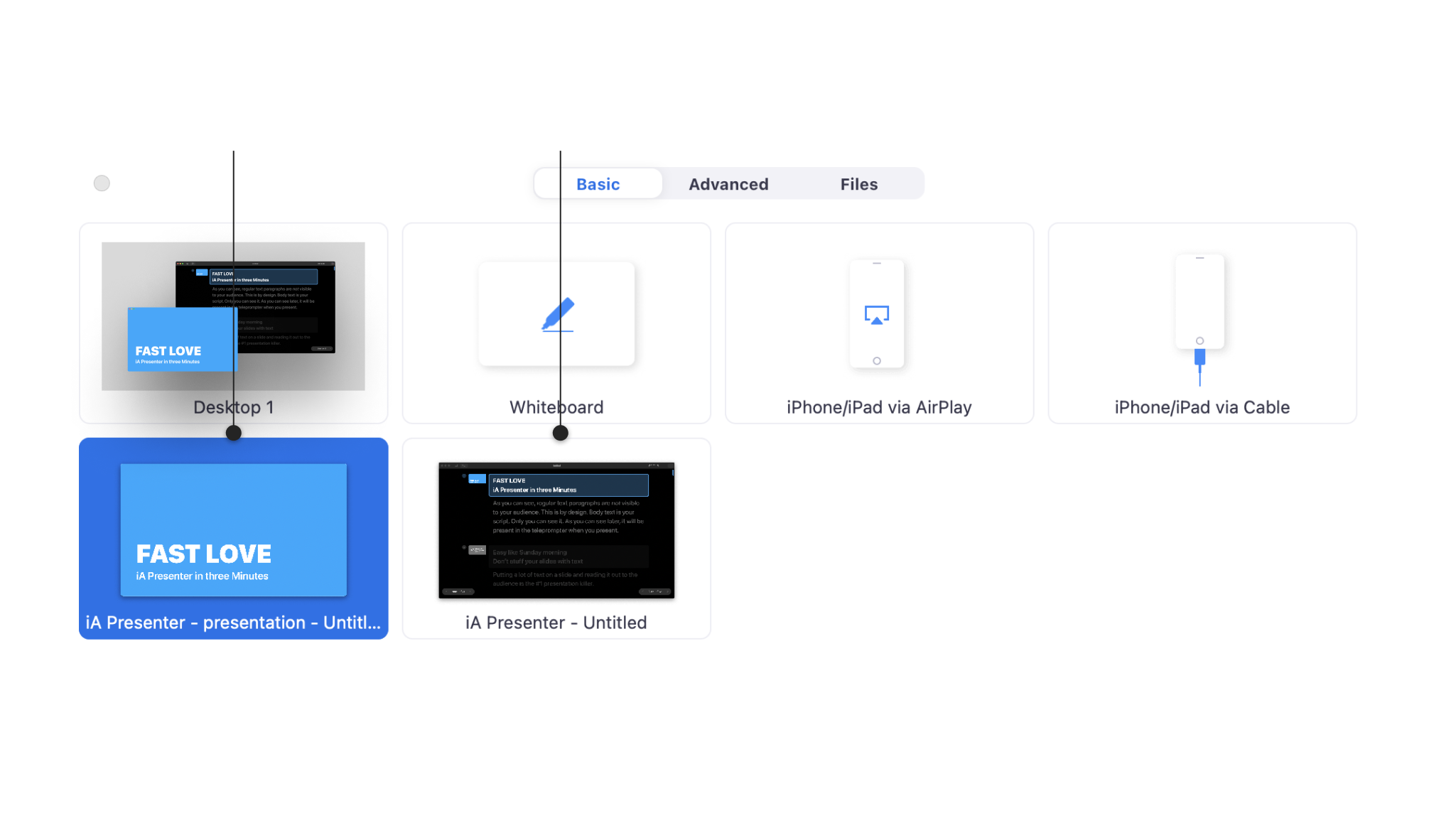
Presenting Online
Use Presenter with third-party software such as Zoom, Loom, or Google Meet for an online Presentation.
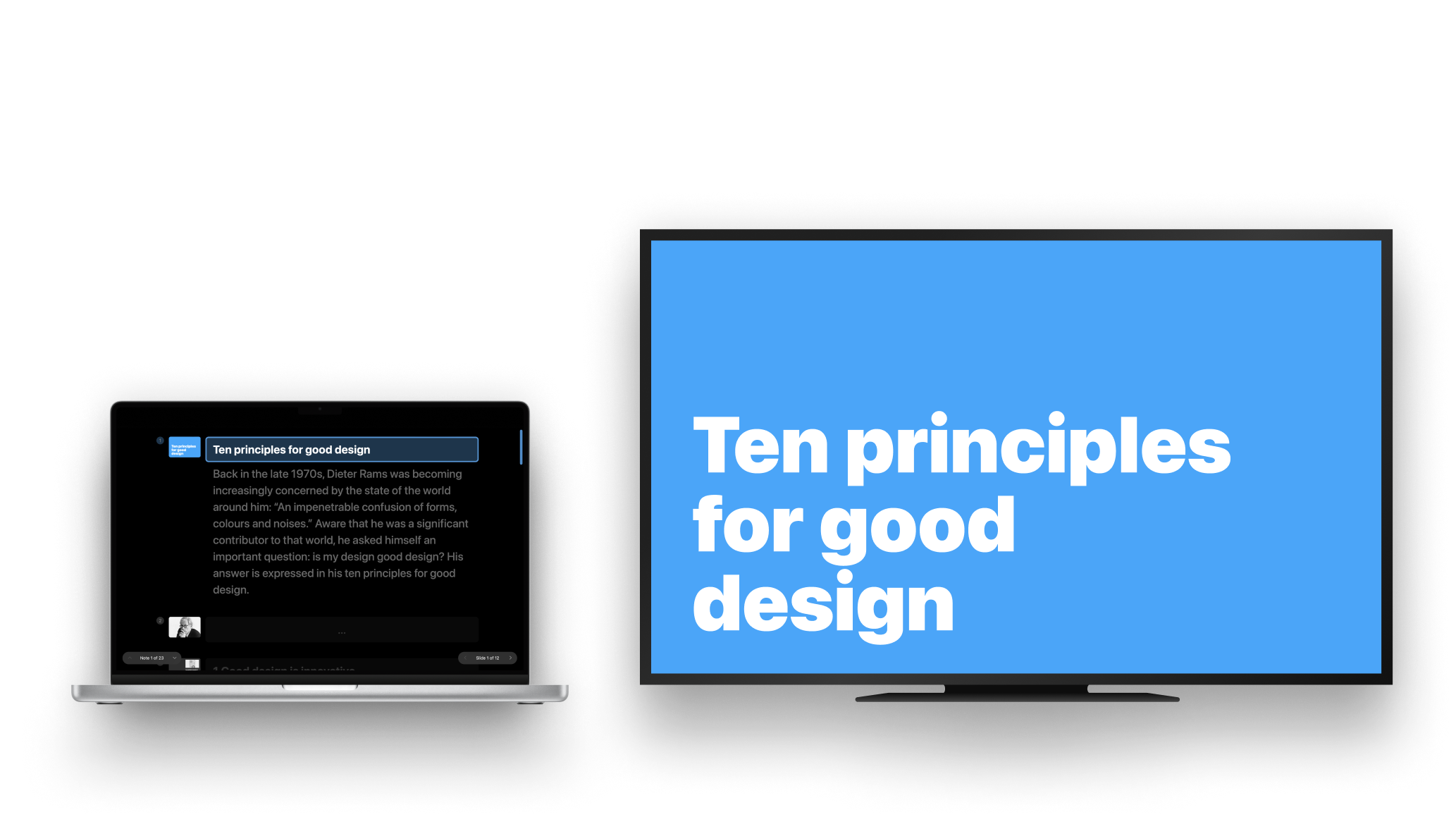
Presenting Onsite
How to use Presenter in a face-to-face situation with projectors or smart TVs.
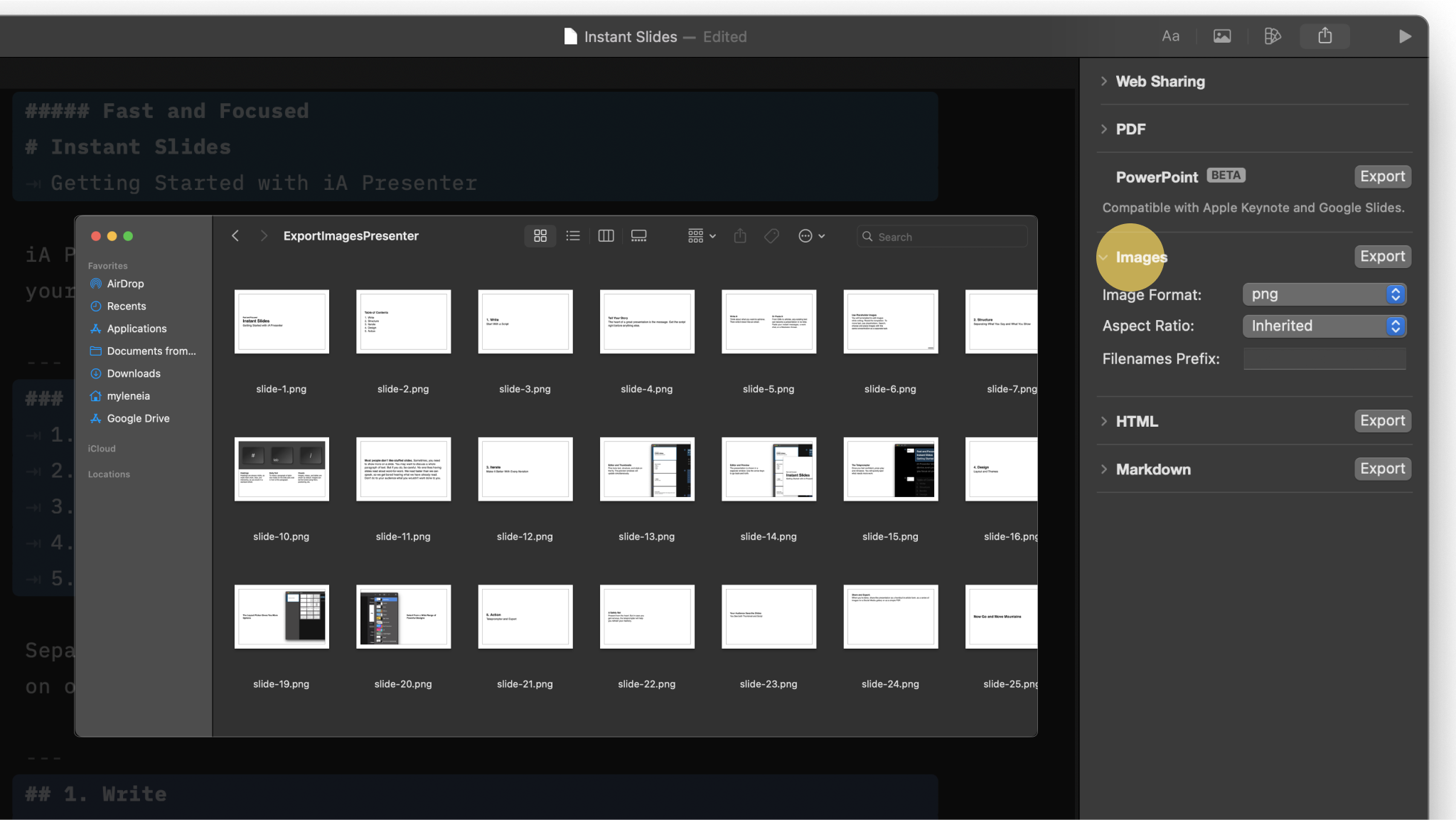
Export
Share your presentation to your audience as Markdown, PDF, HTML, PPTX or Images.

Sharing
With Sharing you can publish your presentation as a temporary static site and share its link with your audience.
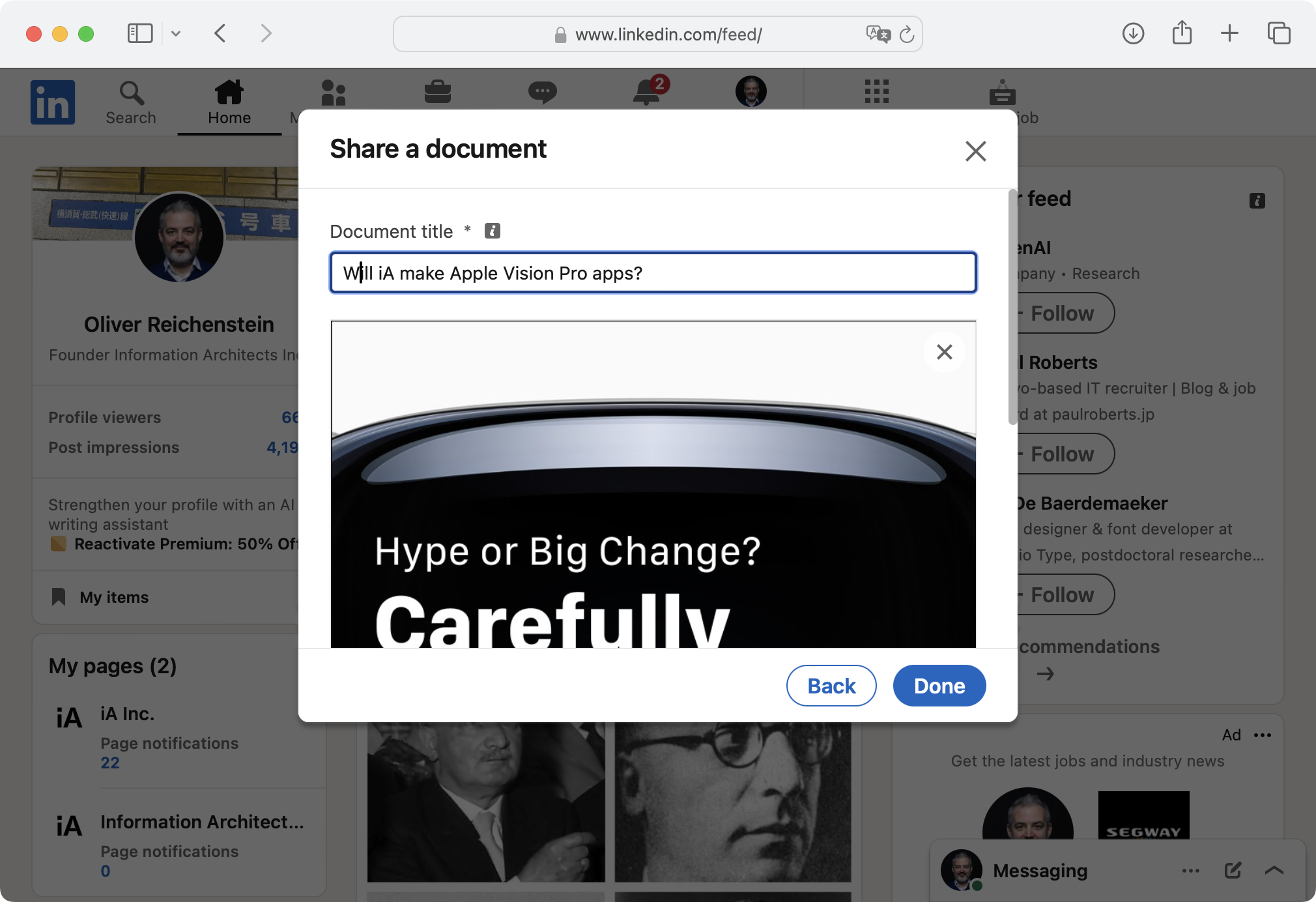
Social Media
A detailed walkthrough on exporting and sharing your presentation on social networks.