Settings
Use iA Presenter’s Settings menu to customize how you create and present slides.
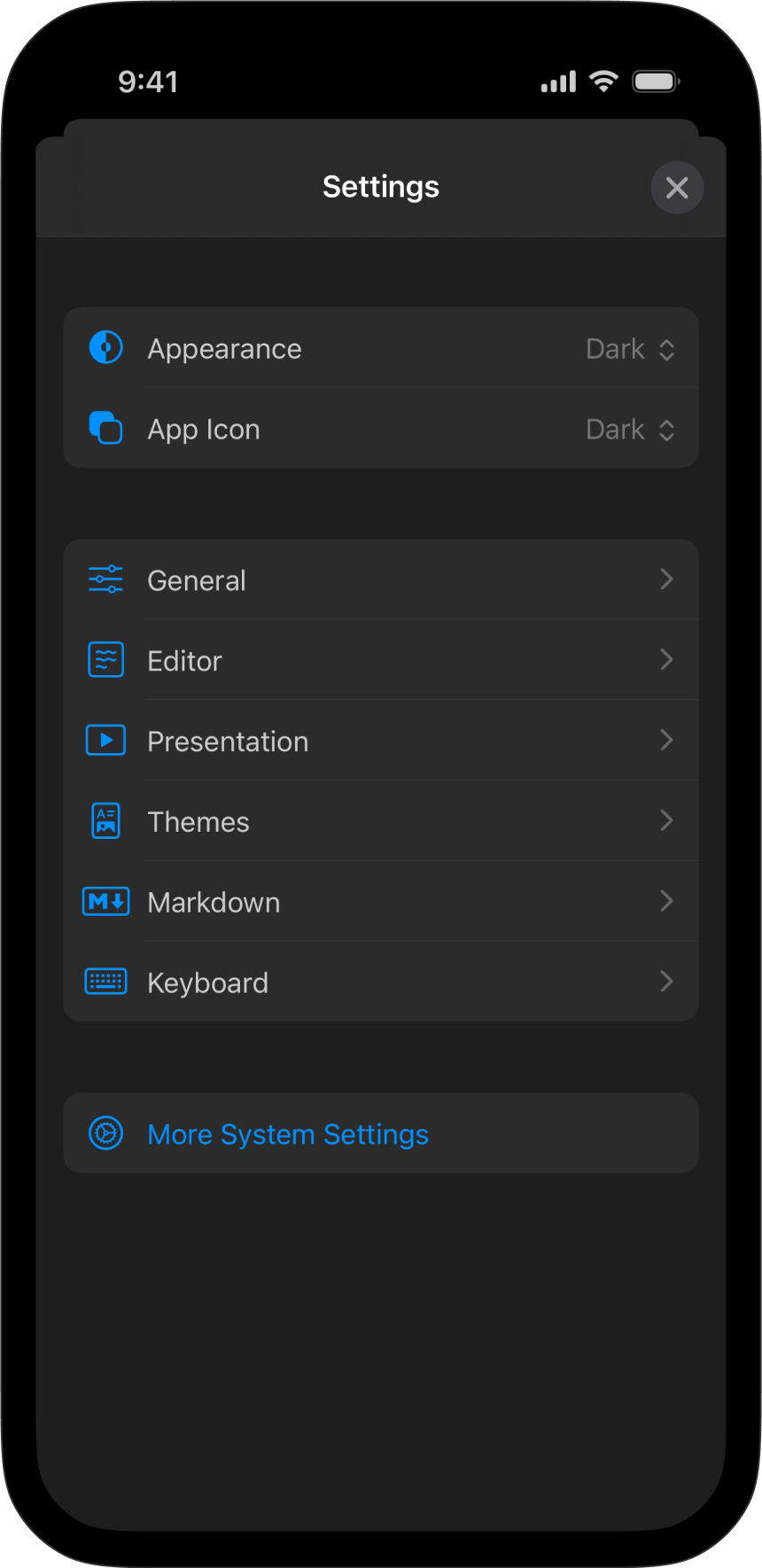
On your iPhone, within any file opened in the Editor, tap the Files icon at the top-left of the toolbar. Presenter’s settings are at the bottom of the context menu.

Settings are divided into the following categories:
[table_of_contents_iphone]
Appearance


Appearance
Choose between light and dark appearance for Presenter’s interface, or set it to be the same as your system’s settings.
Icon
Choose between the system's setting or dark mode for the app icon.
General


Toolbars
By default, iA Writer hides the toolbars above and below the Editor and Preview while you’re scrolling. Enable this option to always keep them visible.
New Presentation Text
"Fast and Focused", the default placeholder text that you’ll see when you open the Editor. Delete the tutorial if you no longer need it—or add your own placeholder text here instead. You can always restore the default text from here.
Locations
By default, Presenter saves your files to iCloud, but you can add other locations from this menu.
Editor


Focus Mode
Activates Focus Mode which dims all text, except for the slide you’re editing.
Speaking Time
Show or hide the estimated speaking time in the Editor. You can also adjust the speaking rate to match your natural pace. (Default: 110 words/min)
Text
Typeface
Changes the Editor’s font. Choose from iA’s Mono, Duo or Quattro fonts.
Line length Limit
Choose the maximum number of characters (64, 72 or 80) on a single line before it wraps to the next.
Text Input
Three Returns to Start a New Slide
Toggles whether pressing Return key ↵ three times creates a new slide. You can still enter slide breaks from the Text sheet, or manually enter three dashes ---.
Auto-Correction
Check Spelling
When turned on, typos in the Editor will be underlined in red. Learn more in our Languages article.
Predictive
Smart Copy/Paste
Automatically removes word-bordering whitespace.
Smart Quotes
Replaces straight quotes "" with curly quotes “”
Smart Dashes
Converts two dashes -- into an em dash —
Presentation


Layout
Responsive
Automatically adjusts slide layout (and thumbnails) based on your device's aspect ratio.
Fixed Aspect Ratio
Locks the aspect ratio for slides and thumbnails (requires Responsive to be toggled off). Choose between Regular 4:3, Wide 16:9, Mobile 9:16, Portrait 4:5, or Square 1:1. Setting a fixed aspect ratio will also make it the default for exported documents.
💡 Fixed aspect ratio are particularly useful if you’re sharing your slides to Social Media, which often have specific aspect ratio requirements.
Content
Reduce Text Size to Fit in Slide
When enabled, Presenter will automatically scale down your text to fit the slide. A small AA icon beneath a slide’s number in the thumbnails denotes that its text has been scaled down.
Show Controls on Videos
Choose whether to display the built-in video controls.
Warnings
Shows a warning message on a slide when it only contains speaker notes but no visible elements for your audience.
Presentation Mode
Here, you can turn the timer in Presentation Mode on or off (it starts automatically when Presentation Mode is activated) and select the size of the Notes (Speaker Notes) from S to L.
Themes


Add, create, or reload custom themes. To delete a theme, swipe left on it.
All themes you add here will appear at the bottom of the Theme dropdown in the Design sheet.
Markdown
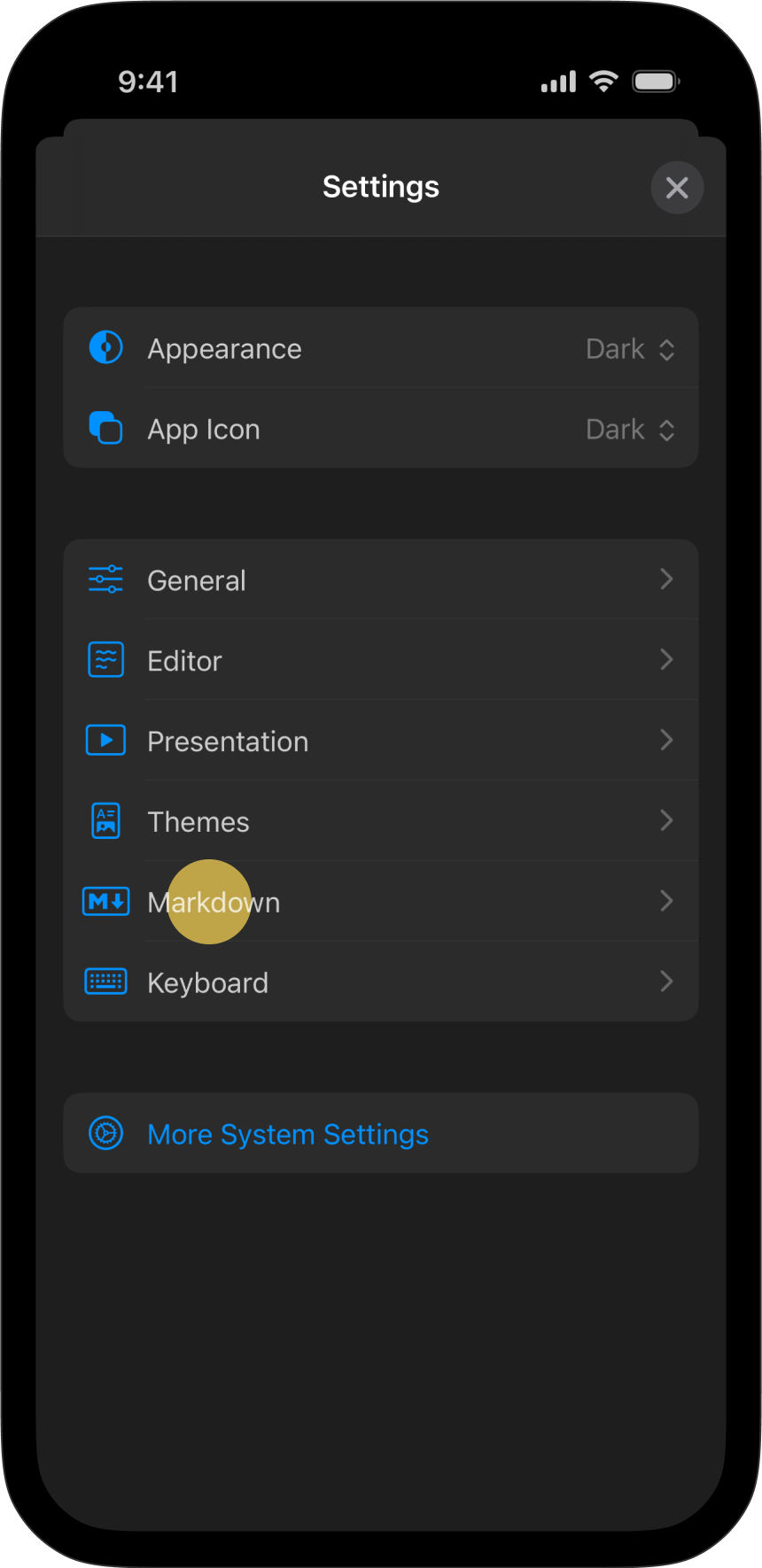

Single Return Starts a New Paragraph
With traditional Markdown, you need to press Return ↵ twice to complete a paragraph and start a new one. Toggle on this setting to use a single Return instead.
Apply Smart Punctuation
Toggle on this option to convert straight quotes "" in the Editor with curly quotes “” in slide text. Similarly, two dashes -- become an em dash —
💡 This setting only applies to rendered and exported slides—unlike the Editor’s smart quotes and smart dashes settings, which modify characters inside the Editor.
Keyboard


Lightning Menu
Tap the Lightning Menu ⚡ in the keyboard bar for quick access to shortcuts. Customize it with any action or submenu of your choice.
Hardware Keyboard
The keyboard bar appears above the software keyboard and shows shortcuts to common functions. Shortcuts become available when you connect a physical keyboard, so you may choose to hide the keyboard bar here.
Settings


To storage location and other settings, head over to iphone settings for iA Presenter.
 Basics
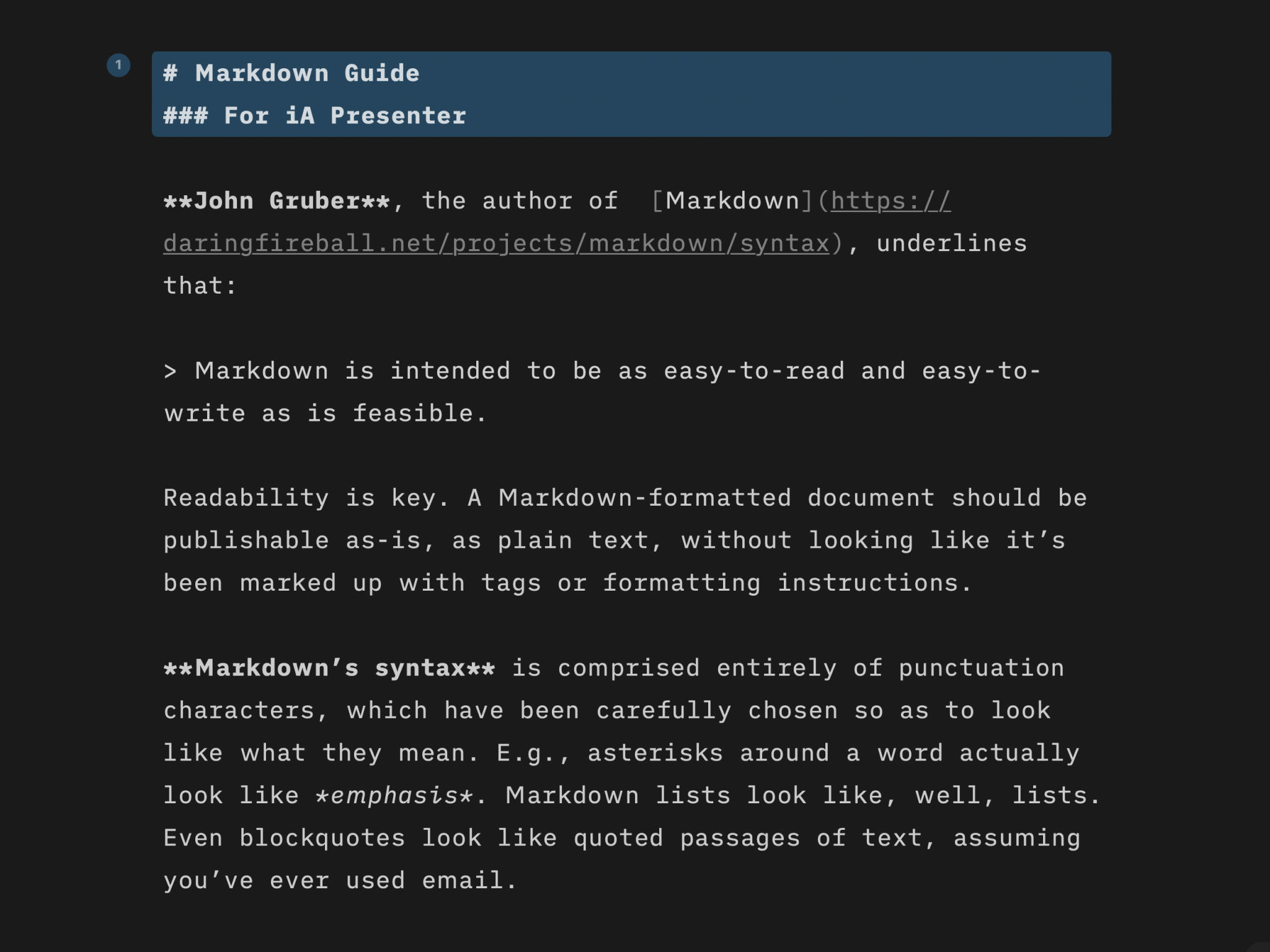
Markdown Guide
Learn quickly the basics of Markdown—or dive in to discover more complex formatting.

Features
Find out what you get with iA Presenter, and how it helps you tell a story they’ll remember.

Presentation Tips
How tell your story without boring the audience to death.
Languages
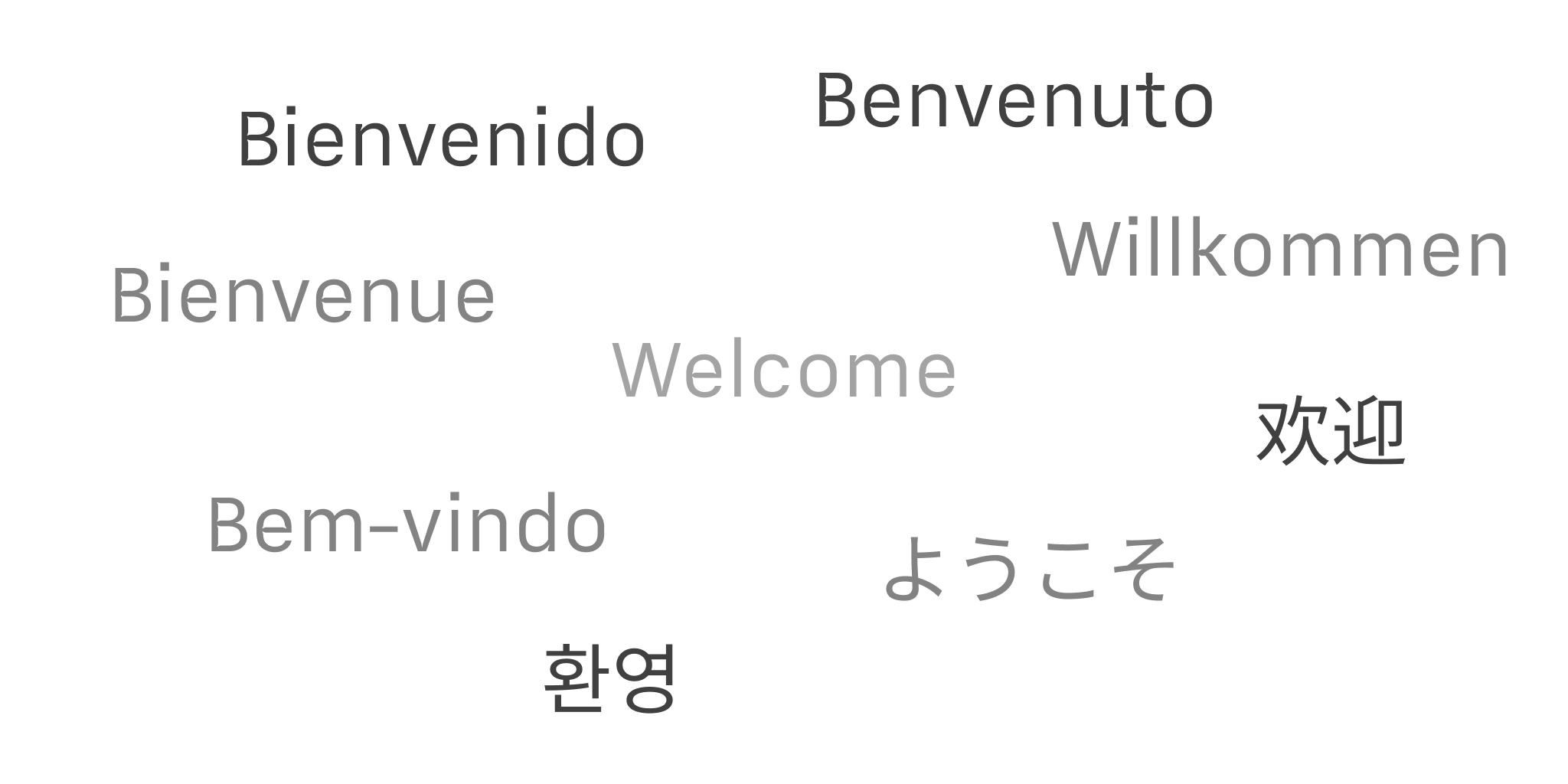
iA Presenter’s user interface is currently available in English, while presentation content supports left-to-right language text.