Organize Your Files

The first level of organization that users might think of are folders to store multiple files. But iA Writer for iPhone gives you more elaborated options to organize your documents.
Folders can be created easily from the File List by clicking on Edit and selecting the New Folder icon on the down-left bar.
Beyond this, the grey panel of the Library (Organizer) allows you to create favourites, smart folders and access tags. From anywhere in the Library you can tap the < button at the top left to get you up to the Organizer (and access Settings as well).
The Organizer contains Locations, Favorites, Smart Folders, and Hashtags. Long-pressing any item in the Organizer pops up a context menu.
Locations
Within the Locations feature of iA Writer, you can integrate folders and access to cloud storage. On iPhone, iCloud serves as the default folder and so, is positioned first in the list. Note that removing this default folder is not possible.
Next on the list is "From Other Apps", which includes files from other cloud storage applications like Microsoft OneDrive or Google Drive. To have files from these providers displayed here, you must first download the respective cloud storage providers from the App Store on your iPhone.
The third option is "Open...", providing access to different folders and cloud storage providers on your device. From this menu, select the desired folder and click on the file you wish to update in iA Writer. This file will then appear in the "From Other Apps" menu.


You can add more locations to this menu. At the top of the Organizer, tap Edit → Locations → Add Location....


Favorites
Favorites allow you to create quick bookmarks for your most-used files and folders.
You can add a favorite in 2 ways:
- at the top of the Organizer, tap Edit → Favorites → Add Favorite
- long-press a file or folder, from the pop-up context menu select Favorite
💡 Favorites are specific to each app and are not synchronized across devices via iCloud. If you add a Favorite on one device (e.g., Mac), you will need to add it manually on the other device (e.g., iPhone).


Smart Folders
Normal folders are static; Smart folders are dynamic. Which files are found in a smart folder depends on the rules which govern it. New files can find their way into a smart folder with no user interaction at all.
iA Writer comes by default with a single smart folder: Recents. This is a list of the 25 most recently used files, across the whole Library.
If you are using iA Writer with iCloud your Smart Folders stay in sync across iOS, iPadOS, and macOS devices.
To create Smart Folders: at the top of the Organizer, tap Edit → Smart Folders → New Smart Folder.
You will be presented with a view where the parameters of the folder are prescribed.
- first, give your new folder a name
- choose whether results should match all the rules provided or any (at least one)
- tap “New Rule” to create a rule and repeat as necessary
- choose whether to limit results to 25 items or limitless
- choose a custom sort method for this folder, if desired


When creating a Smart Folder, you will be prompted to choose the rules iA Writer will follow to select the files, either:
- Search
- Parent path
- Ancestor path
- Kind (text, folder, or other)
- Date created
- Date modified
1) Paths
Parent path: contents of a specific folder.
Ancestor paths: contents of a particular folder and all of its subfolders.
To enter the paths:
- / refers to the default location (iCloud or local).
- Location: / can be used to filter files from custom locations.
- From Other Apps: / is available on iOS.
Tips: use the contextual menu in Library and Organizer to copy paths.
2) Search
Search works like a search engine. It’s optimized to be fast with a large number of files.
Search is available for:
- Names of all files
- Contents of Plain Text files (
txt,text) - Contents of Markdown files (
md,markdownet al.)
Search supports the following queries:
| Queries | Matching files |
|---|---|
| .png | when extension begins as .png* |
| ".m" | when extension is m |
| text machine | where name or text contain words that begin as text and machine |
| "text* machine" | where name or text contain a phrase with a word that begins as text and a word machine |
| #priority | where contain a hashtag that begins as text and a word #priority* |
| -microsoft word | that don’t include microsoft but include word |
| [ ] | that contain an incomplete task list item |
| [x] | that contain a completed task list item |
| -# | that don't contain a hashtag |
| "#diary" | that contain a hashtag #diary |
| ^first | where the first word of a name or a text is first* |
| time AND space | where name or text contain words that begin as time and space |
| name:alice | where name contains a word that begins as alice* |
| name:^"note" | where name begins with a word note |
| time OR "space" | with time or space |
| time NOT space | with time but not space |
| NEAR(time space) | where time and space are located with 10 or less words in-between |
| NEAR(time "space" "travel" 4) | with time, space and travel with 3 or less terms in-between |
| (time AND life) OR "me" | with time and life, or me |
Hashtags
Another way to organize your thoughts without multiple folders is by using tags. We implemented the Twitter spec for hashtags as a starting point, being the most universal implementation.
To make a tag, write the # characters beside a word (no space, just like on Social Media).
You will see your tag appearing on the Organizer under the Hashtag category. When you click on it, it will show you on the File List all the documents containing this tag.


We implemented the Twitter spec for hashtags as a starting point, being the most universal implementation.
Note that, just like in Twitter, including some characters like a dash in the tag will make it invalid:
Valid tags
#Alice,
#2Alice
Invalid tags
#-Alice,
#/Alice,
#2 Alice,
#Alice-Rabbit (only "Alice" will be recognized as a tag, "Rabbit" will be ignored)
 Library
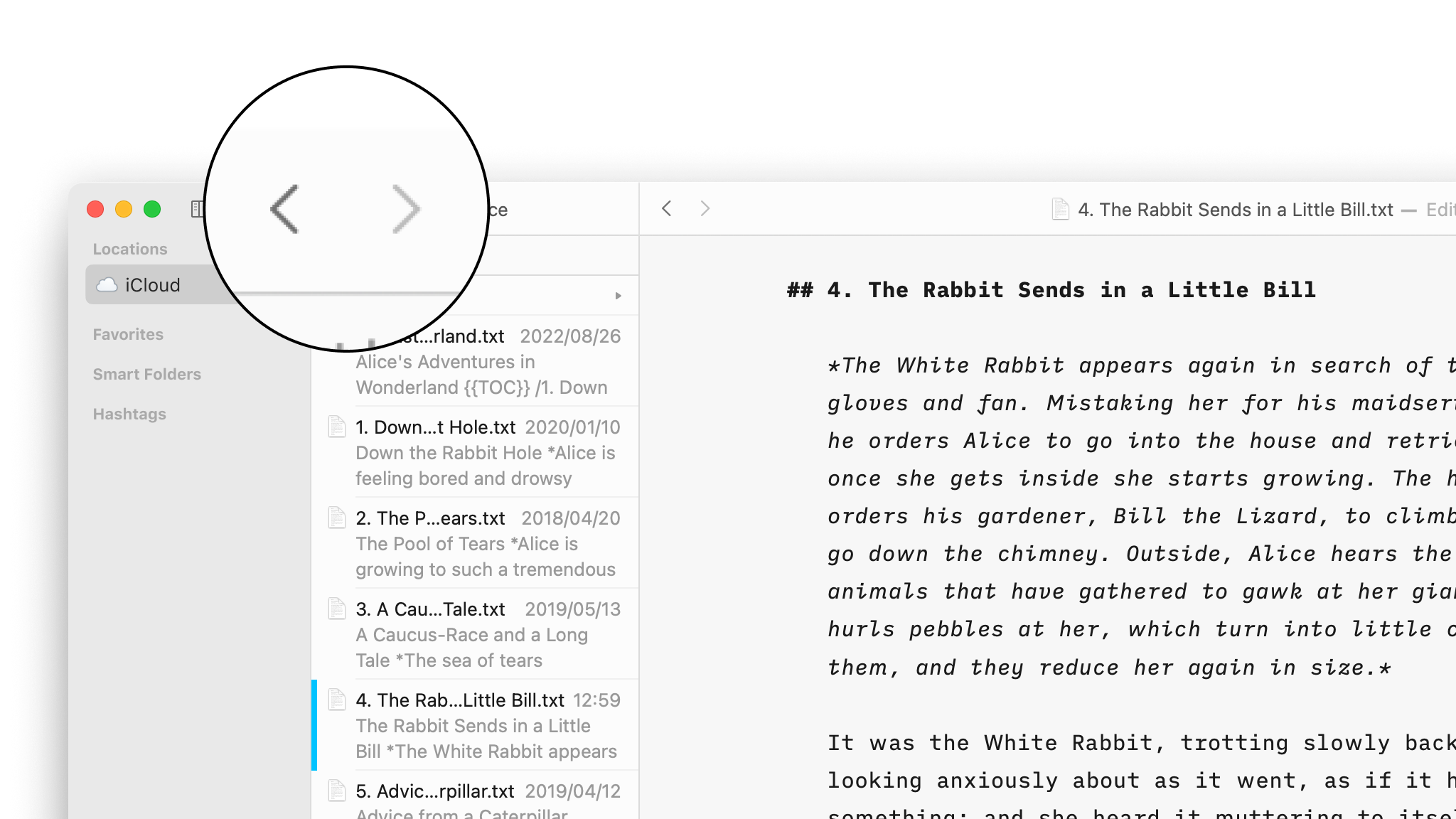
Navigate Your Files
Create, search and navigate through your documents in the Library.
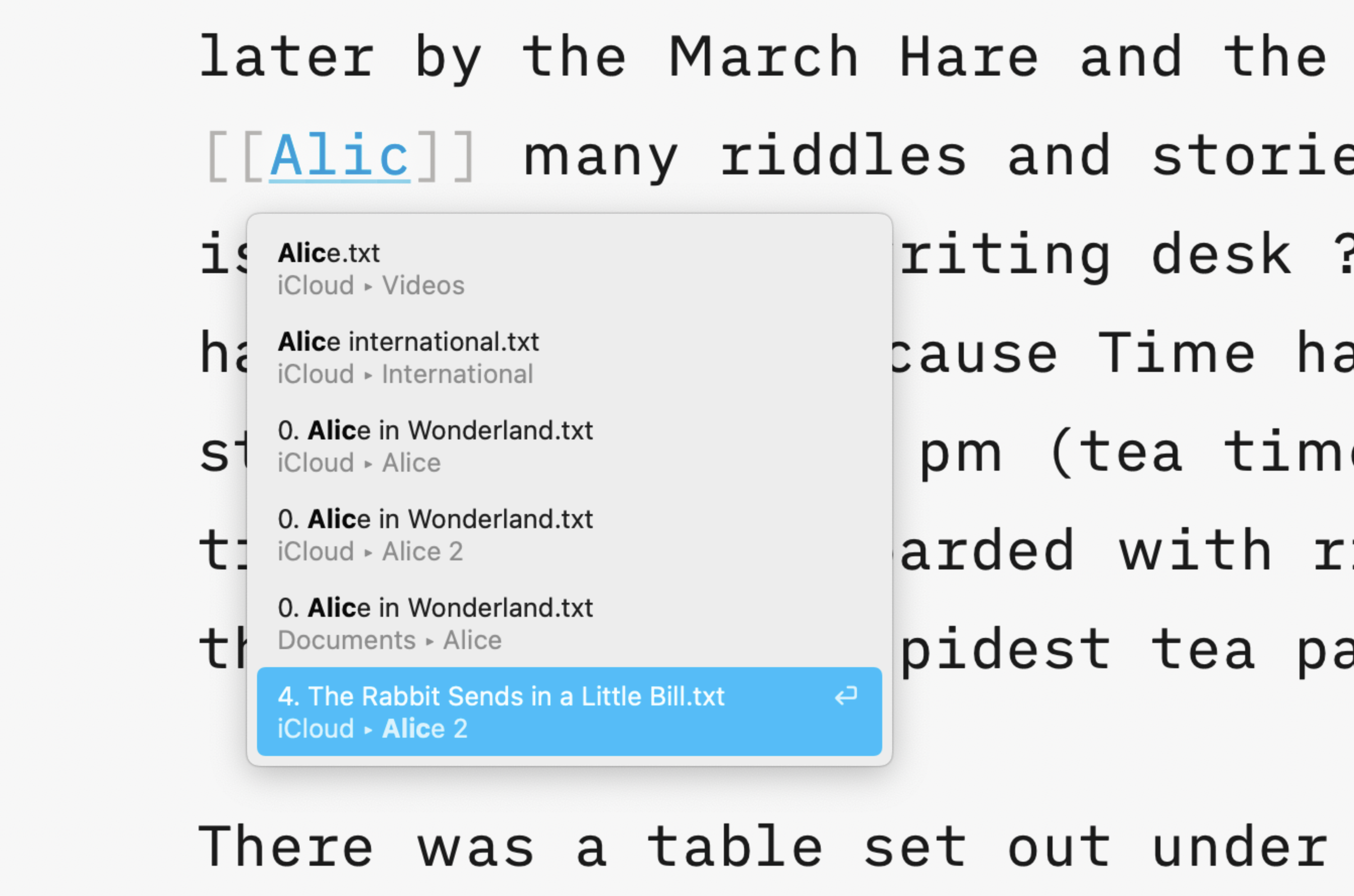
Wikilinks
Connect, browse, and rediscover your writing.
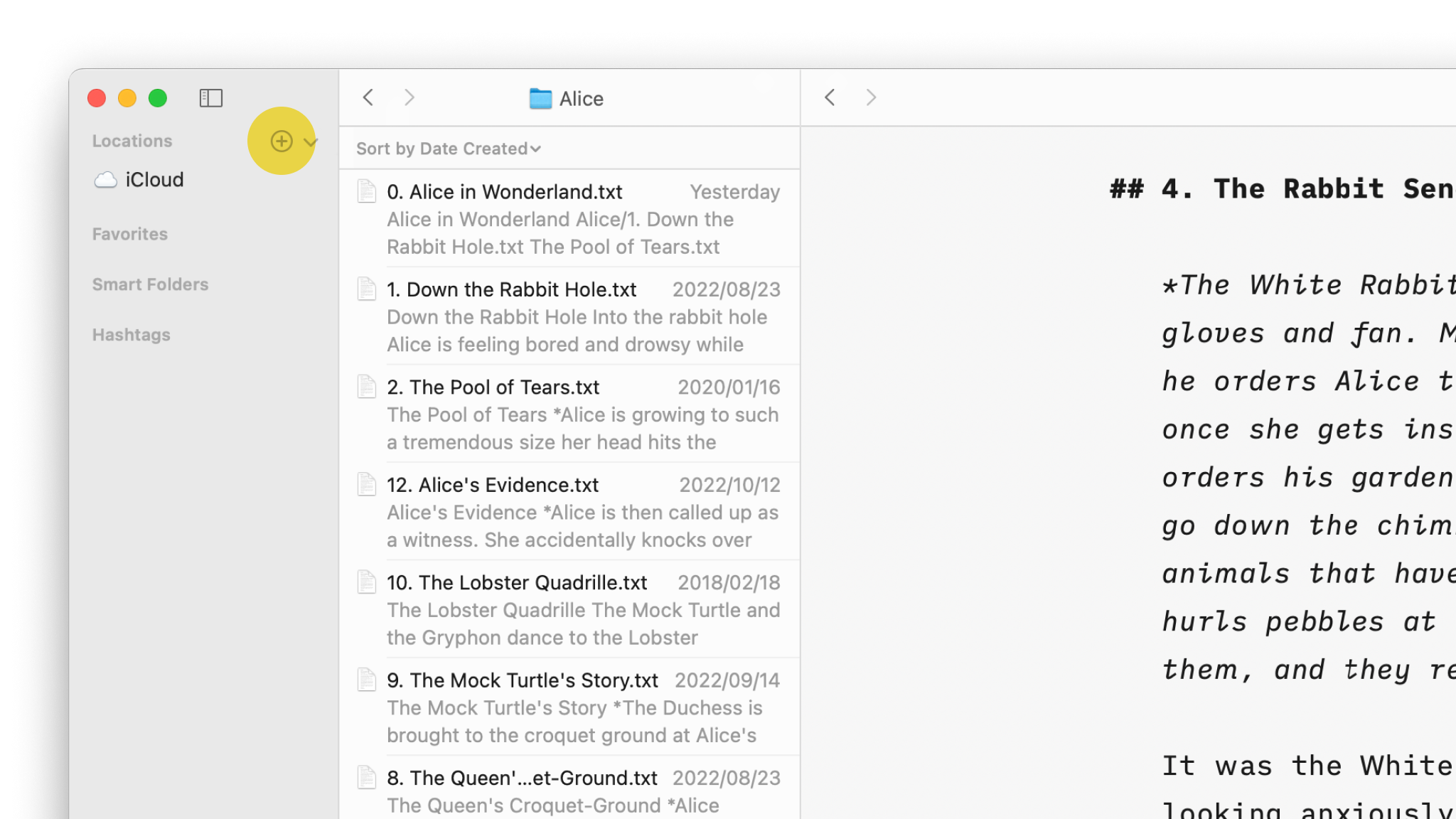
Cloud Storage
Having access to your documents on multiple devices makes life easier.

Content Blocks
Include images, comma separated tables, text files and code as blocks of content in your documents.
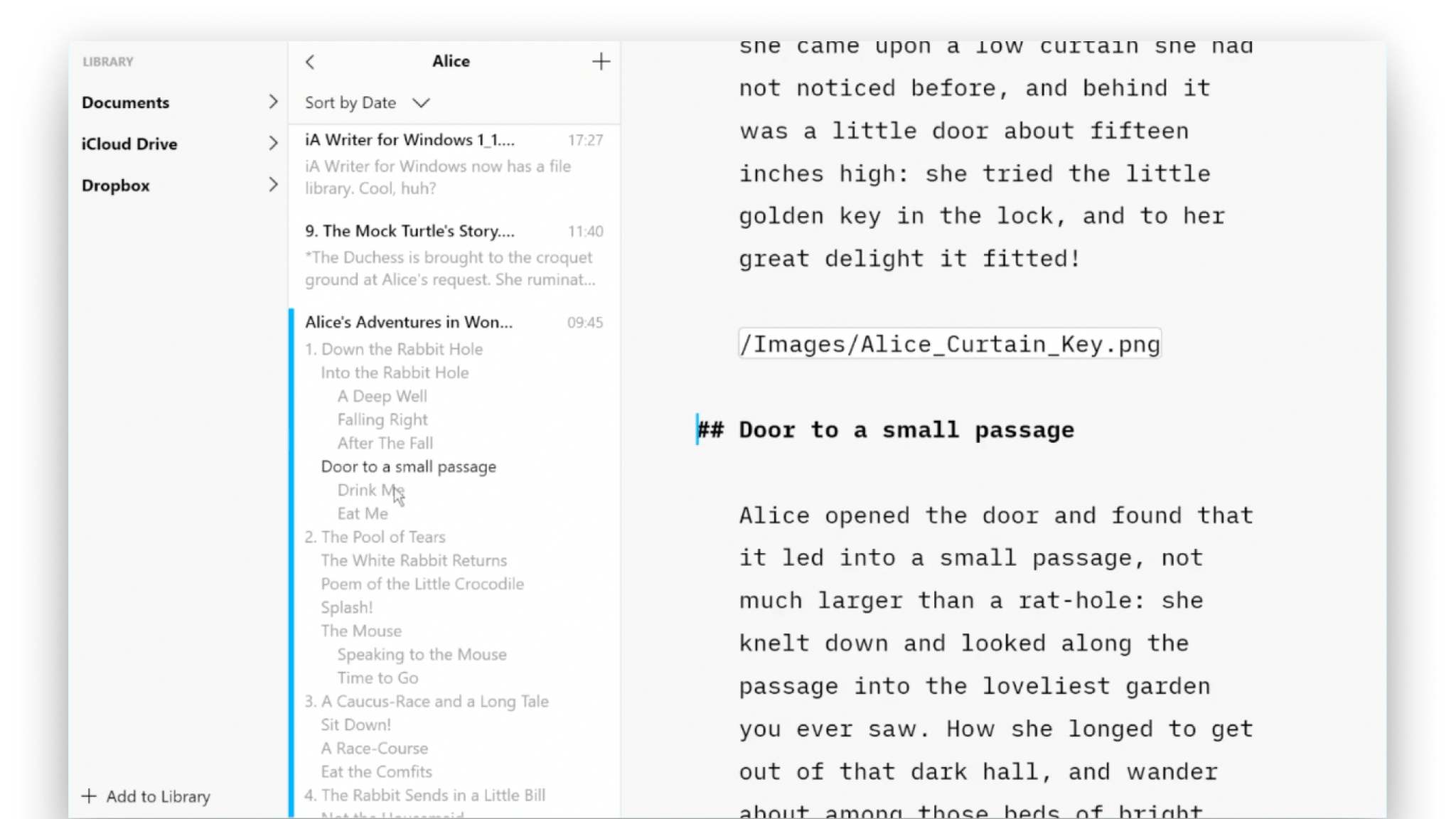
Outline
Writer for Windows comes with two powerful features for working with long or complex documents.