Navigate Your Files

The management of your files in Writer for Mac will be done mostly from the File list of the Library.
Files Location
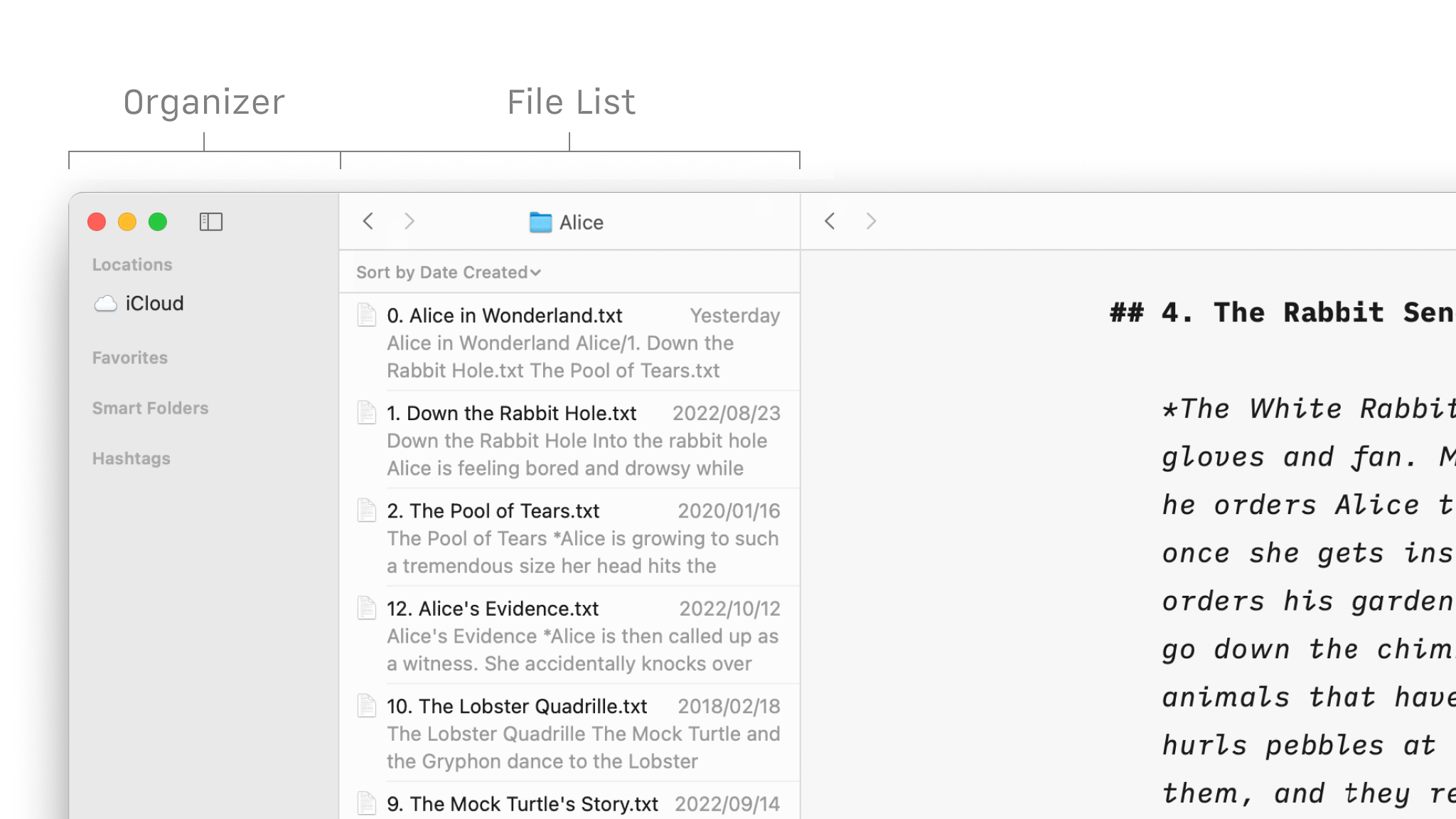
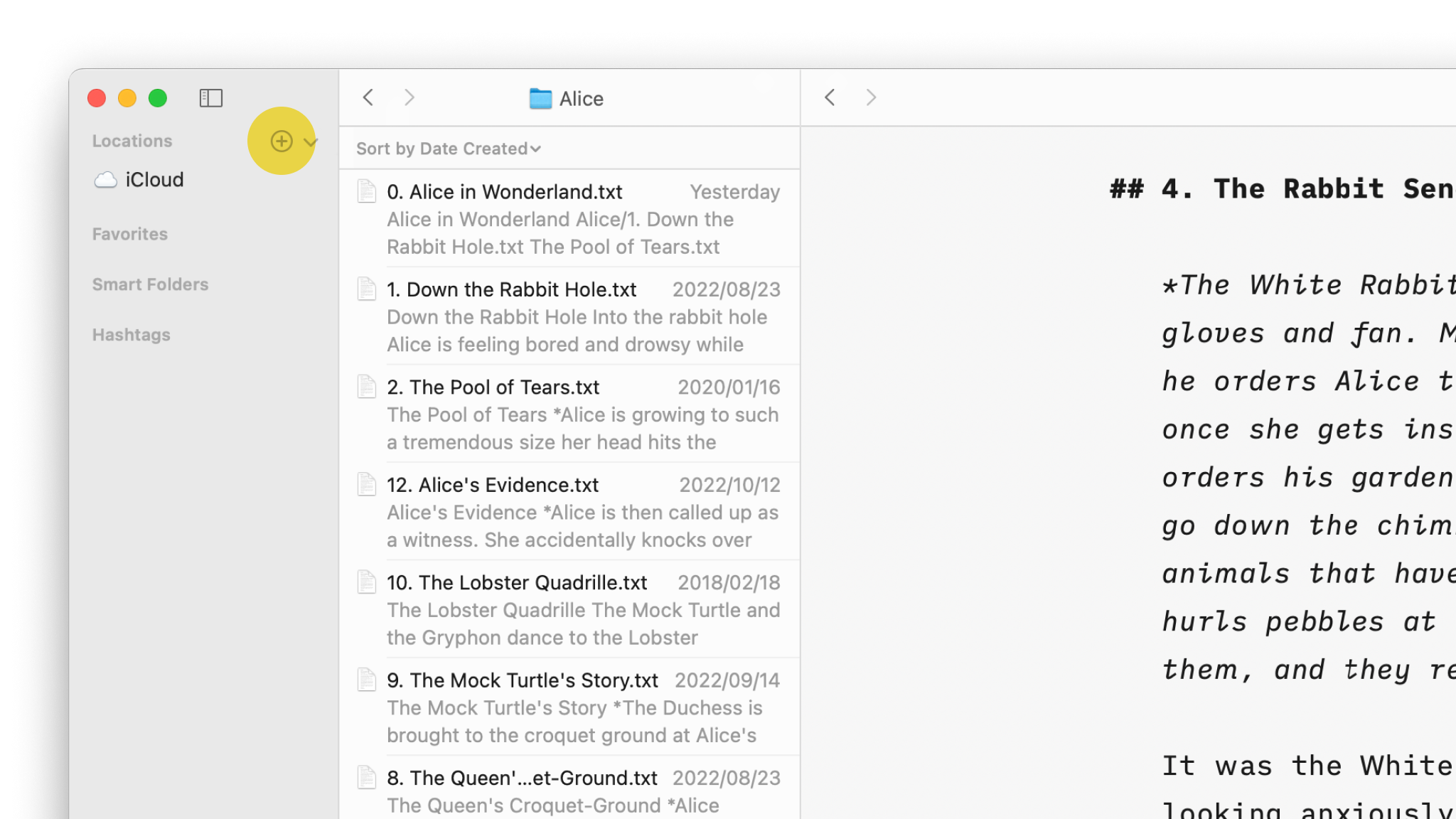
In the Library, the File List will show you all the folders and files stored in the selected Location from the Organizer (iCloud for example down below).

Documents can be moved to, from, and within the Library by dragging them. This can be done with multiple iA Writer windows and the Finder too.
If option is pressed while dragging, the selected file will be duplicated instead of moved.
Use command or shift to select multiple files/folders.
Open a document from the File List:
- with a single click, in the same window
- with a double click in a new window
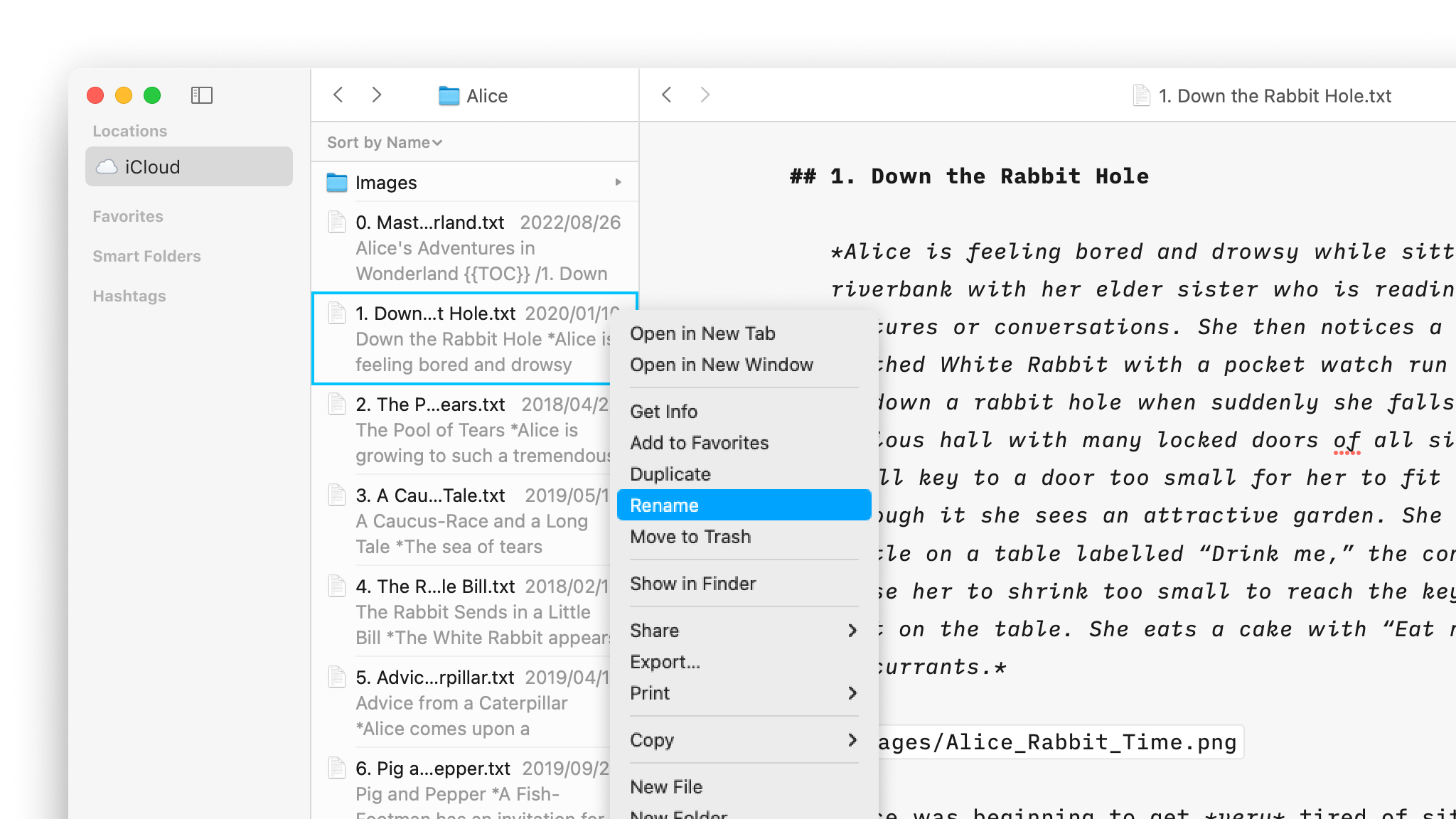
Right-click on a document in the File List opens a context menu allowing you to delete, rename, duplicate, etc... this document:
Sort By & Filter
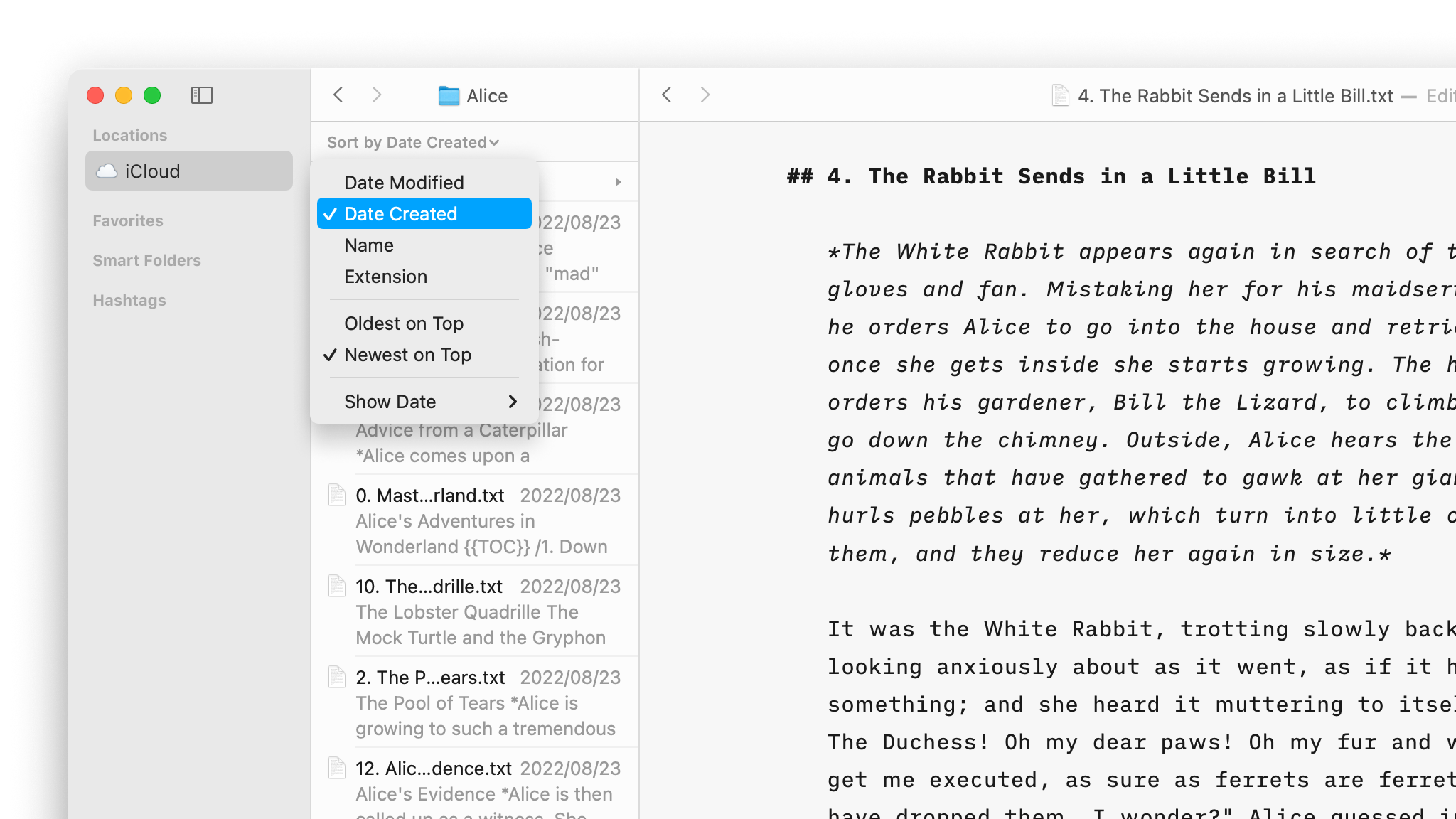
You can turn ON or OFF a Sort Bar (shown above the File List) and a Filter Bar (shown below the File List) from Menu → View → Show Sort Bar/ Filter Bar
- the Sort Bar will sort folders by Name, Date, or Extension.
- the Filter Bar will display documents in the current folder which include terms starting with your search string. Advanced search syntax is also supported as with Smart Folders.
Navigating Files
Buttons in the title bar allow navigating forward and backward in the File List.

💡 click and hold on a button to display navigate to recently active documents.
You can also trigger these using keyboard shortcuts:
Back
⌃⌘←
Forward
⌃⌘→
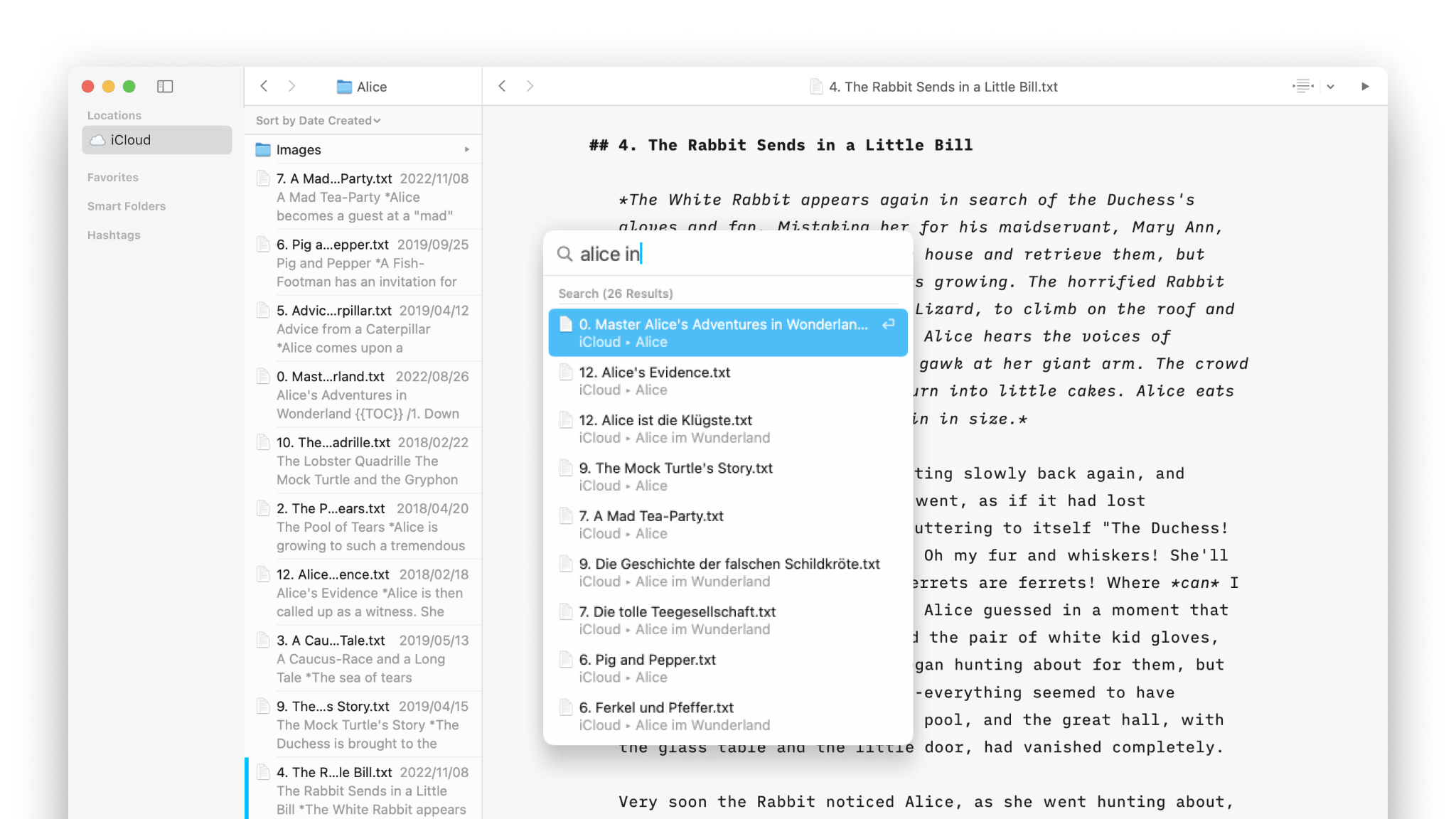
Another powerful tool to search for files is the Quick Search feature:
- from Menu → Go → Quick Search
- shortcut ⇧⌘O
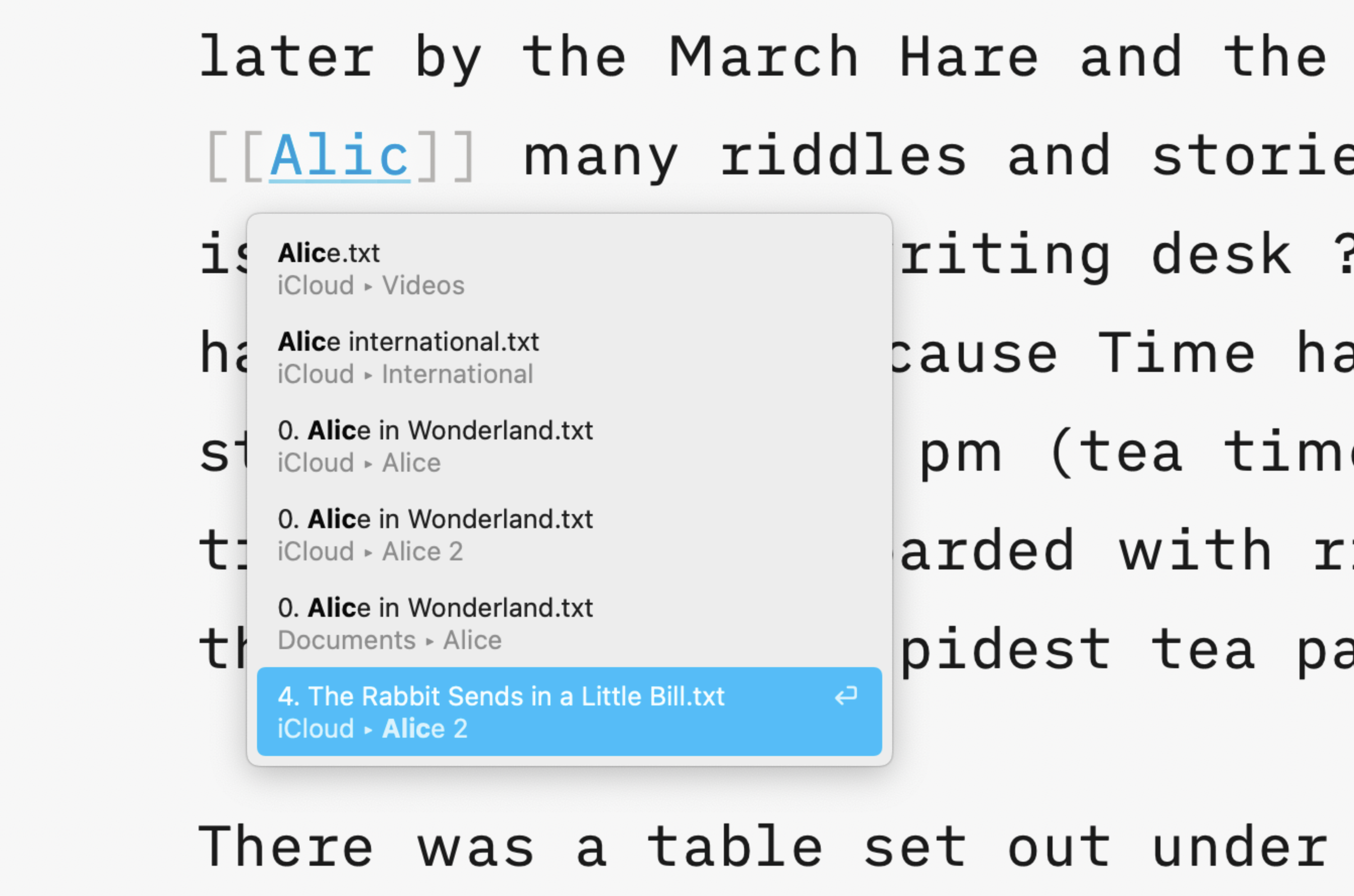
Finally, another powerful way to navigate from a document to another one is by using the wikilinks, you can learn more in this dedicated article: wikilinks
Learn more about the Library's possibilities on this video:
 Library
Organize Your Files
Folders, favourites, hashtags and more, discover all the ways to organize your documents in Writer.
Wikilinks
Connect, browse, and rediscover your writing.
Cloud Storage
Having access to your documents on multiple devices makes life easier.

Content Blocks
Include images, comma separated tables, text files and code as blocks of content in your documents.
Outline
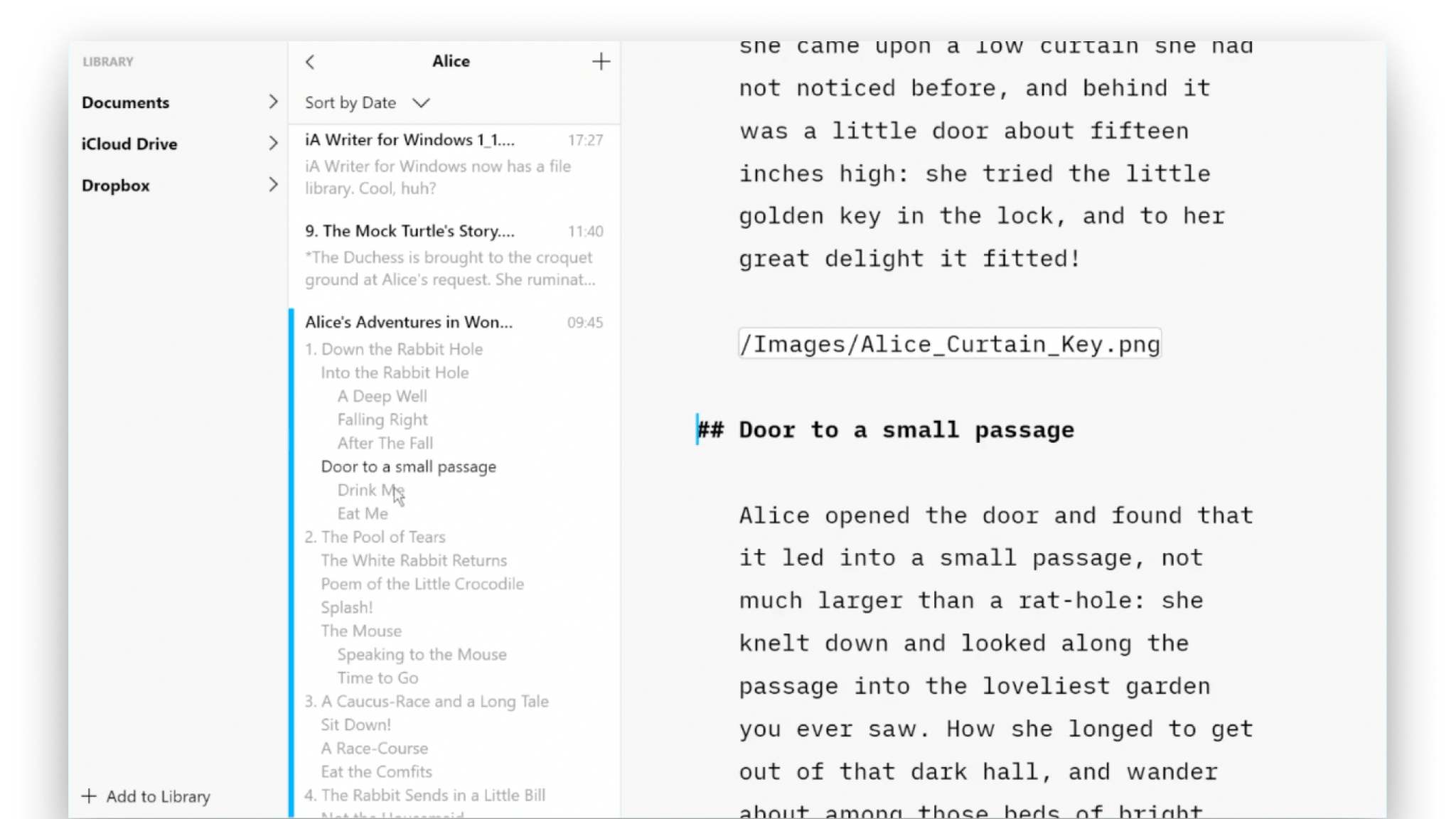
Writer for Windows comes with two powerful features for working with long or complex documents.