Sharing

With the hard work of the speech done, you can easily publish your presentation online and share the link with anybody. They can then view your slides in a browser, responsively on desktop, or on a mobile.
Upload your presentation
To share your presentation online, either:
- Go to the Menu bar and select Share
- Open the Share Presentation tab in the Inspector
Click Upload to generate a shared presentation with a link. Copy the link, which you can share with anyone you like.

You can specify your name and the target audience for sharing. To do so, head over the Metadata section of the Design menu

💡 Share wisely. Each link you share is unique and hard to guess, but keep in mind that anybody who has the link can view (but not edit) your presentation.
Manage shared presentations
To manage your shared presentations, head over to the Menu bar and select Share → Sharing Manager. From there you can:
- View details about your shared presentation, along with any linked versions
- Open shared presentations in your browser
- Copy shared links, or share them using the macOS Share sheet
- Delete shared presentations
- View used and remaining storage

By default, links for your published presentations remain available for one year. The storage options are as follows:
- iA Presenter subscriptions include 1 GB of Sharing storage for as long as the subscription remains active.
- As a promotion, Mac licenses also come with 1 GB of Sharing storage for one year.
In the near future, all users will have the option to upgrade to a Sharing+ subscription for additional storage and features. Please note that after the promotional period, Sharing+ will be required to maintain storage for Mac licenses.
Delete or update your presentation
If you want to stop sharing your presentation online, you can do so from:
- The Menu bar by selecting Share → Delete Version
- The Share Presentation tab in the Inspector
In the Sharing panel, mouse over a presentation version. Click the ... that appears and select Delete… in the contextual menu that appears.

After you've deleted a shared presentation, anybody who tries to open the link will see a 404 page.
In case of an update, by default, the existing link remains active, so there’s no need to share it again with your audience.
However, if you’d like to share multiple versions of the same presentation simultaneously, you can do so by going to the menu Share → New Version
What your audience sees
1) The webpage
The link you share opens a webpage with a carousel preview of your slides at the top and your speaker notes below it. Speaker notes are visible by default, but you can share versions that only show the slides.
At the very bottom of the page users can report any content that may violate our terms and conditions.

2) The slides
When viewers click on the carousel at the top of the shared page, the slides will expand to full screen. Your shared presentation will display responsively, so it will always look great on any device.
Viewers can also toggle speaker notes on or off via the button on the upper left. When speaker notes are enabled, they appear at the bottom of the slides, just like subtitles or karaoke lyrics.
 Action
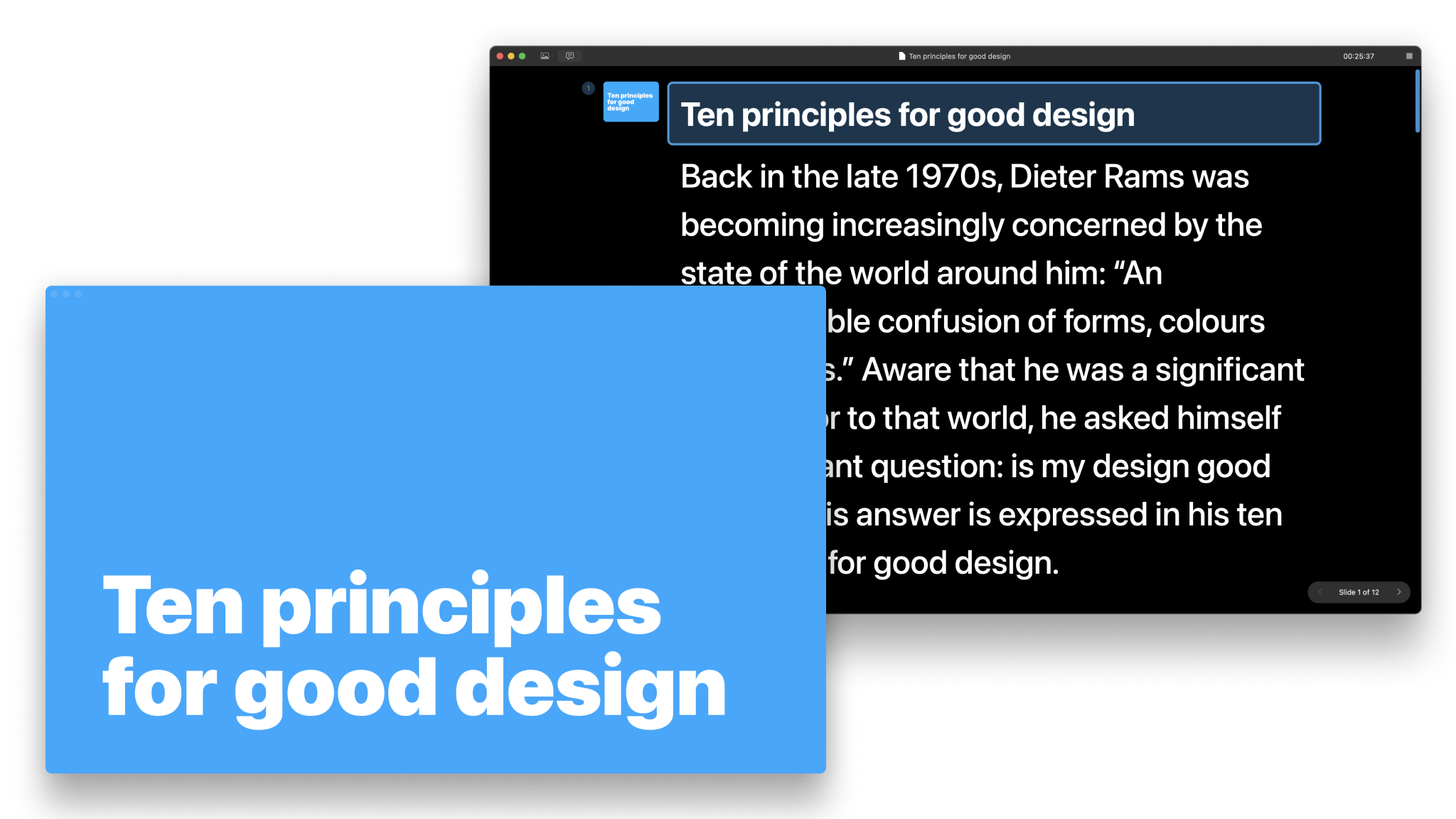
Presentation Mode
How to use the teleprompter: read your notes and get a preview of your slides.

Navigate Your Slides
Use either your mouse, keyboard, or remote controller and learn how to customize the navigation keys.
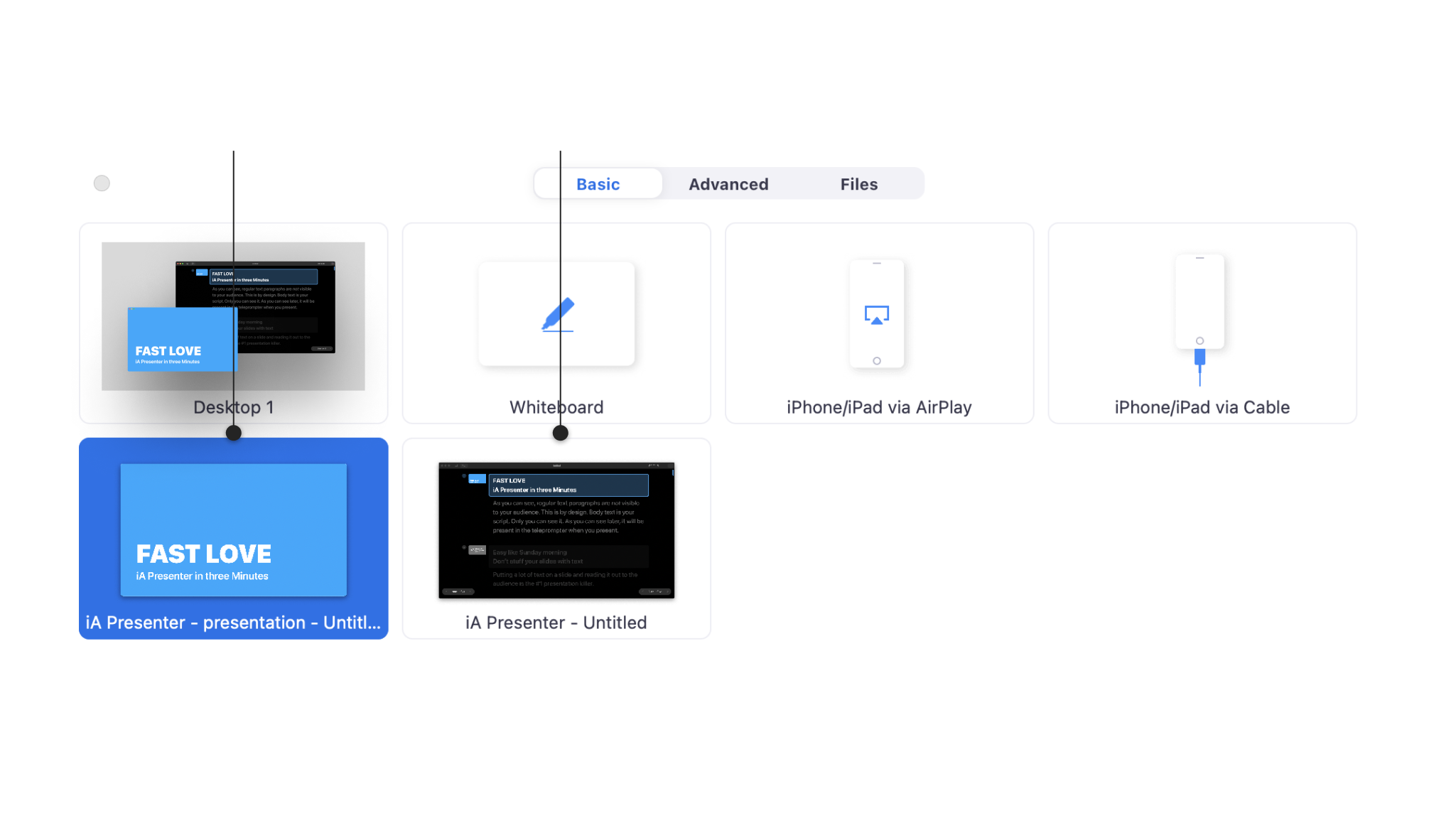
Presenting Online
Use Presenter with third-party software such as Zoom, Loom, or Google Meet for an online Presentation.

Presenting Onsite
How to use Presenter in a face-to-face situation with projectors or smart TVs.
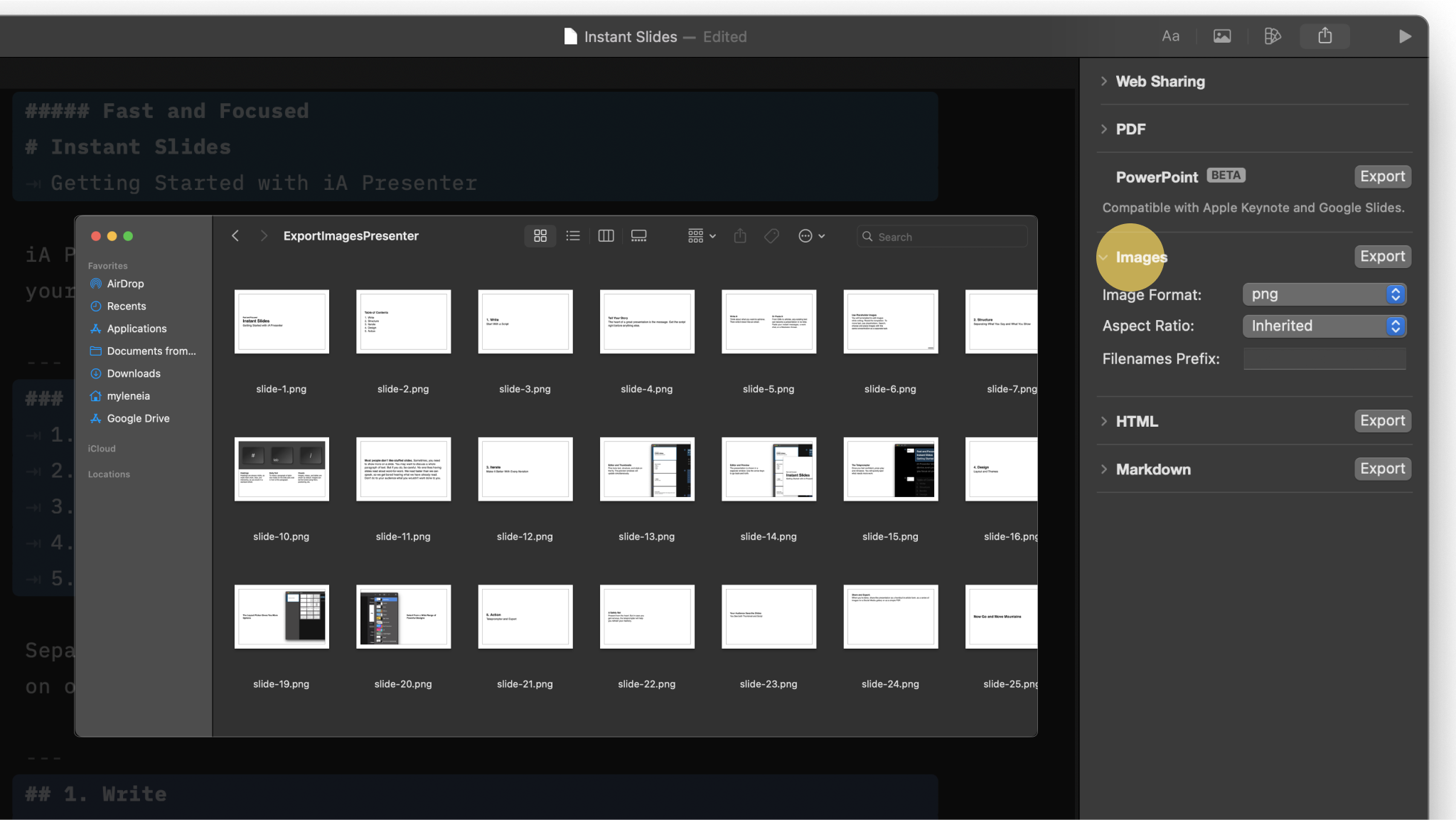
Export
Share your presentation to your audience as Markdown, PDF, HTML, PPTX or Images.
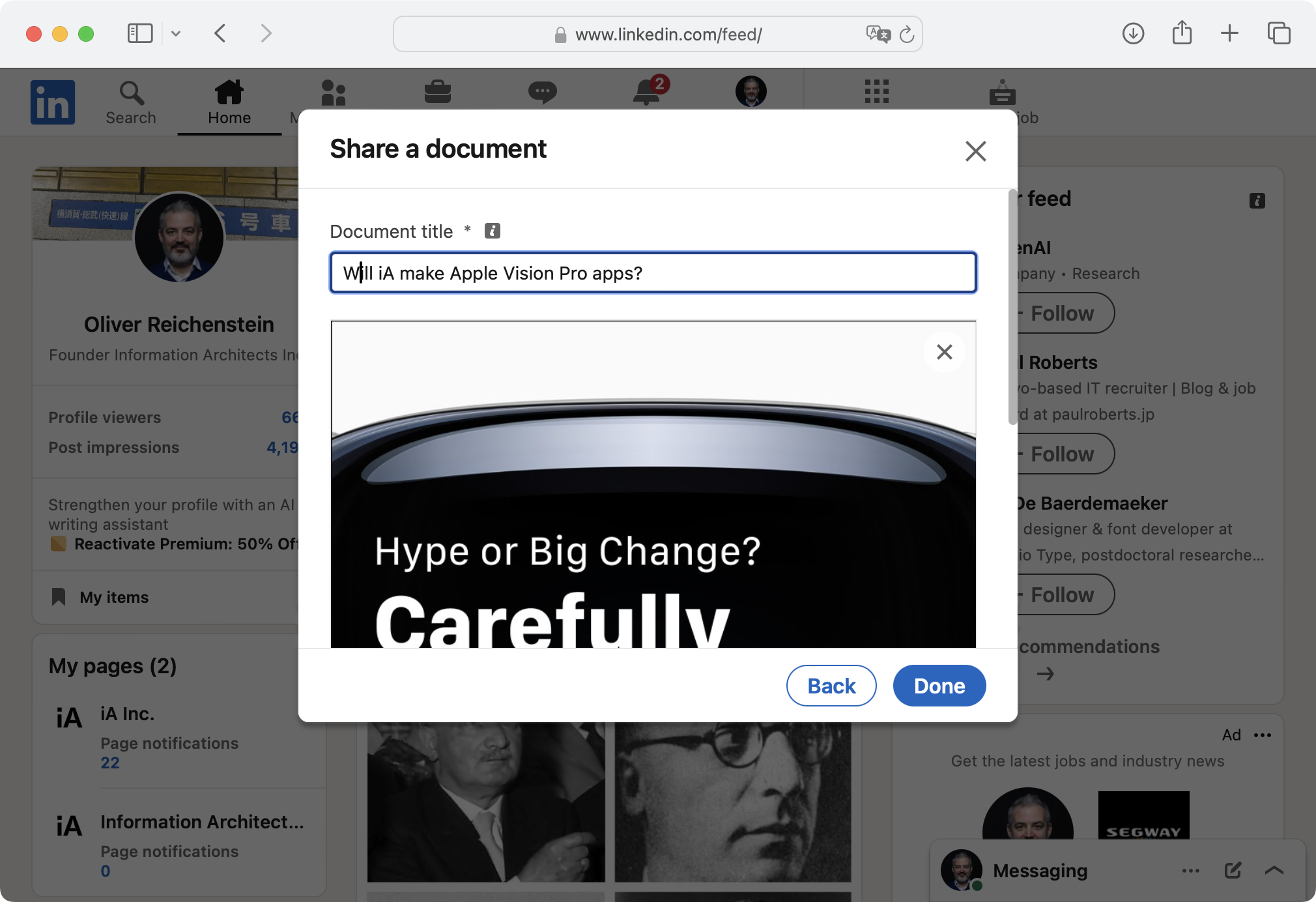
Social Media
A detailed walkthrough on exporting and sharing your presentation on social networks.