Export

Once you're done presenting, you can easily export your presentation and speaker notes as web link, printouts, files that you can use to publish online—or make them shareable in other apps.
To view export options, open the Share Presentation tab on the right side of the Inspector. Alternatively, go to File → Export in the main menu.

You can export your presentation as Web Sharing, PDF, PowerPoint, images, HTML and Markdown.
Web Sharing
Effortlessly publish your presentation online and share the link with anyone. For a detailed explanation of this feature, visit our dedicated page: Sharing.
PDF Export
PDF is the best option if you want to share your presentation in a paper-friendly format.

Choose which layout you want to use for your PDF export:
- Text and images
- Side by Side
- 1 slide per page, bleed
- 1 slide per page, white frame
- 1 slide per page, speaker notes
- 1 slide per page, notes placeholders
- 2 slides per page
- 3 slides per page, notes placeholders
You can export only the slides, or slides with the speaker notes. In addition, you can choose your preferred orientation and paper format too.
PPTX Export
*💡 Keep in mind that exporting as a PowerPoint file is in beta. It may not always work as expected. *
Exporting as .pptx makes your Presenter file compatible with PowerPoint, which means you can view it in Keynote, and Google Slides too.
The export to PowerPoint option currently supports:
| Feature | Support |
|---|---|
| Text style | Text color, bold, italic |
| Lists | Basic list without indentation level support |
| Presentation backgrounds | Plain colors and images (jpeg, png) with opacity support |
| Images | png, jpg, partial support for SVG |
| Image size and position | Position and size (cover/fit) |
| Videos | mp4 |
| Tables | Tables with basic borders |
| Code blocks | Syntax highlighting and block background |
| Maths | Support for formulas with default font size and color |
| Header and footer | Slide number, date, and custom text |
💡 When you use custom fonts in your presentations, they may not display correctly on a system that doesn't have them installed. Google Slides doesn't offer custom fonts at all:

Images Export
Export your slides as .png or .jpeg images to easily integrate them into other apps. You can add a prefix to the file names to better organize them.
When you export images, Presenter will create a folder with images of your slides: Each slide will contain a .png or .jpeg file.
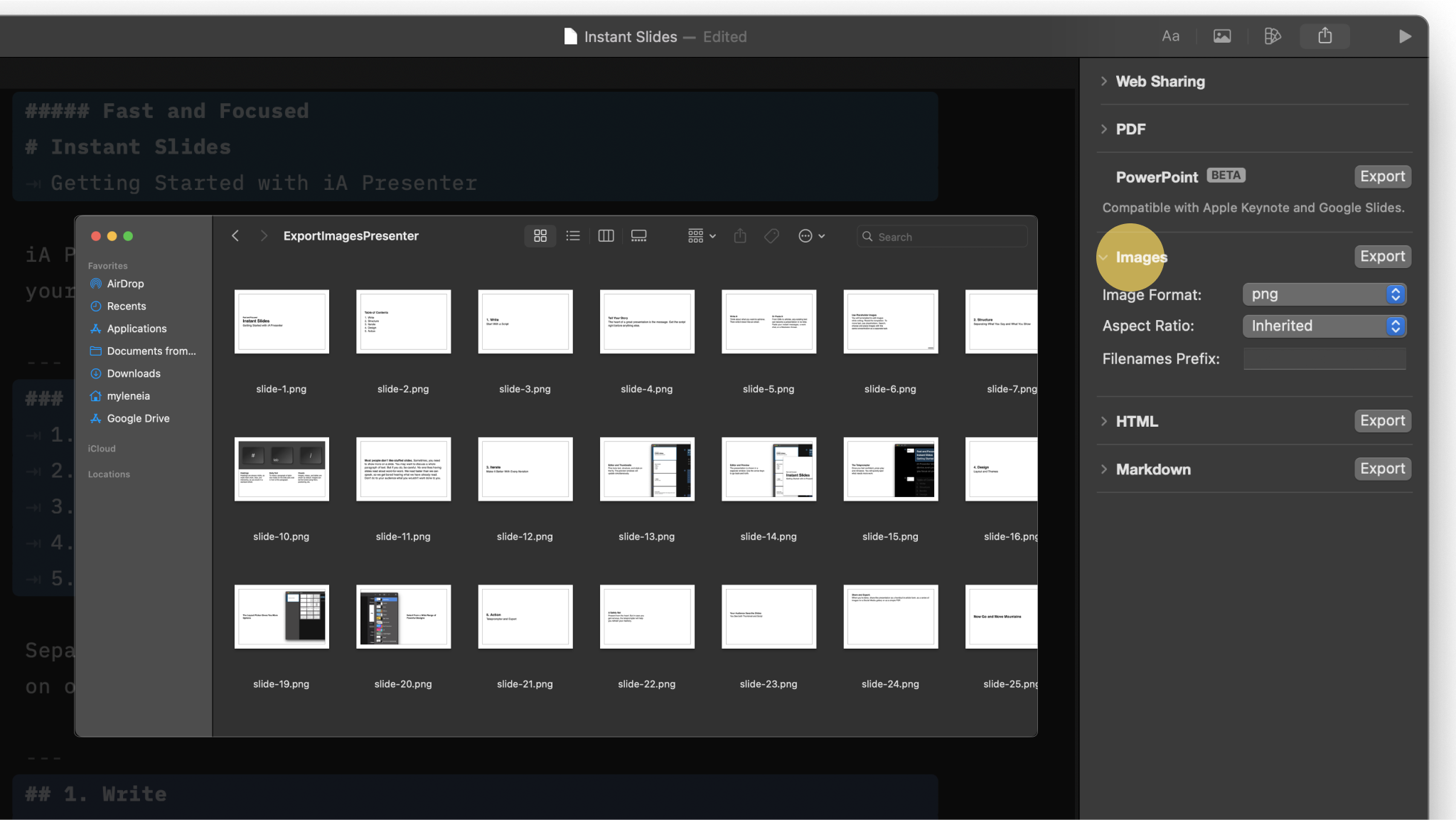
If you want to export your slides in a specific layout—such as a square format for sharing on social media—you should first adjust their aspect ratio in the Settings or Share Presentation menu before you export them.

HTML Export
Exporting your presentation as HTML makes it easy to add your slides to your website. Exporting generates a full package that contains your presentation, graphics, the theme, and the Javascript rendering engine.
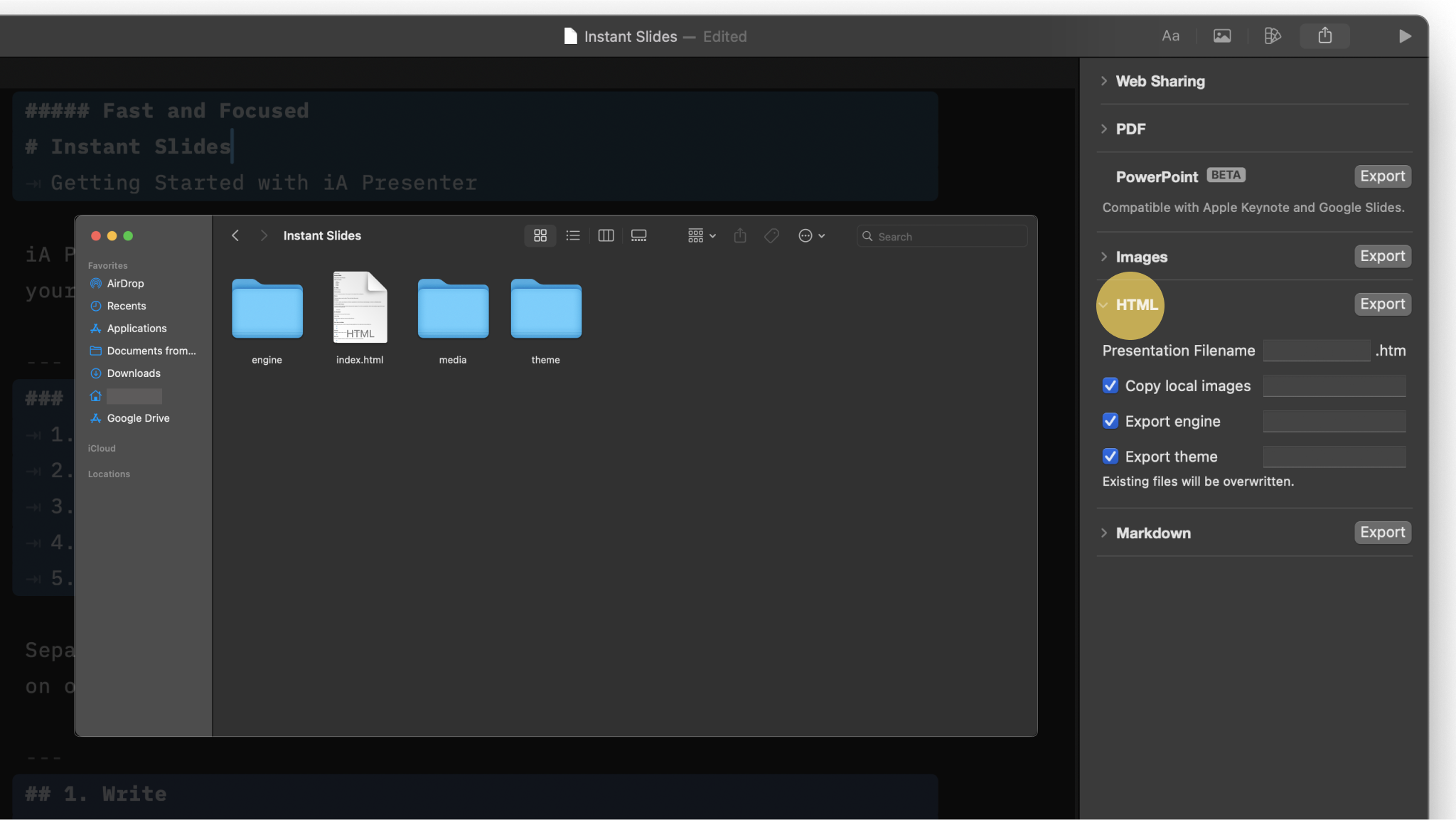
After you’ve exported, upload the files to your preferred hosting solution (GitHub Pages, for example) and share the URL with your audience.
The exported result will be interactive like your original presentation. It renders dynamic elements such as videos or audio, and includes the responsive design too.
💡 When you upload the files to your hosting solution, be sure to use the same folder hierarchy as in the export. Don’t upload all the files contained in folders separately.
Depending on your hosting solution, you may need to rename "presentation.htm" to something else for it to display correctly. For example, in Github Pages it’s "index.html".
Markdown Export
You can export your presentation as a regular Markdown file. Your slides, along with your Speaker Notes, will appear just as you wrote them in the Editor.
All local images used in the document will be exported to the same "media" folder.

Exporting as Markdown gives you simplicity, high portability, and compatibility with many other apps, making it a favored choice for many writers, developers, and content creators.
 Action
Presentation Mode
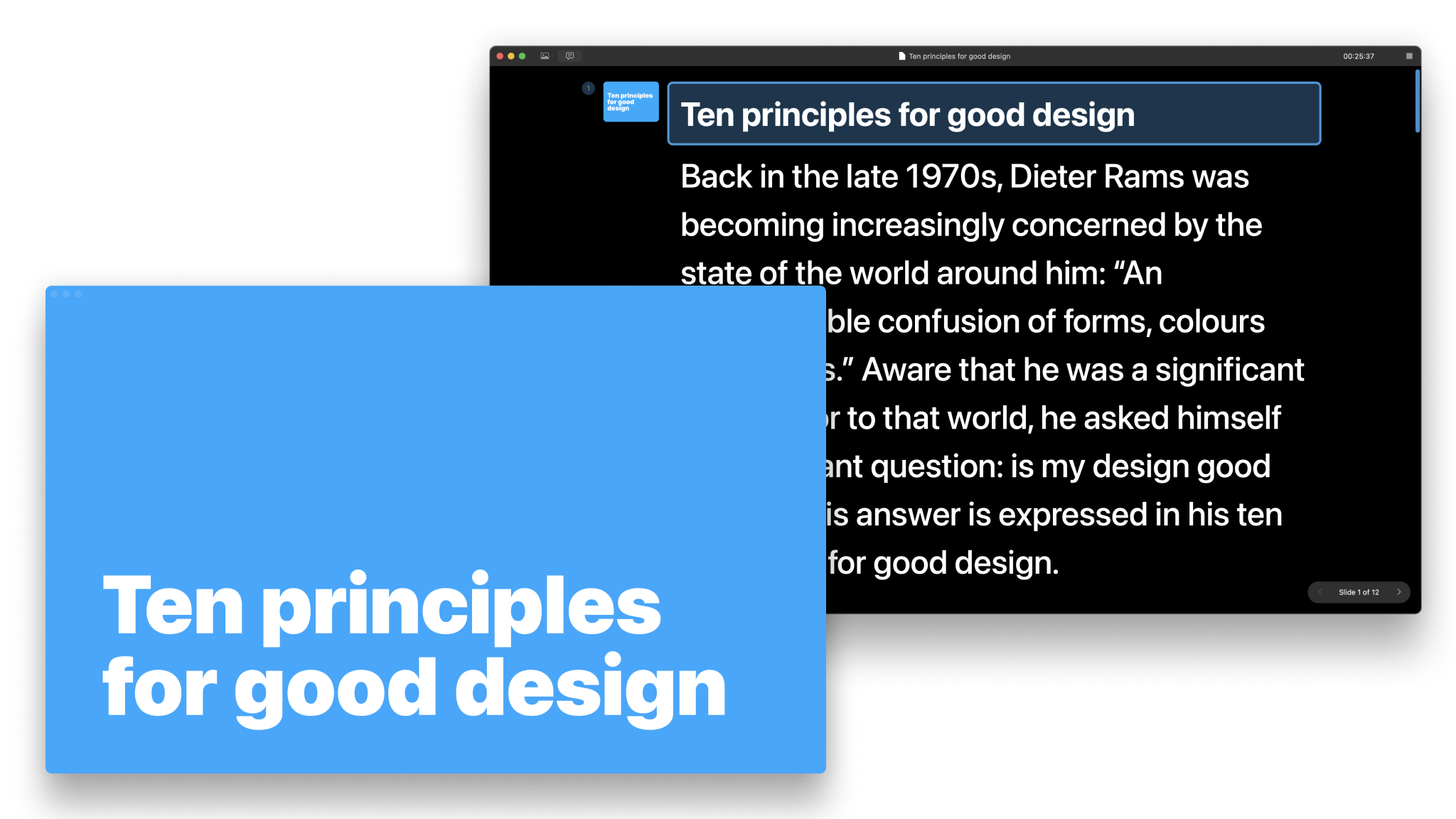
How to use the teleprompter: read your notes and get a preview of your slides.

Navigate Your Slides
Use either your mouse, keyboard, or remote controller and learn how to customize the navigation keys.
Presenting Online
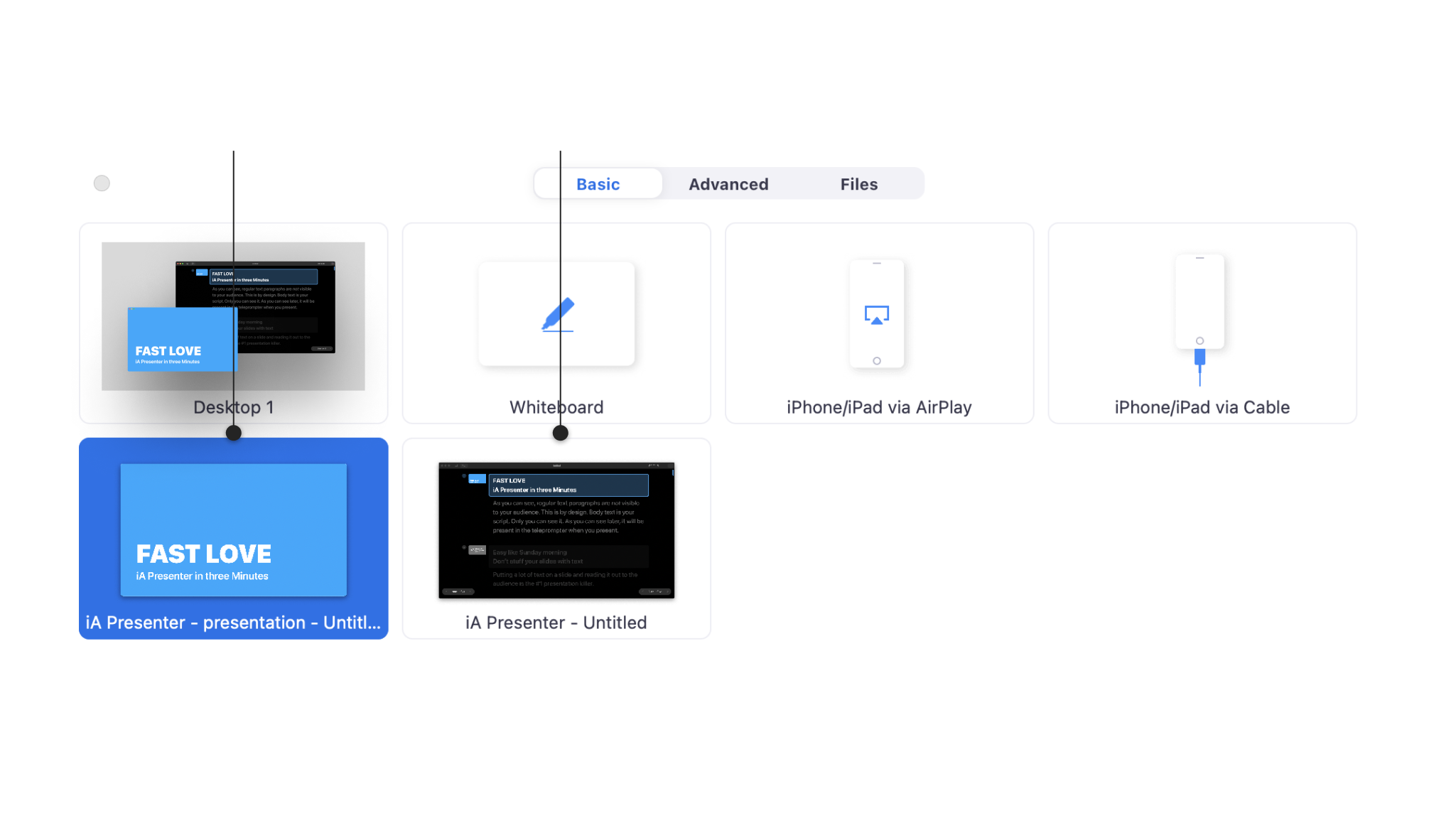
Use Presenter with third-party software such as Zoom, Loom, or Google Meet for an online Presentation.

Presenting Onsite
How to use Presenter in a face-to-face situation with projectors or smart TVs.

Sharing
With Sharing you can publish your presentation as a temporary static site and share its link with your audience.
Social Media
A detailed walkthrough on exporting and sharing your presentation on social networks.