Markdown Guide
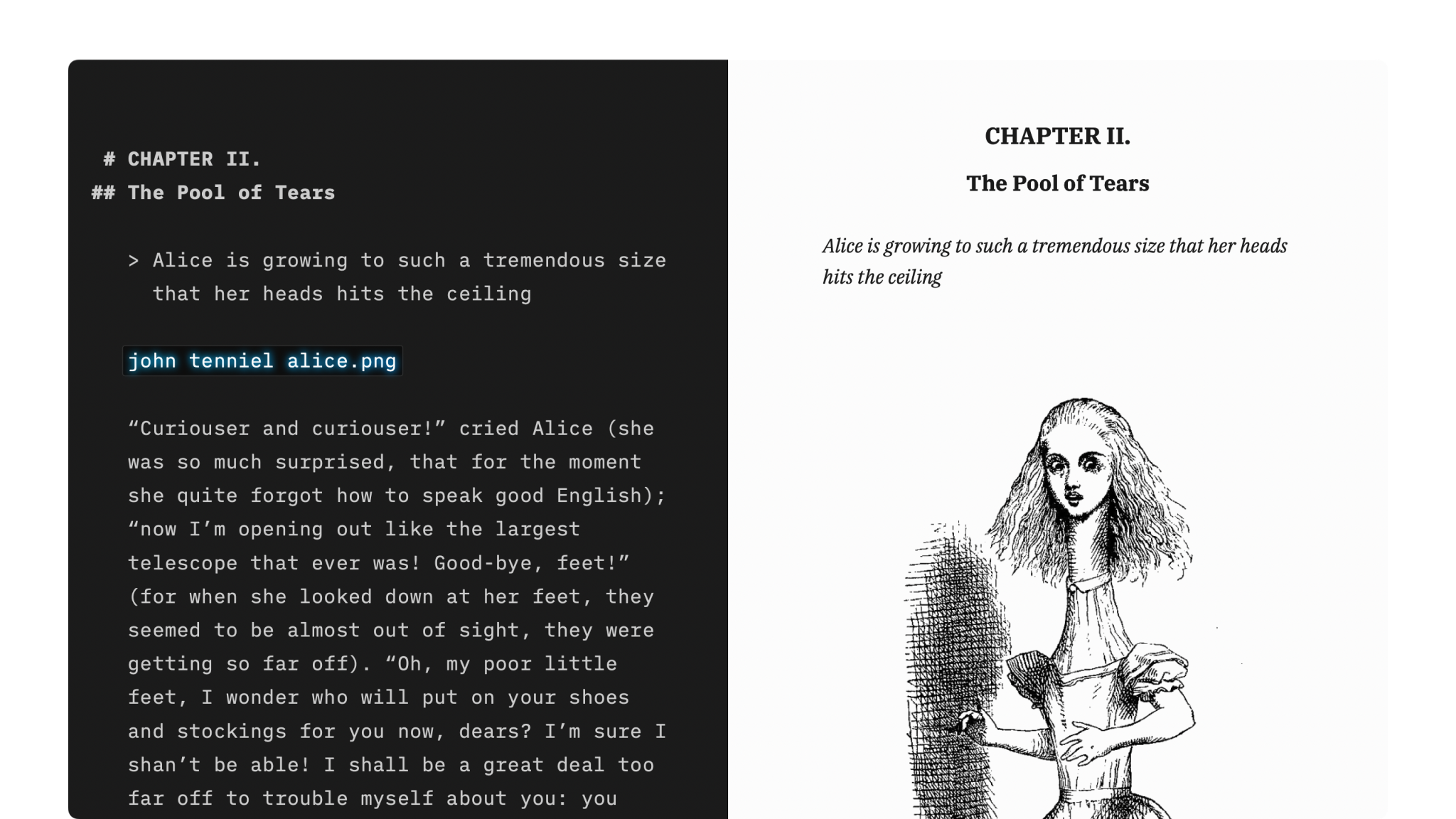
Our apps use Markdown formatting. This lets you apply basic formatting by adding a few punctuation characters.
If you are not familiar with Markdown, it might look a little scary at first. Once you get the basics, you will quickly love it as it allows you to format your text without taking your hands off the keyboard. iA Writer's Auto-Markdown will give you instant feedback if you got the formatting right or not.
[table_of_contents]
Overview
John Gruber, the author of Markdown, underlines that "Markdown is intended to be as easy-to-read and easy-to-write as is feasible." Readability is key:
A Markdown-formatted document should be publishable as-is, as plain text, without looking like it’s been marked up with tags or formatting instructions.
Markdown’s syntax is comprised entirely of punctuation characters, which have been carefully chosen so as to look like what they mean. E.g., asterisks around a word actually look like emphasis. Markdown lists look like, well, lists. Even blockquotes look like quoted passages of text, assuming you’ve ever used email.
You can also use the Lightning menu in iA Writer for iPad and iPhone, the Toolbar, and the Format Menu on Mac and Windows.
Formatting
Bold
You can use double asterisks or underscores to make bold text:
**bold**
__bold__
Italic
You can use single asterisks or underscores to make italic text:
*italic*
_italic_
Bold & Italic
You can use triple asterisks or underscores to combine bold & italic:
***bold-italic***
___bold-italic___
Strikethrough
You can use double tildes to make ~~strikethrough~~ text:
~~strikethrough~~Highlight
You can use double equals signs to highlight text:
==highlight==Structure
Headings
You can use up to up to six levels by writing # at the start of a line; the number of hashtags defines the hierarchy of the heading.
# Heading 1
## Heading 2
### Heading 3
#### Heading 4
##### Heading 5
###### Heading 6
Numbered Lists
Type 1. then a space. Any number (followed by a full stop and space) can be used and the list items will be ordered from 1 when exported.
1. Ordered list item
2. Ordered list item
3. Ordered list item
Bulleted Lists
Type *, - or + then a space. Create a bulleted list by using an asterisk (*), hyphen (-), or plus sign (+), followed by a space.
* Bulleted list item
* Bulleted list item
* Bulleted list item
Task Lists
Type - [ ] or 1. [ ] then a space. Adding an x between the square brackets will tick off a task list item in the Preview.
- [ ] Unfinished task list item
- [x] Finished task list item
Nesting Lists
You can nest lists several levels deep, and combine them. Nested list items are indented with four spaces or a tab.
* First level
    * Second level

1. First level
    1. Second level

* First level unordered list item
    1. Second level ordered list item
Blockquotes
Type > plus a space.
> A quoted paragraph
>> A quoted paragraph inside a quotation
Breaks
Separating Paragraphs
A line starting with a tab indicates a block of code. Because of this, it is currently not possible to use a return-plus-tab to indicate a new paragraph in Writer. Instead, please use **two returns **to separate paragraphs.
Line Breaks
From the Markdown specification:
When you do want to insert a
iA Writer also allows you to insert a <br /> into a paragraph by using Shift+Enter. This will add the spaces required at the end of the line for you.
Horizontal Rules
You can add a thematic break which will be represented by a dividing line (<hr>) when exported to HTML. To do so, add three or more asterisks (*), hyphens (-), or underscores (_) on a line by themselves, optionally separated with spaces. For example:
* * *
or
-------------
Page Breaks
Sometimes your document doesn't flow exactly how you want it when printing or exporting to PDF. You can force a page break in iA Writer using three plus marks (+) on a line by themselves, after an empty line:
+++
Images
Both local and web URLs are supported. Markdown uses the following syntax for images:


When using local images, they must be in a folder added as a Library location. This gives iA Writer permission to use the file.
Note: Markdown image syntax and HTML image filename rules are different from Content Blocks. When using Markdown syntax, spaces must be encoded as %20, and the leading slash must be omitted because it refers to the root directory of a device.
Links
Create a link by surrounding the link text in square brackets, followed immediately by the URL in parentheses:
[text to link](http://example.com/)
You can also use reference links. Add the reference in square brackets after the text to link. Then, on a line by itself add the reference with a colon, space, and the URL:
[text to link][ref]
…
[ref]: http://example.com/
Cross-References
iA Writer for iOS, iPadOS and macOS support cross-references using the following syntax:
# My Level 1 Header

Some text and a link to [My Level 1 Header][].
You can define the label for a specific header by adding a space and [Label] following the header:
# My Level 1 Header [My Label]
This can be referenced by:
Here is a link to [My Label][].

or

Click here to [jump to section][My Label].
iA Writer for Windows supports cross-referencing headers using the following syntax:
# Header

[link text][Header]
You can use this like so:
# My Level 1 Header

Click here to [jump to section][My Level 1 Header].
Tables
Table of Contents
Just add {{TOC}} wherever you want the table of content to appear and iA Writer generates it from the Headlines you use in your text.
Tables
To make a table, use vertical bar characters to denote cells. Start with column headers, separate with a row of cells with hyphens, then add further rows of cells. For example:
|Header |Column 1 | Column 2 | Column 3  |
|:--- |:---- |:----:| ----:|
|1. Row| is | is | is  |
|2. Row| left | nicely | right  |
|3. Row| aligned | centered | aligned  |
Markdown tables look more reasonable than HTML-Tables, but they are the weak point of Markdown. That being said, they still translate nicely when rendered:

Some rules to follow:
- There must be at least one
|per line - Columns are separated by
| - The separator between table header and content must contain only
|:-and spaces - To align a column: left
:--, right--:, center:-: - Cell content must be in one line
- The first line of the table, and the alignment/divider line, must start at the beginning of the line
- To merge cells add additional
|at the end of the cell
iA Writer includes a menu option to automatically generate the cells for a table.
There is a trick though you can use when writing Markdown tables with a monospaced font. You can feign the correct column width by adding space characters to align the table:

In Writer for Windows you can clean up a Markdown table by selecting the whole table and using Format → Table → Reformat.
Note: If you find your table does not render correctly in Preview, please ensure Smart Dashes are turned off in Edit → Substitutions.
Notes
Footnotes
Add a footnote in square brackets preceded by a caret. Then add the footnote content like a reference link, for example:
Some text with a footnote[^1].

…
[^1]: The linked footnote appears at the end of the document.
On Mac and iOS you can also add an inline footnote in the following manner:
Some text with a footnote[^This is the footnote itself.].
Citations
*Available in iA Writer for Mac and Iphone & iPad only at the moment. *
This is a statement that should be attributed to
its source[p. 23][#Doe:2006].

[#Doe:2006]: John Doe. *Some Big Fancy Book*. Vanity Press, 2006.
You can use any text you want for the locator (e.g. p. 23), and it can also be omitted. Any citation key (e.g. #Doe:2006) format is allowed, as long as it begins with a hash sign:
This is a statement that should be attributed to its
source[][#Doe, 2006].
Note: Markdown was designed for web where there is no concept of pagination. As such footnotes are essentially endnotes. When rendered, these are placed at the end of the document.
Code
Use single backticks ````` to indicate code within a line:
Keyword `func` indicates a function in Swift programming language.
Use three backticks ``````````` or add four spaces to the start of a line to create a fenced code block:
```swift
class Shape {
    var numberOfSides = 0
}
```
In iA Writer, it’s also possible to start a code block with a tab, as long as the text doesn’t start with list, header or blockquote syntax characters (1., *, -, +, #, >).
Comments
If you're using iA Writer on an Apple device, add two forward slashes at the beginning of a line to change it into a comment that only you can see:
// This is a commentAlternatively, use HTML comments which works on all platforms:
“Escaping” Formatting Characters
If you want to type a formatting character and have Writer treat it as text not formatting, type a backslash first \\. This means \\* gives *, \\_ gives _ etc. Escaping isn’t needed in code blocks.
Math
iA Writer supports LaTeX math expressions, which are typeset using KaTeX (see supported features for more info). These are easy to write in plain text and then formatted beautifully in the Preview.
For inline expressions, use $ or \\\\( and \\\\):
An example of math within a paragraph --- \\\\({e}^{i\\pi }+1=0\\\\)

Or use dollar signs instead --- ${e}^{i\\pi }+1=0$
For block format expressions, use $$ or \\\\[ and \\\\]:
To show an expression by itself:

\\\\[ {x}_{1,2}=\\frac{-b\\pm \\sqrt{{b}^{2}-4ac}}{2a} \\\\]

or:

$${x}_{1,2}=\\frac{-b\\pm \\sqrt{{b}^{2}-4ac}}{2a}$$
If using the dollar sign syntax, there must be no space between the $ and the contents of the expression and there must be space on the outside.
Superscript
Simple superscript, without any whitespace or punctuation:
100m^2
More complicated superscript:
y^(a+b)^
Subscript
Simple subscript, without any whitespace or punctuation:
x~z
More complicated subscript:
x~y,z~
Metadata
Writer supports metadata at the beginning of documents. They must be separated from the rest of the document by three dashes.
First, define your metadata at the very top of your document, followed by an empty line.
---
Customer: M. Bluth
Me: Bob Loblaw
Date: April 3rd, 2023
---
You can then use the metadata in the text by putting it in [brackets] and adding a % sign.
Sincerely,
[%me]
Bonus
Markdown Dictionary
The iA Team has compiled a Markdown Dictionary to assist you in recalling and referencing Markdown syntax. This is available not only in iA Writer but also on other apps (macOS only).
- Get iA Markdown Dictionary
Installing the iA Markdown Dictionary
- Uncompress the zip file downloaded above.
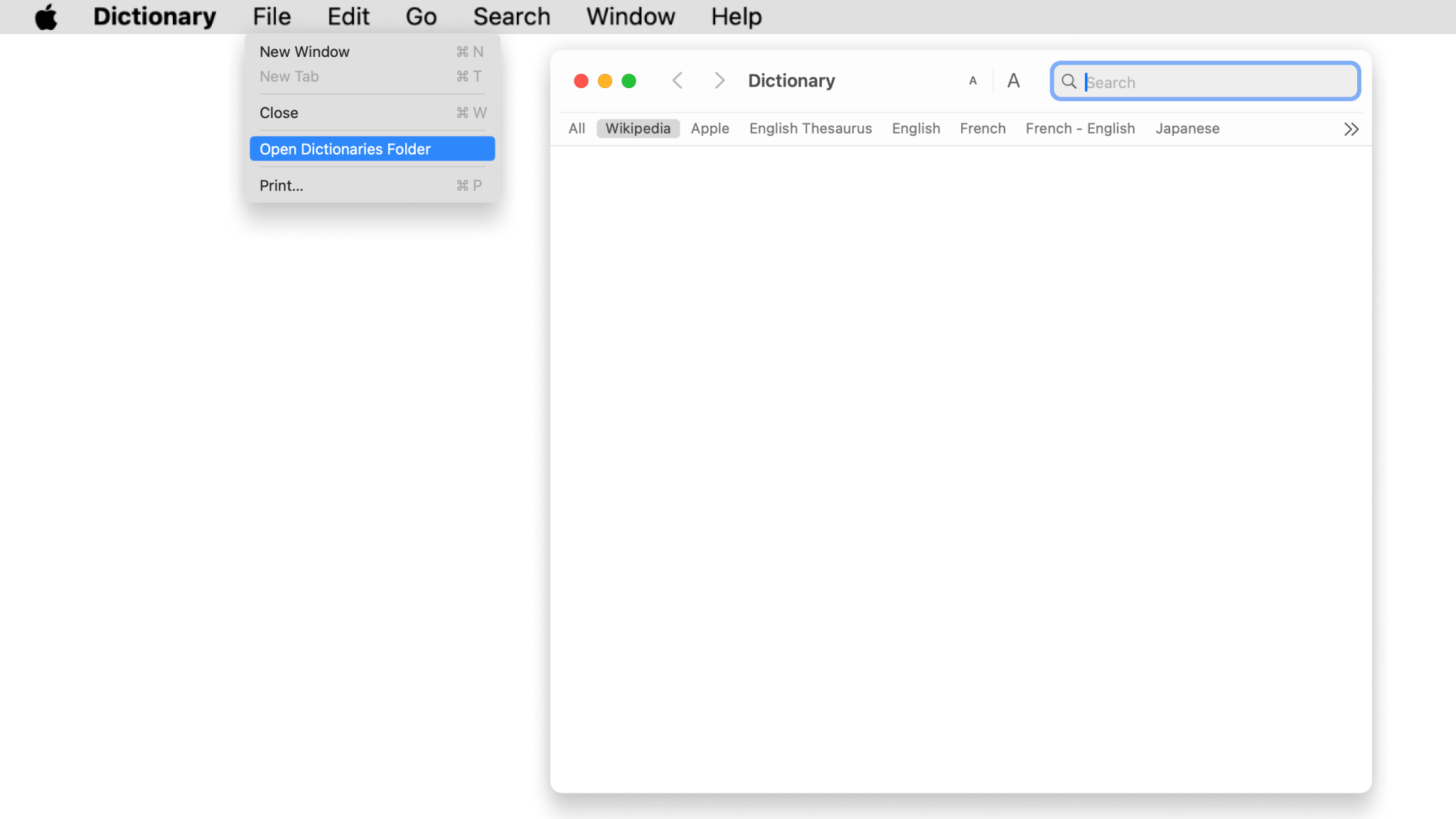
- Open the Dictionary app, go to File → Open Dictionaries Folder.
- Drag and drop the “iA Markdown.dictionary” into the Dictionaries folder.
- Quit and reopen the Dictionary app, go to Dictionary → Settings, scroll to find iA Markdown at the bottom of the list, and make sure it’s enabled. Then drag it up to the position you would like it to appear when looking up terms in your apps.

Using the iA Markdown Dictionary
The iA Markdown Dictionary is available in the macOS Dictionary app. You can also access it at any time in any app that supports the macOS Look Up function:


 Basics

Features
An overview of iA Writer’s features on Mac, iPhone, iPad and Windows.
Settings
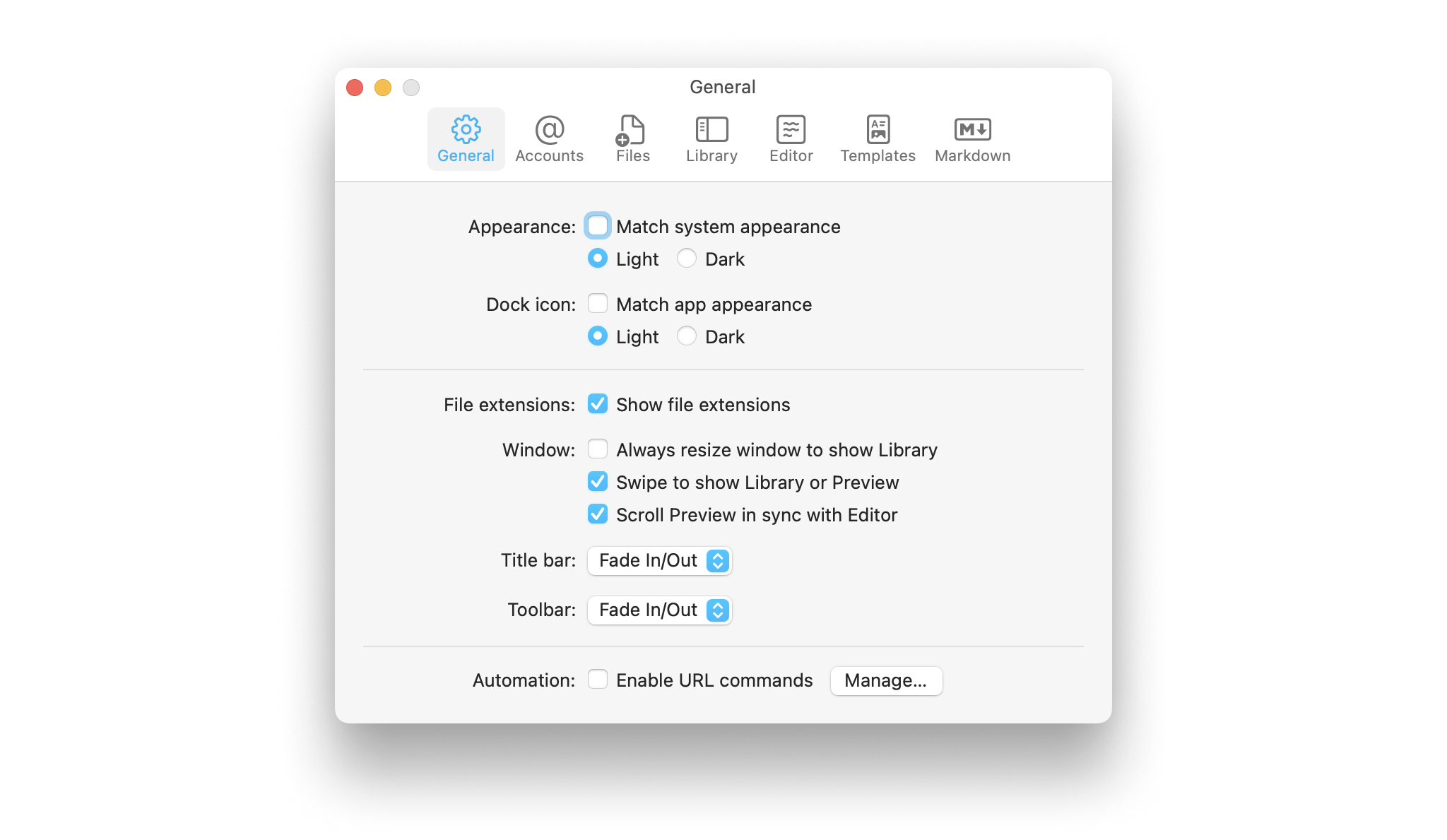
Learn how to tweak iA Writer’s settings to suit your needs.
Shortcuts
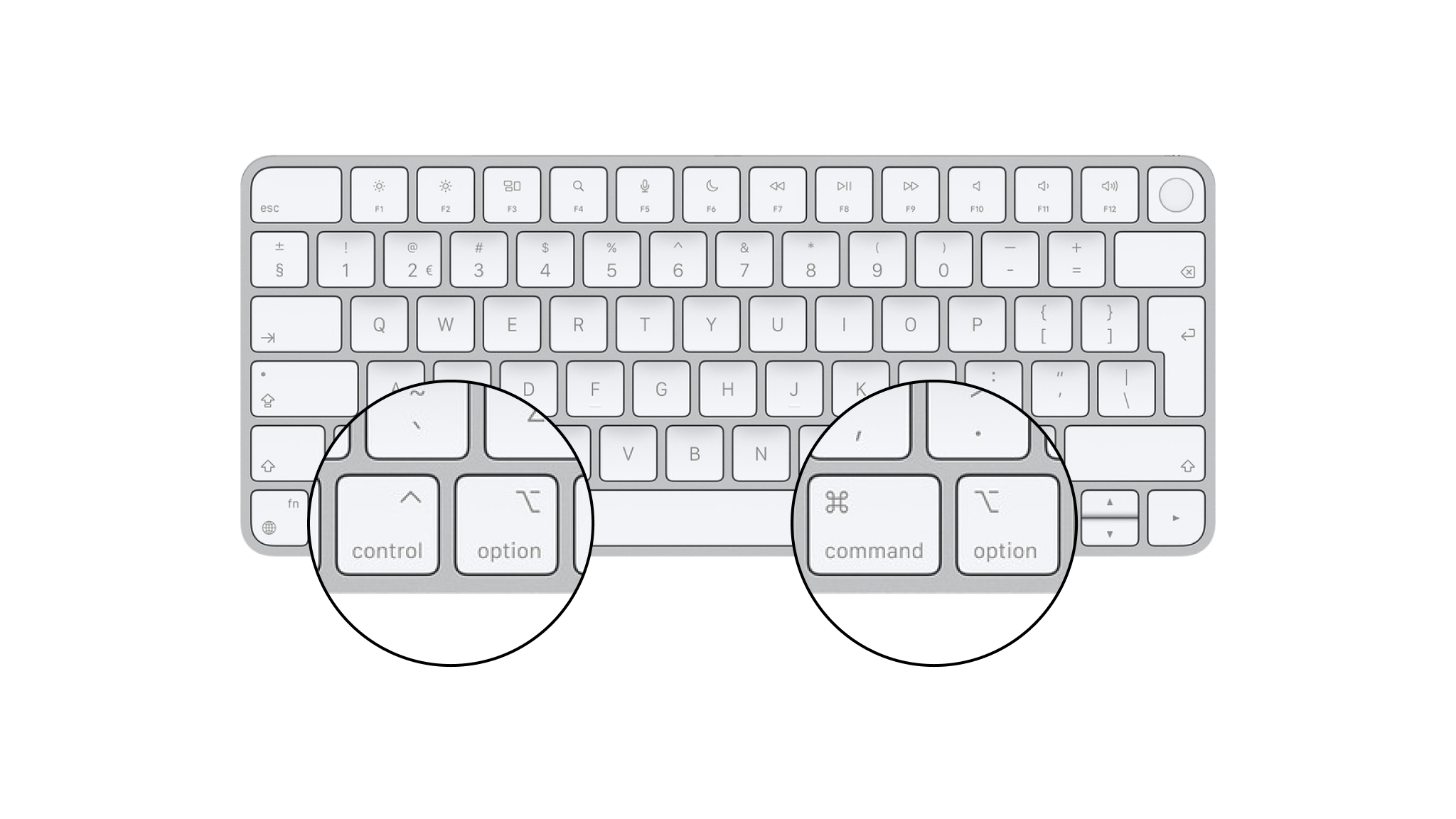
Learn a few iA Writer shortcuts to save time and keep you in the creative flow.

Languages
Learn which languages iA Writer supports across its platforms, including spellcheck, Syntax Highlight and Style Check.

Apple Shortcuts
Shortcuts are a powerful automation tool that saves time and helps you focus on writing by avoiding repetitive busywork.