The Thumbnails

The Thumbnails panel to the left of the Editor gives you a preview of all of your slides.
Whenever you create a slide, it will instantly appear in the Thumbnails panel. Open the panel with a swipe from left to right across the left edge of the screen, in the Editor.
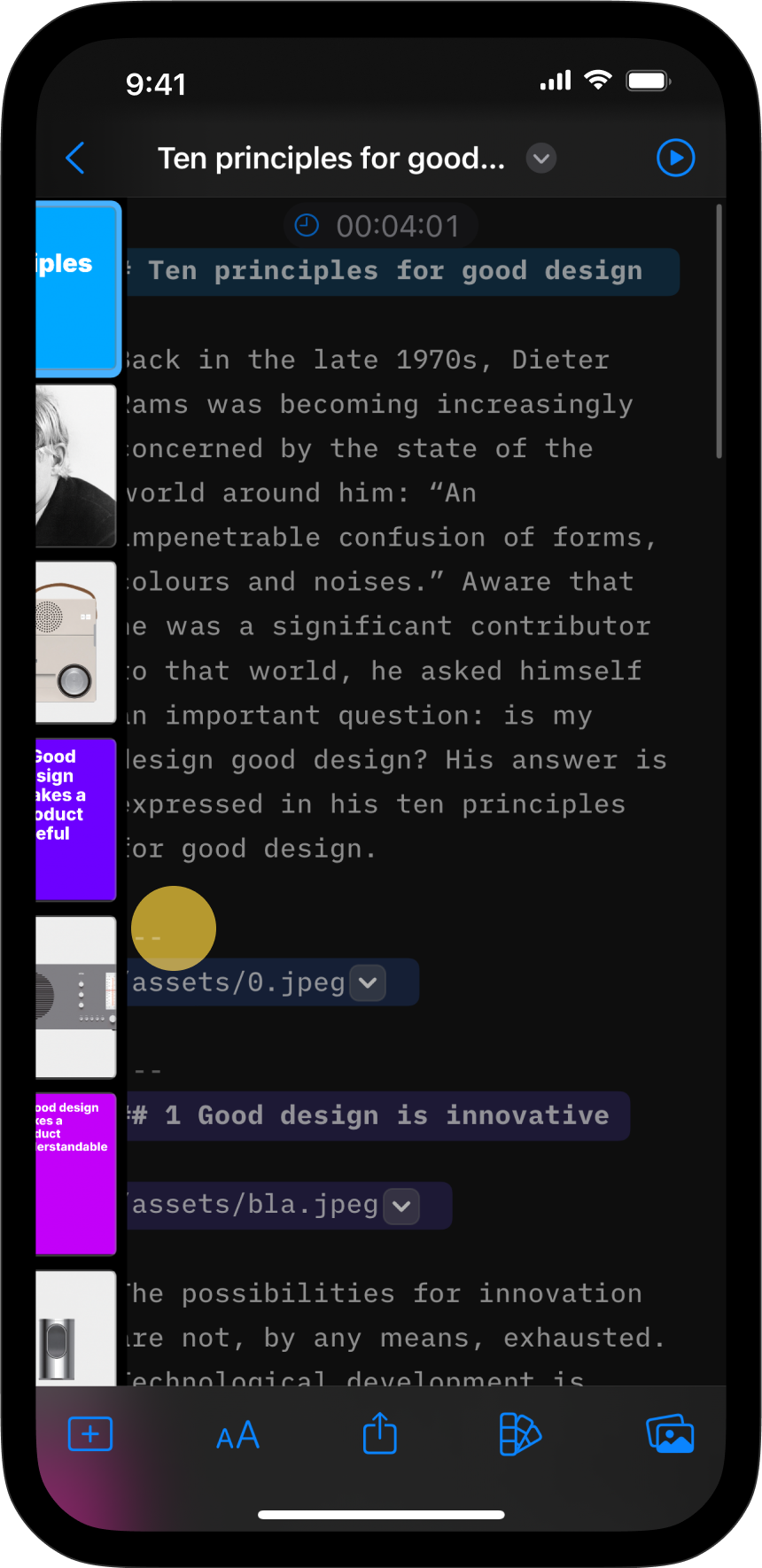

You may see a small AA beneath the slide’s number, as in slide six above. That means Presenter had to scale down your text to make it fit the slide.
Thumbnail Actions
To reorder your slides, simply drag-and-drop them where you like. You don’t need to change the related content in the Editor—Presenter will update it automatically.
Long-press on a thumbnail to open the contextual menu with more options, such as copy/paste, insert, duplicate or delete.


Double-tap on any thumbnail to open Presentation Mode and view the slide at an enlarged size.
Thumbnail Layouts
You can choose from five aspect ratios:
- Regular 4:3
- Wide 16:9
- Mobile 9:16
- Portrait 4:5
- Square 1:1
Here are some examples of different aspect ratios:


To change a thumbnail’s aspect ratio, go to Settings → Presentation → Layout → Fixed aspect ratio and select the aspect ratio you prefer.


 Tip: Portrait and square aspect ratios are ideal for sharing slides on social media platforms like Instagram or LinkedIn.
Changing a Thumbnail’s Design
A thumbnail’s layout is determined by the theme you choose in the Design menu. If you change to a different theme, all thumbnails will automatically switch to the new layout.


Tip: Have you noticed how the thumbnail numbers change from blue to gold as you add more slides? This gradual color shift makes it easy to see your progress at a glance, regardless of the selected theme.
 Story
Story
Editor
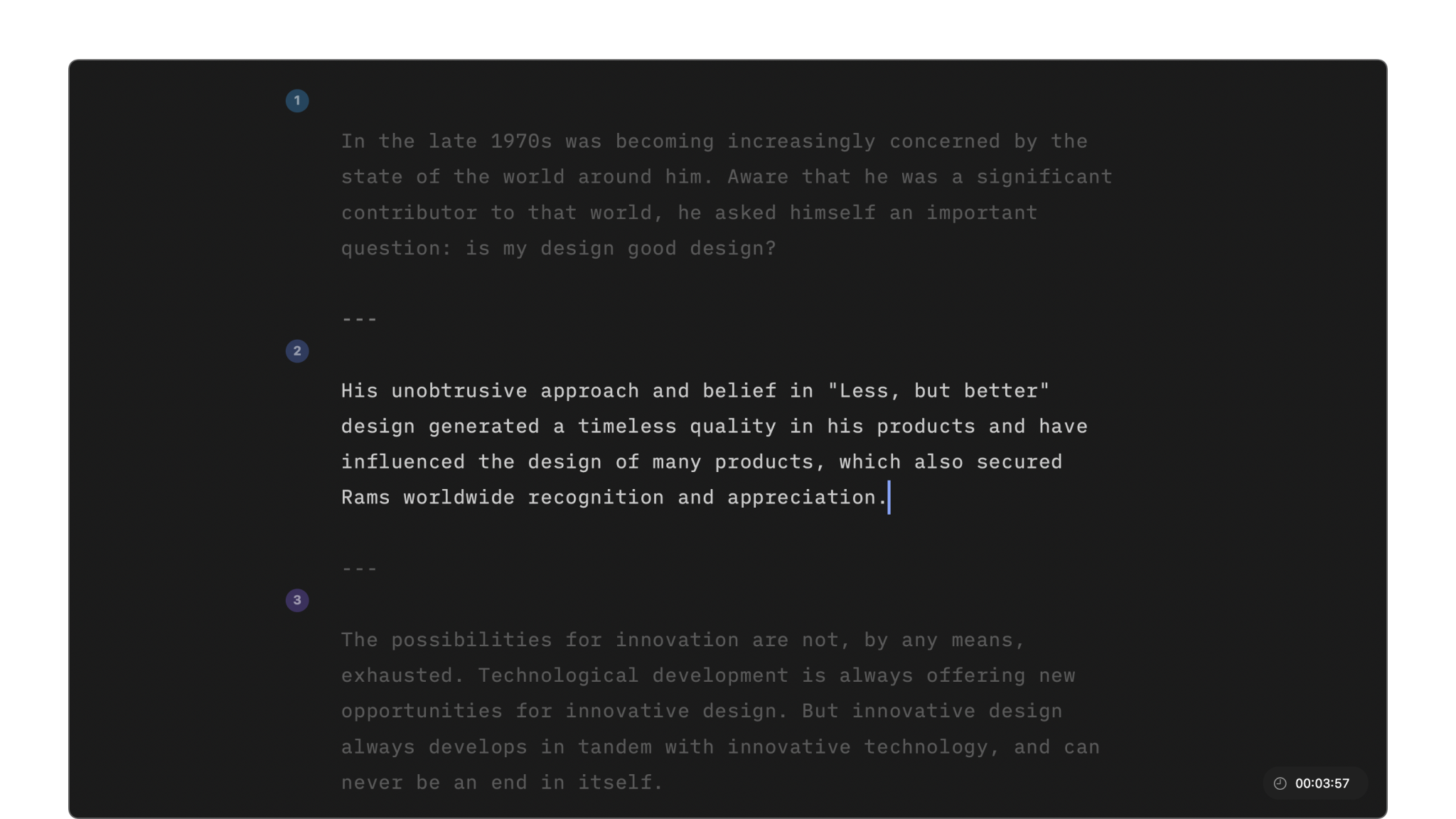
The Editor is where you’ll write your narrative, add visuals, and turn your content into slides.
Import
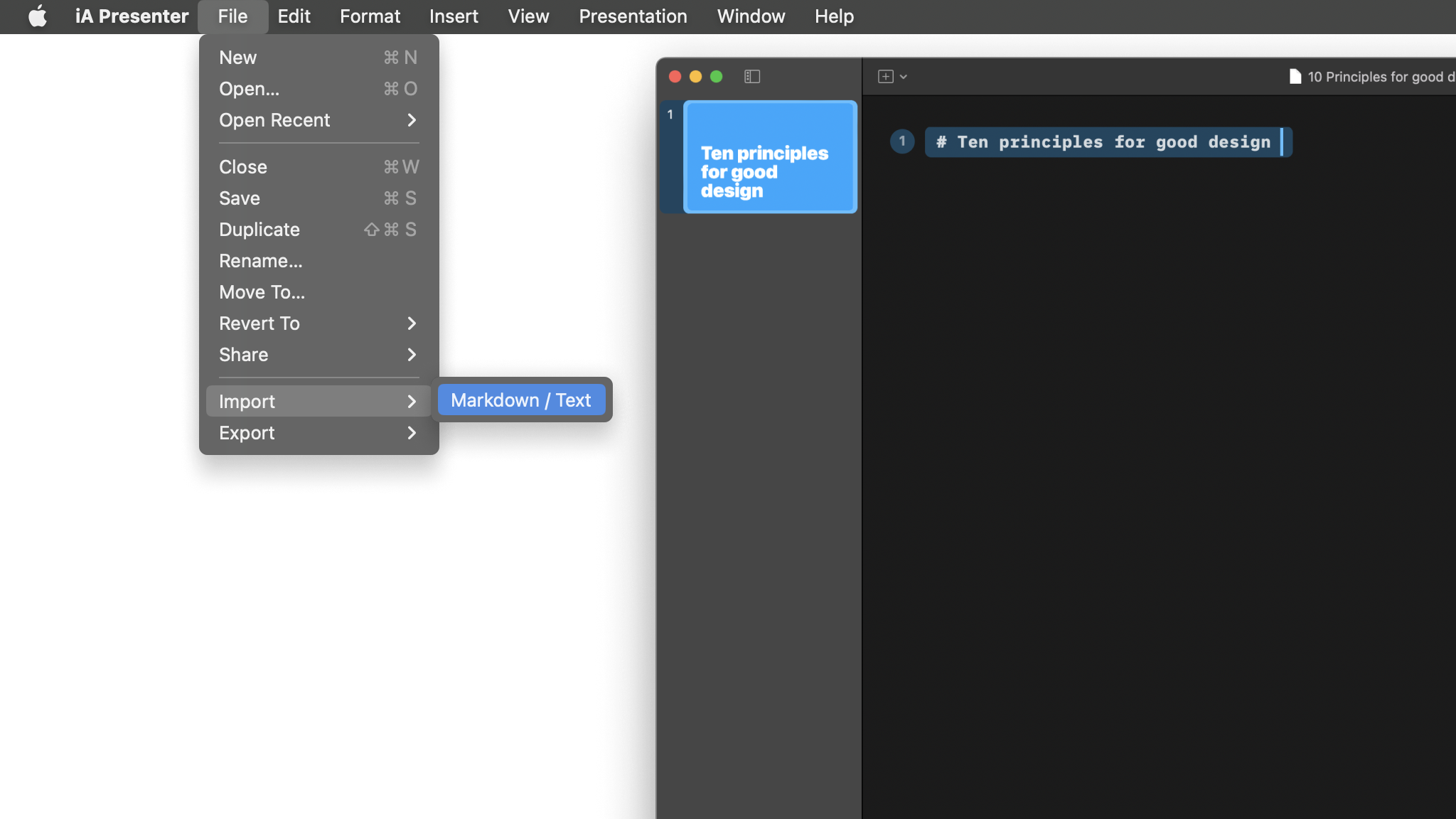
Turn an existing Markdown text into a presentation in seconds.
Shortcuts
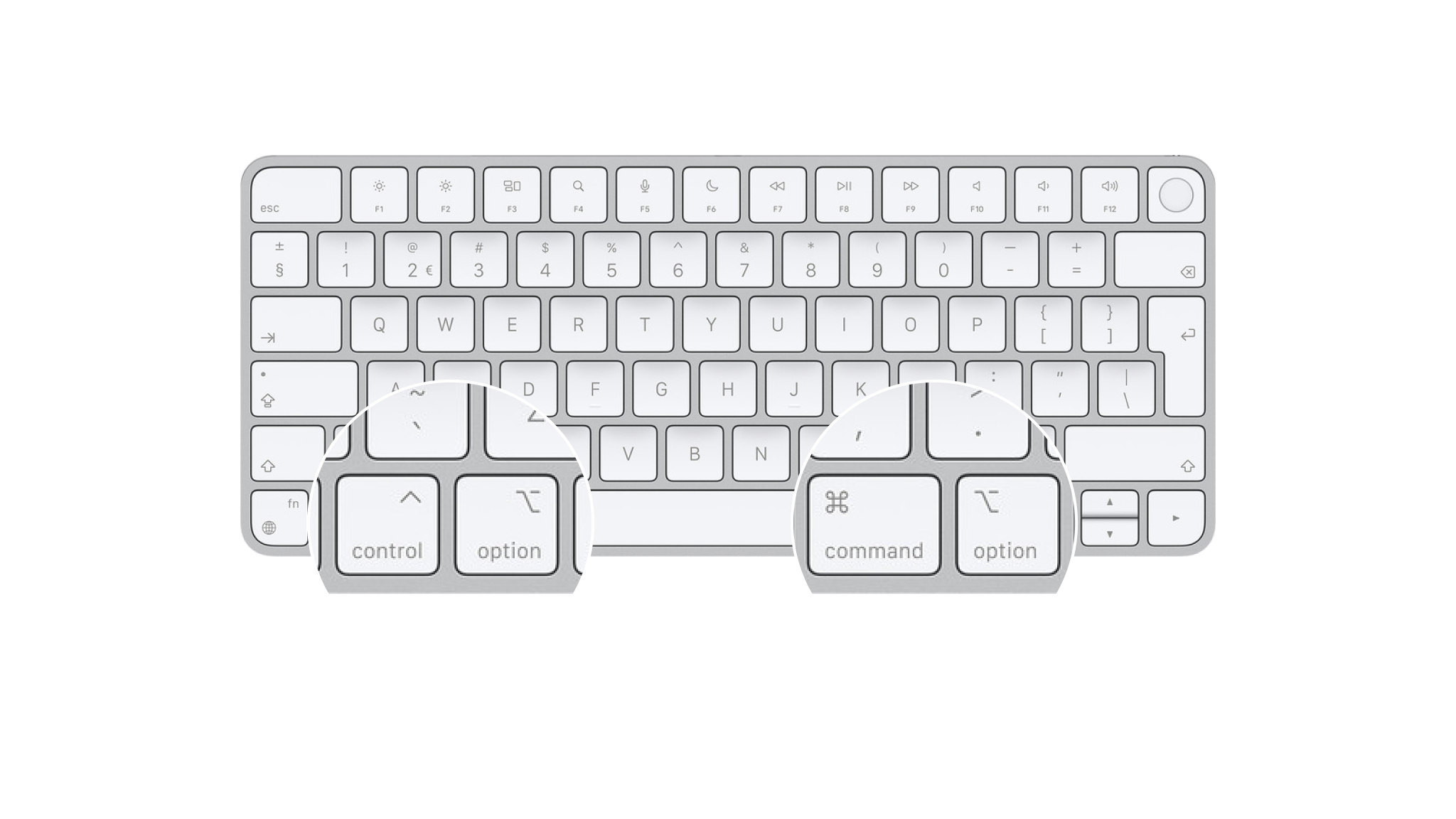
Navigate the app more efficiently by learning the shortcuts available in Presenter.

Backups And Recovery
Lost your progress in a presentation? Wishing you hadn't deleted that slide? No worries!