Modify the Preview

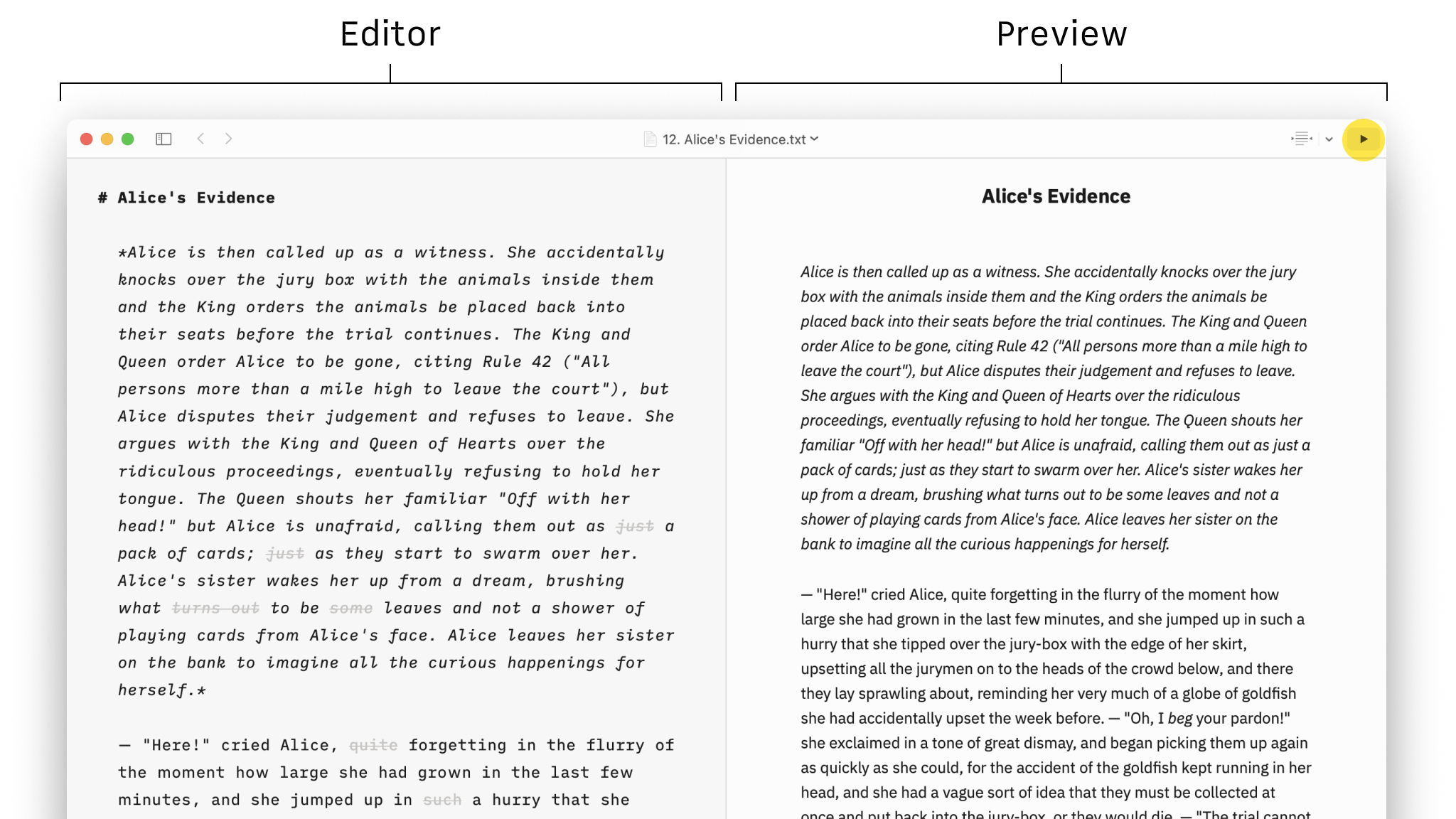
In Writer for Mac, you can utilize Preview to visualize how your document will appear when exported or printed.
This feature allows you to view the rendering in various templates. From Preview, you have the options to adjust the fonts, layout, and background color.
You can open Preview from:
- the top-right arrow ▶️ on the Toolbar
- the menu View → Show Preview
- the shortcut ⌘R
Full-screen or Half-screen
Preview can appear as half of the screen side-by-side with the Editor or in full screen.
At full width, you can hide the Editor completely for an ideal reading environment, while half-width is often used by writers who want to keep track of the formatting as they go.
You can resize the Preview:
- via the menu View → Preview → Split | Full
- via the Toolbar (right side)

Web & PDF Modes
You can choose between Web or PDF view.
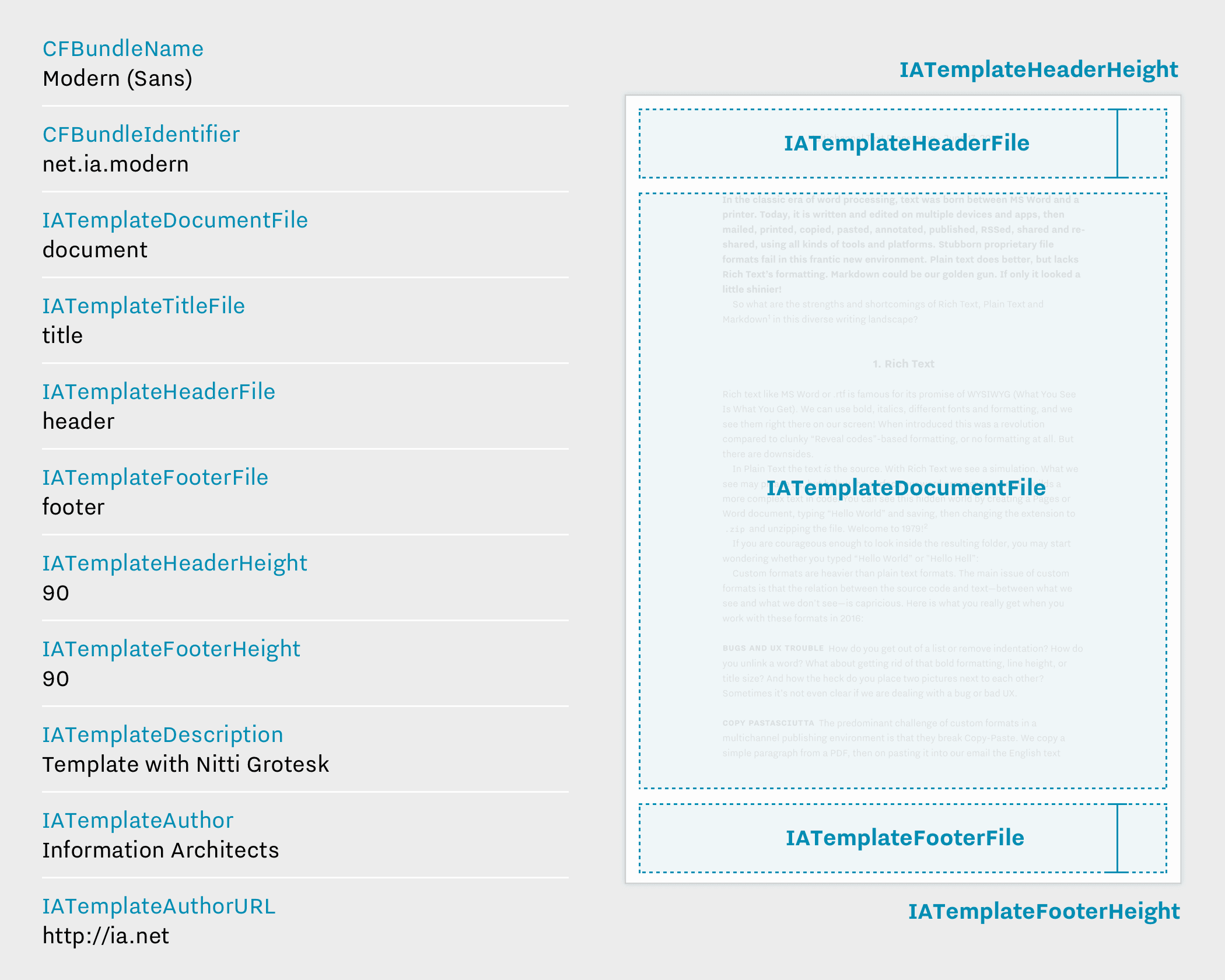
You have more formatting options available for PDF via Settings → Templates. Learn more about that on our dedicated page: Settings.

In the Web view, you can invert the colors to mark the difference between the Editor and Preview.
If the Editor is in light mode, Preview will appear in dark mode and vice versa.

Fonts & Layout
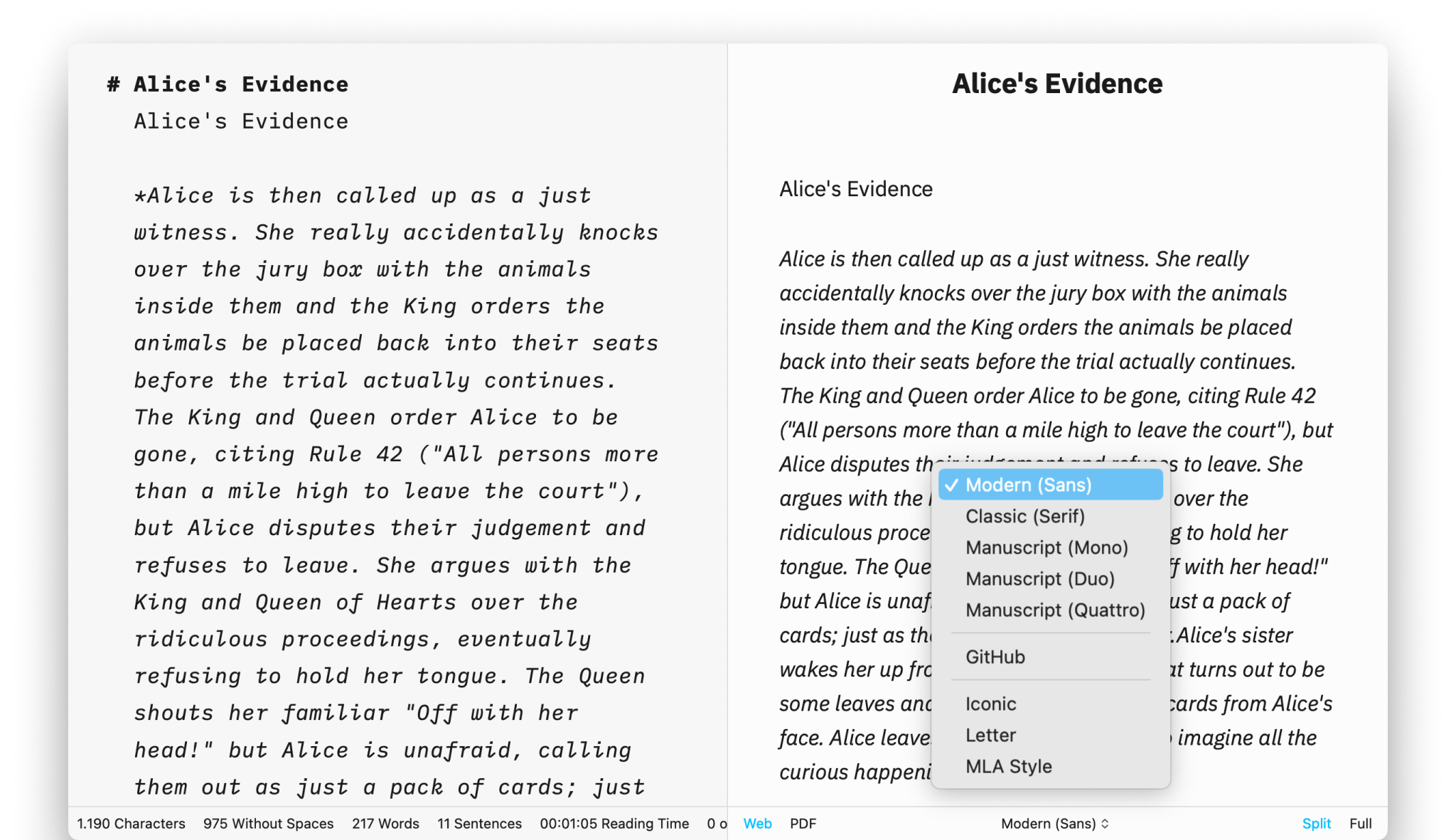
Finally, you can modify the font and layout of the document in the Preview thanks to the templates:
- via the Toolbar (middle)
- in the Menu select View → Templates
Preview determines what Export will look like. In the case of PDF, the currently selected typography in the Preview will be used.
A Little Extra...
If you are familiar with web development, you surely know the inspector tool lets you see parts of the code rendered by the page, such as HTML and CSS.
You can enable the Web Inspector tool in the Preview, in case you wanted to know what’s your document like, under the hood.

To enable Web Inspector in Preview, paste the following command into Terminal:
defaults write pro.writer.mac WebKitDeveloperExtras -bool true
 Preview