Images
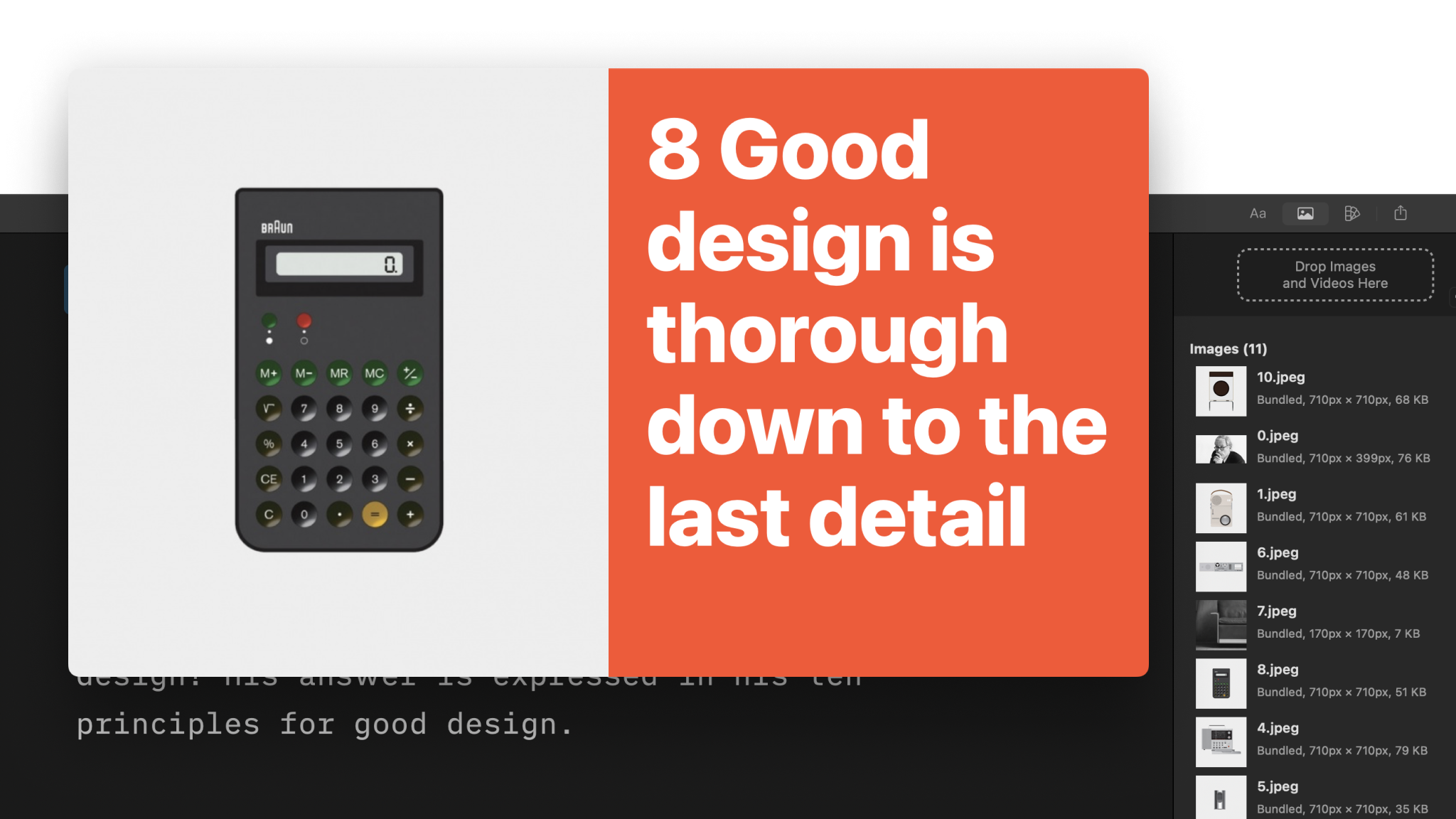
Images help tell a story. Adding images in Presenter is as simple as drag-and-drop—and you have many more options to help ensure that your image displays exactly as you want it to.
Adding Images
To add an image, simply drag-and-drop or copy-paste it into the Editor. With Presenter for Mac, you can add both local images, as well as links to images on the Internet.
Presenter supports multiple image formats:
| Format | Extension |
|---|---|
| Portable Network Graphics | .apng, .png |
| Graphics Interchange Format | .gif |
| WebP | .webp |
| Joint Photographic Experts Group | .jpg, .jpeg |
| Tagged Image File Format | .tif, .tiff |
| Scalable Vector Graphics | .svg |
| Portable Document Format | .pdf |
💡 To use local images in Presenter, you must first add them to the Media Manager. This step grants iA Presenter permission to access the file. The simplest way to do this is by using drag-and-drop.
Syntax
Presenter supports Markdown syntax for images, which you enter like this:

However, an easier way is to use Content Blocks Syntax, where you add the image’s path or URL using drag-and-drop or copy-paste. For example:
/assets/image-name.png
https://source.net/image-name.jpeg
An .iapresenter file is a .zip that includes your markdown presentation file and all your images. There’s no need to store images separately from your presentation. You can manage images from the Inspector’s Media Manager tab (see below).
💡 If you find yourself often using the same images across different presentations, try adding them to a custom theme to avoid unnecessary rework.
Presenter uses two virtual folders for its images:
assetsfor graphics you add to a presentation, e.g./assets/image-name.pngthemefor reference graphics that come bundled with a theme, e.g./Theme/image.jpg
Use the asset folders when working with graphics (images and video) in your presentation. You’ll use the theme folder to change graphics in layout themes.
The Media Manager Tab
You’ll find the Media Manager tab above the Inspector on the right. If you closed the Inspector, you can open it via:
- Menu → View → Show/Hide Inspector
- The shortcut ⌥⌘I
- Swiping on your trackpad (two fingers) from the right edge to the left

From the Media Manager you can:
- View a list of all your graphics (images and videos)
- Drag-and-drop graphics into the Editor
- Delete unused images
- Rename graphics (don’t forget the extension at the end, e.g.
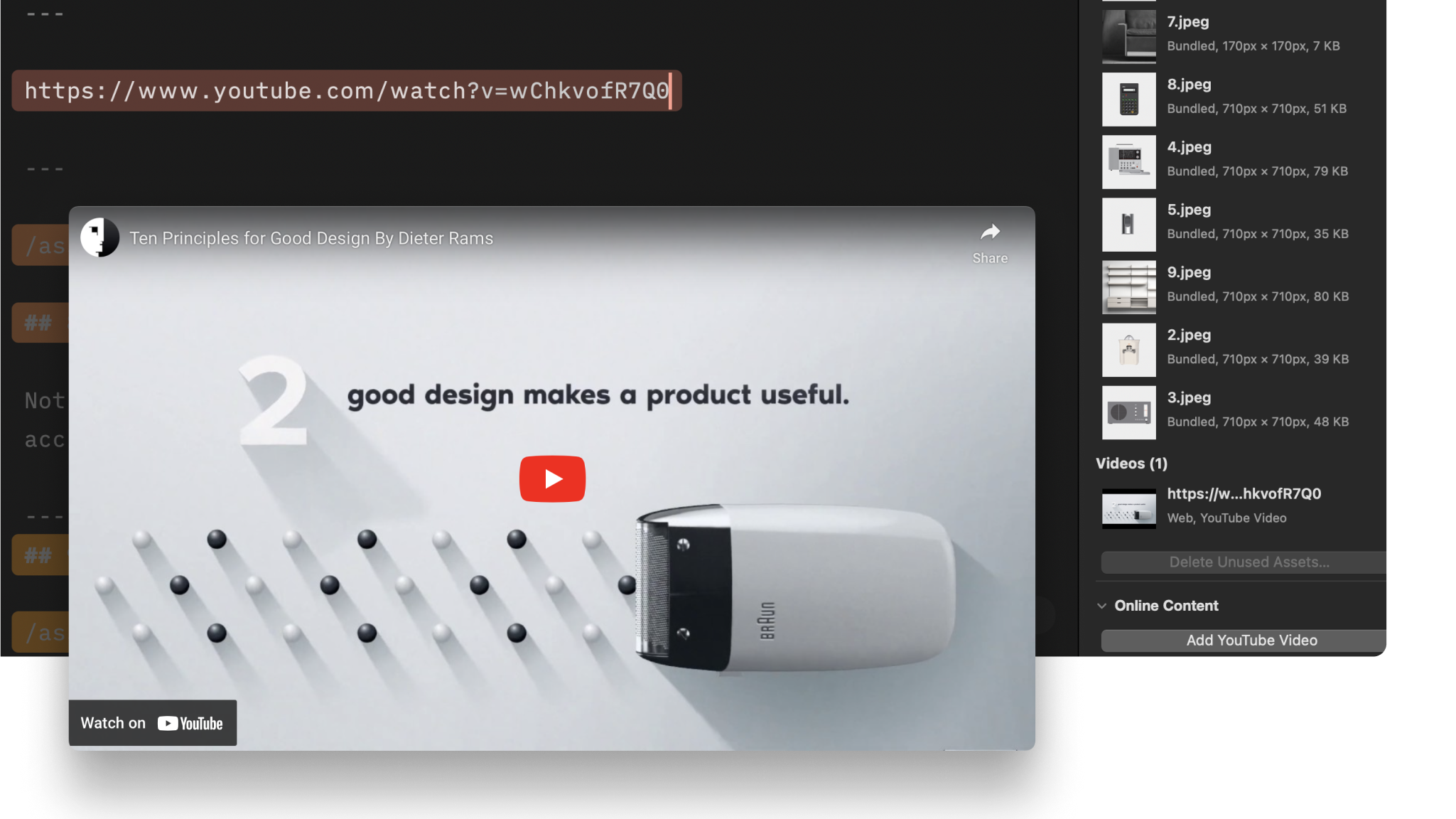
.png) - Add YouTube video links
- Add images using Unsplash
💡 Use the Unsplash option to quickly find and insert free, high-quality photos into your slides. Presenter will automatically add any captions and credits from the source. Read more about Unsplash integration into Presenter, or check out the video.

Image Options
If you use Content Blocks Syntax, then you can control some of the image aspects via its metadata (this option isn’t available with Markdown syntax).
Click the dropdown arrow ⬇️ at the end of the image’s path in the Editor, then select an option. As you add or remove options you’ll see them listed in the Editor, for example:
/Theme/image1.jpg
size: contain
x: right
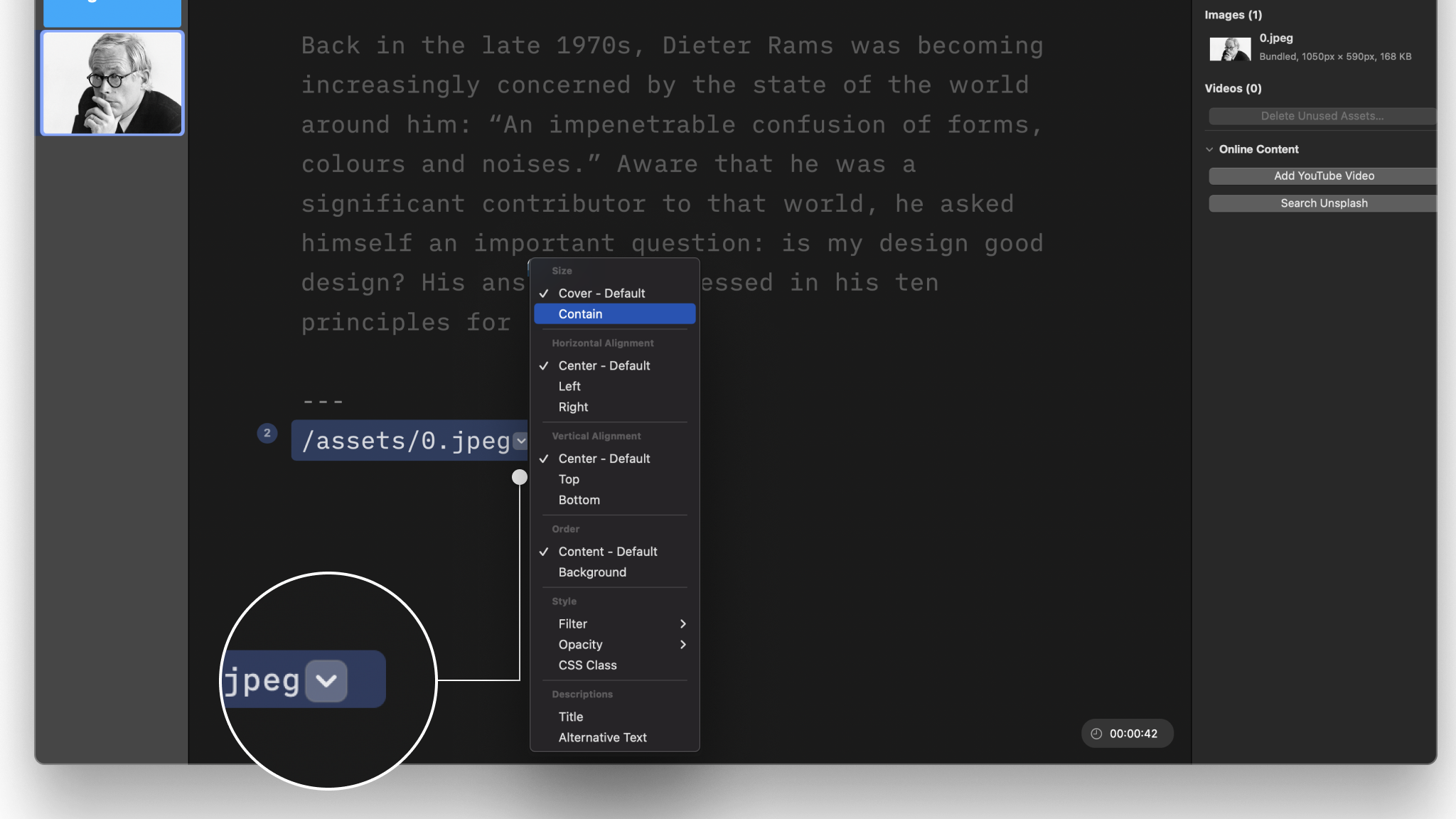
If you prefer keeping your hands on the keyboard, you can type image commands instead, for example:
- size: contain
- x: left
- y: bottom
- background: true
- filter: lighten
- opacity: 50%
Setting the Size
You can assign an image’s size to either Cover, or Contain.
Cover: The image is resized to entirely cover the available space while preserving its aspect ratio. The image will be clipped if it doesn’t exactly match the aspect ratio of its container.
Contain: The image fills all available space while preserving its aspect ratio. It will appear letterboxed if its aspect ratio doesn’t match the container’s aspect ratio.

Choosing an Aligment
You can choose between:
- Center (default), left or right for horizontal alignment
- Center (default), top and bottom for vertical alignment
In Presenter, images live in containers. A container can be the full slide, a column, or a cell in a
grid. Keep in mind that vertical or horizontal alignment positions depend on the aspect ratio of the image and its container.
By default, an image will be foreground element. This means it will share space with other elements, such as titles. If you prefer, set your image as a background that sits beneath other elements.
Order
You can choose between Content (default) or Background for your image. When set as Background, the title and other elements will appear on top of it. If the rendering looks off—due to the brightness or complexity of the image—playing with filters or opacity is the best way to improve text visibility.
Style
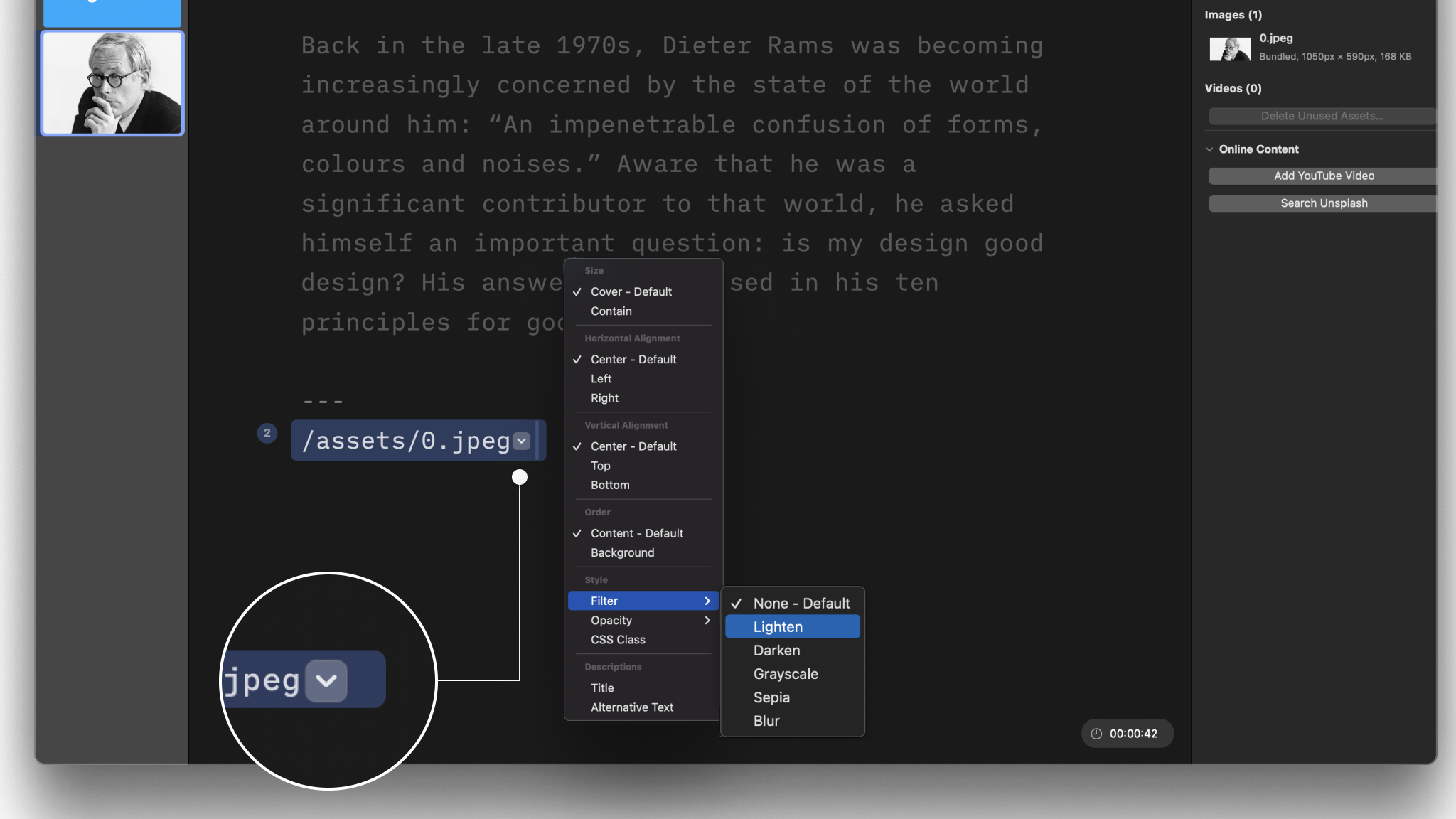
You can add lighten, darken, grayscale, sepia, and blur filters to your image, as well as change its opacity. These options are useful when you use an image as a background with other elements on top of it.
Users comfortable with CSS can create a CSS Class within a Custom Theme and apply it to a content block in their presentation, as here, an image.
When calling the CSS Class from your Custom Theme in the Editor, please use this simple syntax : Class: your css class name
💡 The responsive rendering of images in iA Presenter is a complex process. We generally don’t recommend adding CSS classes or other adjustments to force image placement, as this could lead to unexpected results depending on the devices used by your audience.
Descriptions
As a best practice, assign a title and alternative text to each image to improve accessibility.
Adding Captions
To display a caption, add it as an H4 heading by typing #### before your caption text, along with the image.
The caption’s position depends on the order in which you place those elements. The caption’s size stays the same, no matter which order you choose.
Add the H4 heading first if you want it to introduce or briefly describe the image beneath it. Display the image first if you want it to be more prominent, while the caption beneath it provides secondary detail or context.

 Visuals
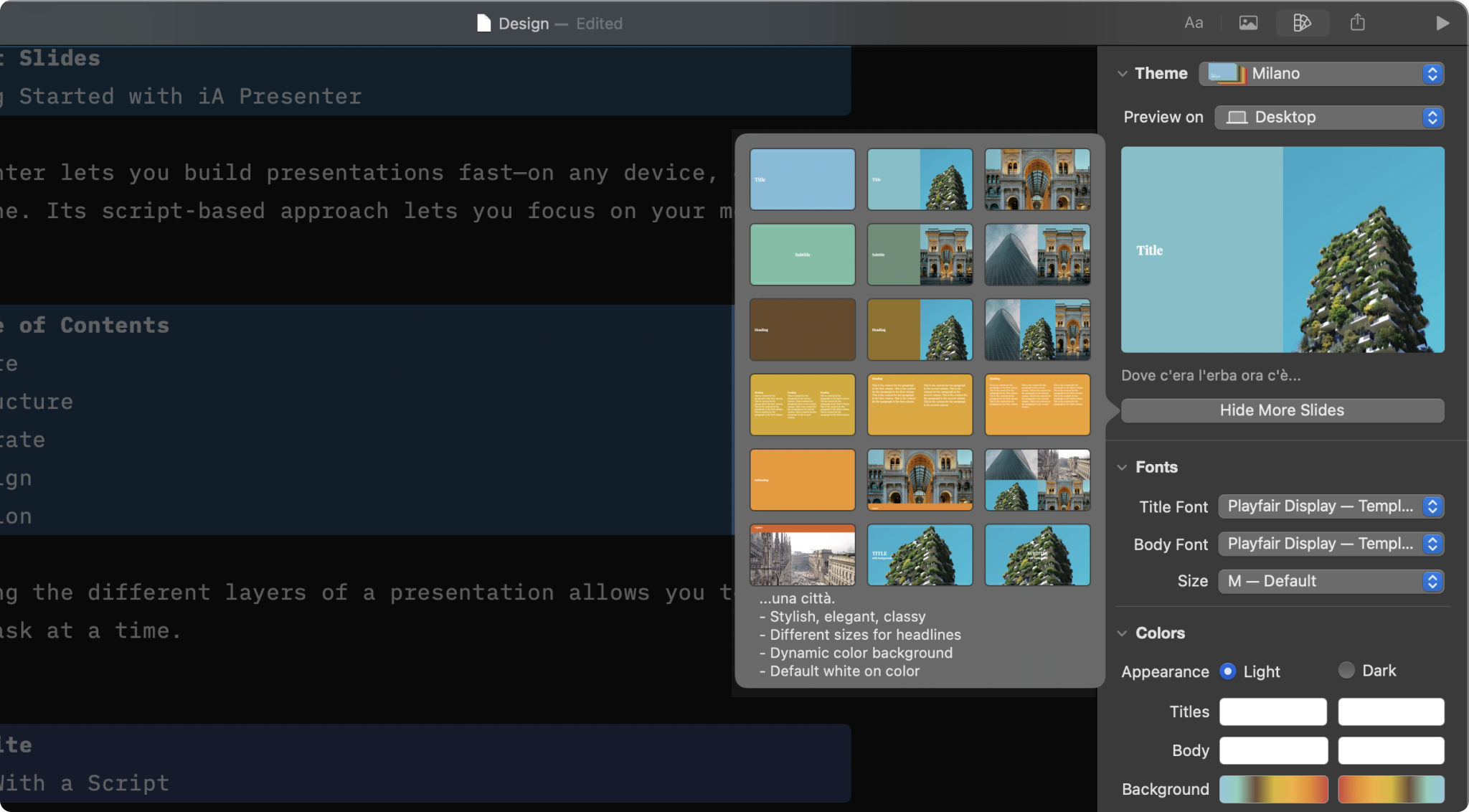
Design
Select a theme and slightly tweak it from the Design Menu

Layouts
Add your text and images, and Presenter picks the right layout for you.
Videos
Learn how to link to YouTube and add local videos to your presentation.
Themes
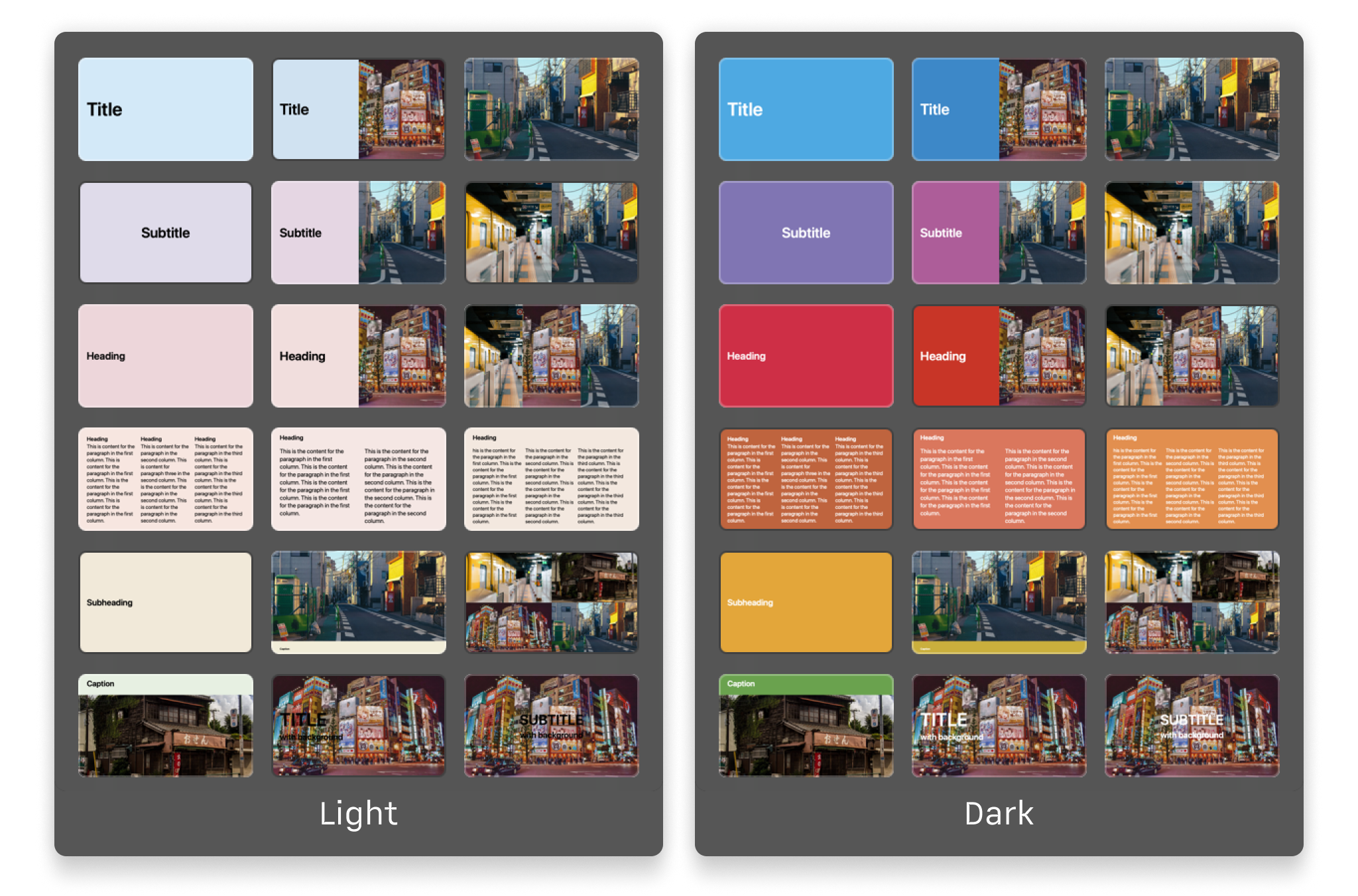
Explore the variety of themes offered in the app and the design principles that shaped each of them.
Custom Themes
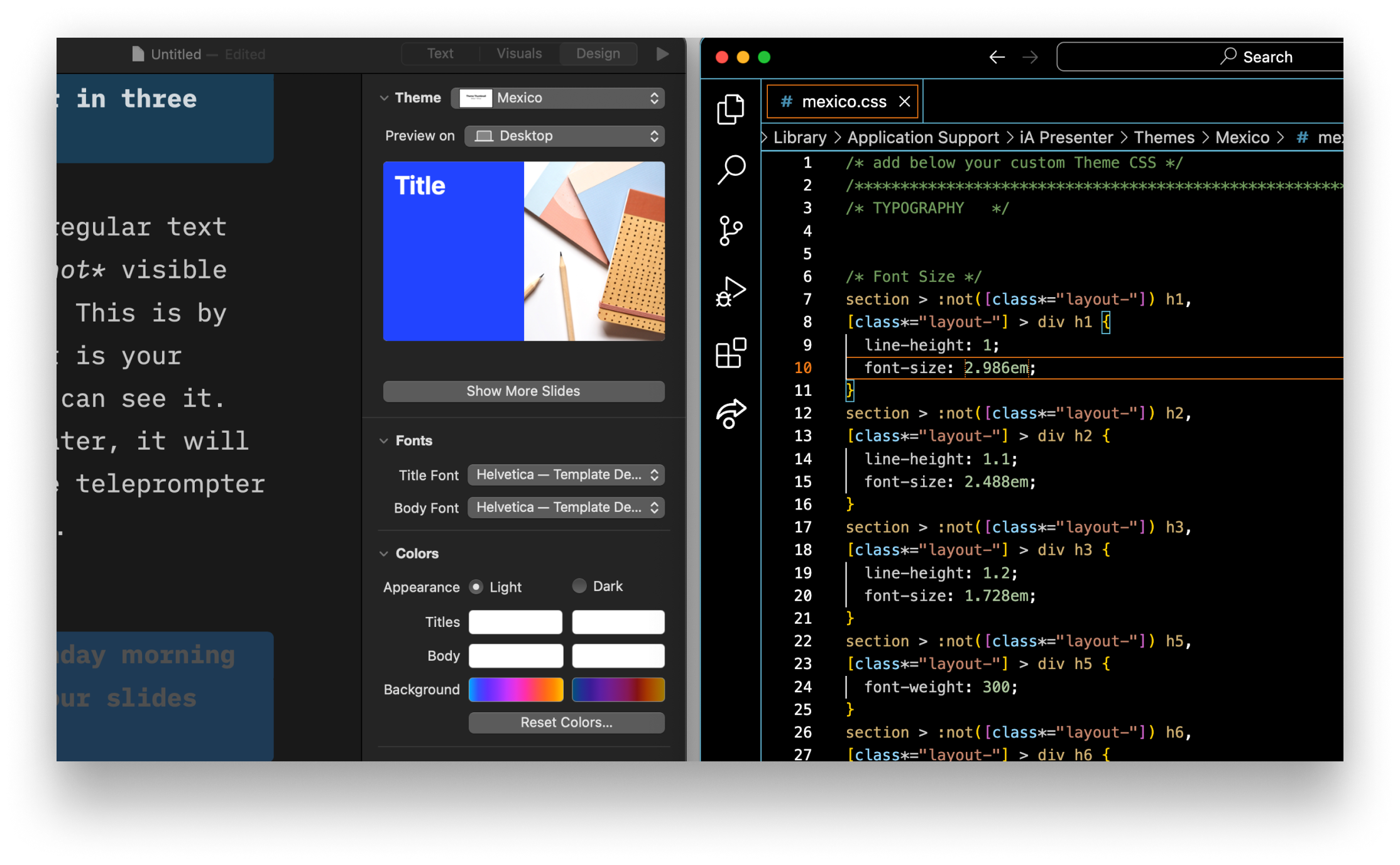
For those comfortable with coding, built a custom theme from scratch with HTML and CSS.